A tab bar can look right in a screenshot and feel wrong the first time you tap it. Its selection moves, stretches, samples the content underneath, and settles. A still image catches one moment in that process.
Alongside that rendering work, we’re bringing back an option long-time Codename One users will remember: choosing the Xcode version on our build servers. It follows last week’s build migration. We have separate iOS 26 and 27 theme generations, revised glass materials, and a closer look at the tab-selection animation. We also have local iPhone Duo support, with a different validation boundary from the ordinary iOS 27 CI runs.
Xcode Selection Is Back
You can ask the cloud build service to use Xcode 27 now. In the Settings app, under Build Hints, add:
ios.xcode_version=27
If you’ve been using Codename One for a while, this might look familiar. We supported Xcode selection in the past, then discontinued it because Apple’s Xcode upgrades kept forcing us to upgrade macOS too. With Xcode 27, that OS upgrade isn’t required yet. We can use virtualization to make both versions available again.
The current default is Xcode 26. We recommend leaving ios.xcode_version unset for most apps. The hint is mainly for testing against a newer toolchain, or for using a specific feature that needs the new SDK. There is no need to set it just to keep your app up to date with the build service.
Xcode 27.1 is still a beta. We’ll add it when it’s released, and we’ll switch the default to Xcode 27 when Apple’s requirements call for it. Leaving the hint unset lets your builds follow that default.
Choose the Theme Separately
Set these values in the Settings app under Build Hints:
ios.themeMode=modern
ios.themeGeneration=27
If you want native themes across platforms, use the shared hint instead of ios.themeMode:
nativeTheme=native
ios.themeGeneration=27
On iOS, that selects the modern family. It also enables the desktop platform themes, which nativeTheme=modern deliberately leaves unchanged. An explicit ios.themeMode takes precedence over the shared setting. See the theme selection in the iOS builder.
| Setting | What it chooses | What leaving it unset means |
|---|---|---|
ios.themeMode | The iOS theme family, overriding the shared hint | Follows nativeTheme; with neither set, keeps the existing iOS 7 theme |
ios.themeGeneration | Generation 26 or 27 of the modern family | Generation 26 |
ios.xcode_version | A toolchain on the cloud build service | Xcode 26, the current service default |
The generation hint is consulted only for the modern theme. An older theme doesn’t turn modern because you set 27 beside it.
An explicit Xcode version must exist on the server handling the cloud build. An unavailable version fails instead of silently substituting another SDK. This is a server selection hint; it doesn’t install Xcode or change a local build. The hint definition documents that distinction.
Local Builds Use Your Xcode Installation
For a local build on a Mac with Xcode 27 installed, select that installation for the build process. For example, with the application at /Applications/Xcode27.app:
DEVELOPER_DIR=/Applications/Xcode27.app/Contents/Developer \
  mvn cn1:buildIosXcodeProject
Use the same installation when building and running the generated project. The CI screenshot workflow and fidelity workflow now have Xcode 27 legs alongside the existing generation. A workflow entry proves what is configured; the result of a particular run still matters.
Dark glass needs an edge
A blur softens the backdrop. It doesn’t by itself make a dark floating surface distinguishable from the dark content behind it.
The iOS 27 rendering work adjusts the luminance curve and adds the dark outline visible around the native floating material. We group the material settings into recipes: chrome for edge bars, pill for the floating tab surface, and panel for panels and buttons. A UIID selects the appropriate recipe instead of independently tuning a pile of glass constants.
The theme sources are split into common rules and generation-specific rules. That keeps ordinary controls shared while allowing the glass treatment to change. It also gives your own CSS the same place to override the result.
See the Glass in Motion
The selection stretches as it moves between tabs. The backdrop and edge treatment have to remain readable throughout that movement, including against dark content:
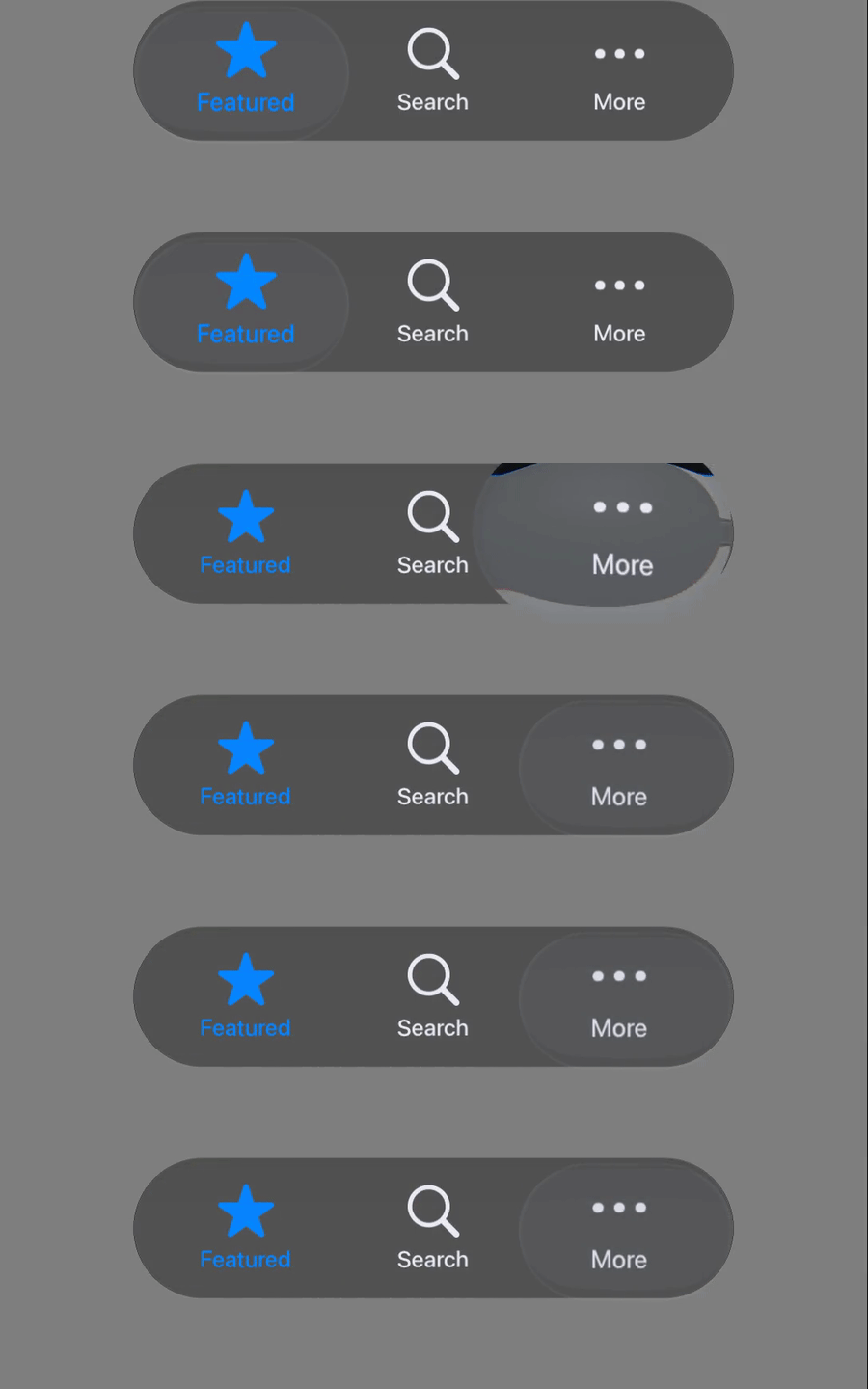
Codename One’s iOS renderer on an iPhone 16 simulator running iOS 27.0. These are deterministic samples across the theme’s 480 ms animation, with holds before and after. The clip shows the rendered motion; it isn’t a live frame-rate measurement.
We use fixed samples to catch rendering regressions while changing the glass recipes. There is still work to do on fidelity, and a short animation can’t tell you how the theme will behave over all of your app’s content. Try it over images, scrolling lists, and your own brand colors before adopting it.
PR #5888 refines the dark rendering and animation tests; PR #5876 connects the selected generation through to the device theme.
A closed foldable still has a hinge
The Duo work exposed a useful trap. A closed device can report no dividing screen region while still reporting a live, closed hinge. If you identify foldables only by looking for a region that divides the screen, the device stops being a foldable precisely when it folds shut.
The iOS bridge uses hinge state as well as division regions. It also distinguishes a fold from an occlusion such as the camera housing. The public Java API stays DevicePosture:
import com.codename1.ui.CN;
import com.codename1.ui.DevicePosture;

DevicePosture posture = CN.getDevicePosture();
if (posture.isFoldable()) {
    int angle = posture.getHingeAngle(); // Degrees; -1 means unknown.
    int state = posture.getPosture();
    // Choose the layout for this state, then observe later posture changes.
}
For a top-and-bottom layout, also check that getFoldOrientation() is FOLD_ORIENTATION_HORIZONTAL. A partially open book posture needs a different layout. Keep important controls outside getFoldBounds(null) when a separating region exists.
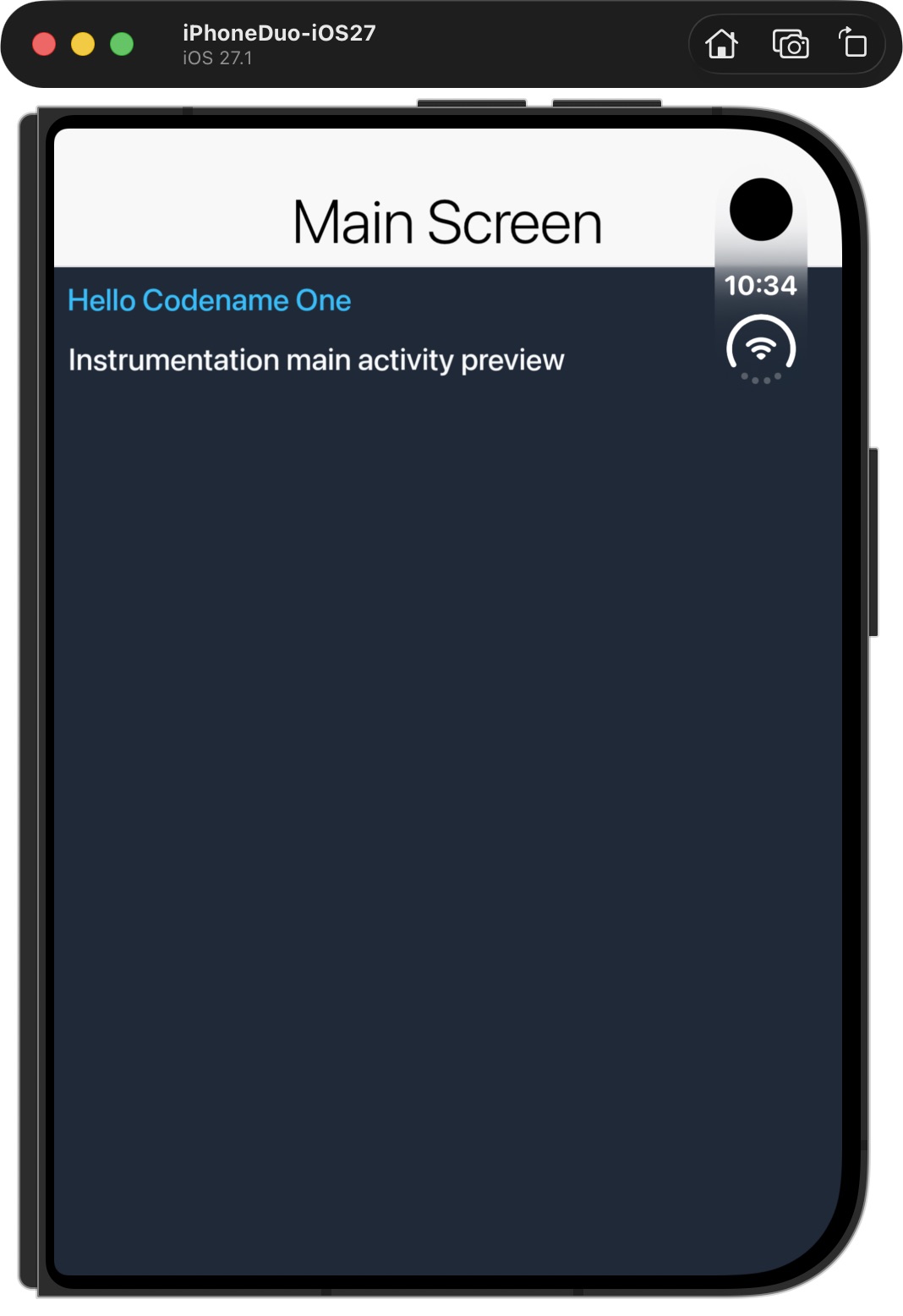
Local capture of the installed HelloCodenameOne instrumentation app in the Duo simulator, including the simulator device frame. This shows the app running on the beta device profile. It is not a fold-transition test or a demonstration of the new glass theme.
Duo support has been tested locally with the iOS 27.1 beta simulator. It has not been validated on shipping Duo hardware. Hinge support requires the iOS 27.1 SDK at compile time as well as a supporting runtime. The bridge checks for UIKit/UIHingeInteraction.h before compiling the implementation, then checks runtime availability before calling it. The cloud’s Xcode 27.0 toolchain does not include that header, so ios.xcode_version=27 builds contain no hinge implementation, even if installed on iOS 27.1. For now, testing the hinge API requires a local build with the Xcode 27.1 beta. We expect the path to carry forward when the SDK is released, but that still needs a release-SDK and device check. The bridge source and PR #5871 show the boundary.
Health data needs the same precision
The Health API adds HealthDataType.HEART_RATE_VARIABILITY_RMSSD. RMSSD and SDNN are different heart-rate variability statistics. The API doesn’t substitute one for the other when a platform lacks the requested type.
RMSSD on iOS requires both the iOS 27 SDK at build time and a supporting runtime. An older combination reports TYPE_NOT_SUPPORTED. Android Health Connect has RMSSD, while SDNN is unsupported there. That is API interoperability, not an assertion that two different measurements can be compared as if they were the same. The Health guide explains the mapping.
One iOS renderer to maintain
We removed the OpenGL ES renderer in PR #5875. Metal now handles iOS rendering. Remove ios.metal from old projects; the hint that previously selected the rendering path is no longer valid.
That removes a deprecated path from the compiler output and from our maintenance work. We aren’t attaching an unmeasured build-speed number to it. The practical benefit is that the renderer receiving these glass fixes is also the renderer our iOS builds use.
Start with a copy of a screen you know well. Build against the selected Xcode installation, enable generation 27, and check light and dark appearances while interacting with it. Then test your branded overrides and any embedded native peers. The weekly overview explains the wider release; tomorrow we move from UI state to managed database state.
Discussion
Which part of adopting a new iOS appearance has caused the hardest regression in your app?