The com.codename1.gpu package provides a portable, hardware accelerated 3D
graphics API focused on games but useful anywhere you need GPU rendered content.
It runs from one code base on the JavaSE simulator (OpenGL via JOGL), Android
(OpenGL ES 2), iOS and macOS (Metal), the native Windows port (Direct3D
11), and the JavaScript port (WebGL). The API integrates with the normal Codename
One UI: a 3D scene lives inside a regular component that you add to a Form like
any other.
Your Renderer callbacks run on the native platform render thread — NOT the
Codename One EDT. This is the single most important thing to understand before
you write any 3D code.
onInit, onResize, onFrame and onDispose are invoked on the underlying
OS/GPU render loop (GL / Metal / Direct3D), not on the event dispatch thread.
From inside them you must not touch Codename One UI components, show forms, or
call other EDT-only APIs. To push data back to the UI (for example to update a
HUD label or react to a game event) hop onto the EDT with CN.callSerially(…).
Conversely, treat the GraphicsDevice and the objects it hands you as owned by
the render thread.
CN.isGpuSupported() (or RenderView.isSupported()); on a platform without a
backend the RenderView reports unsupported so you can fall back to 2D.Concepts
The API is intentionally "hybrid": a low level command layer (buffers, textures, render state, draw calls) for full control, plus high level helpers (meshes, materials, a camera) for common cases. Crucially, you never write shader source. Instead you describe a Material (a lighting model plus color and texture) and the engine generates the matching platform shader behind the scenes: GLSL ES on OpenGL ES and WebGL, GLSL on the desktop simulator, Metal Shading Language on iOS and Mac, and HLSL on the native Windows (Direct3D) port. This "engine-managed shader" approach is what keeps the same application code rendering identically across a range of different GPUs.
The main types are:
RenderView - the
Componentthat hosts the GPU surface. You give it aRenderer.Renderer - your callback:
onInit,onResize,onFrame,onDispose. These run on the platform render thread, never the EDT.GraphicsDevice - the command surface passed to your renderer. It creates buffers and textures, clears, sets the viewport, the camera and the light, and issues
drawcalls.Mesh, Material, Camera, Light - the high level scene building blocks.
A first scene: A spinning cube
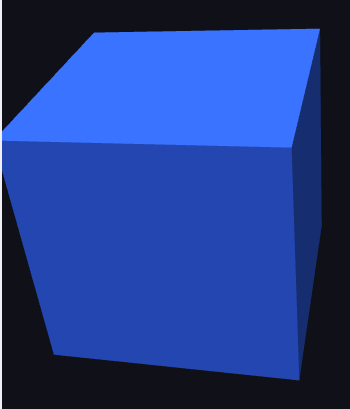
The renderer below draws a Phong lit cube. Primitives.cube builds the geometry,
a Material describes the surface, and a Camera supplies the view. Notice there
is no shader code anywhere.
setContinuous(true) runs an animation loop. For a static scene leave it off and
call view.requestRender() whenever something changes; this conserves battery.
Materials
A Material is a declarative description of a surface. Its Type selects the
lighting model:
| Type | Description |
|---|---|
| Flat color/texture, no lighting. Ideal for UI, emissive surfaces. |
| Diffuse (Lambert) lighting from one directional light. |
| Diffuse + specular highlight (uses |
| Unlit, for screen aligned sprites and billboards. |
| Unlit background, rendered behind the scene. |
A material also carries a base color (setColor, packed 0xAARRGGBB), an
optional Texture (setTexture), and a RenderState controlling depth testing,
alpha blending and face culling. Textures come from a Codename One Image or raw
ARGB pixels:
Texture tex = device.createTexture(myImage);     // or createTexture(w, h, argb)
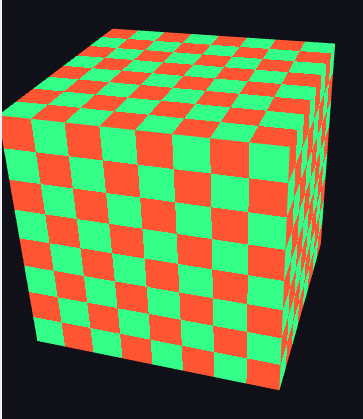
// NEAREST keeps texel edges crisp, which is what the checkerboard in the
// figure below needs. LINEAR is the better default for photographic
// textures, where smoothing is wanted rather than avoided.
tex.setFilter(Texture.Filter.NEAREST).setWrap(Texture.Wrap.REPEAT);
Material m = new Material(Material.Type.UNLIT).setTexture(tex);
Meshes and buffers
Primitives builds common shapes (cube, quad). For custom geometry, allocate a
VertexBuffer
with a VertexFormat, fill the interleaved float data, and (optionally) an
IndexBuffer:
VertexBuffer vb = device.createVertexBuffer(VertexFormat.POSITION_NORMAL_TEXCOORD, 4);
vb.setData(new float[] { /* px,py,pz, nx,ny,nz, u,v  per vertex null */ });
IndexBuffer ib = device.createIndexBuffer(6);
ib.setData(new int[] { 0, 1, 2, 0, 2, 3 });
Mesh mesh = new Mesh(vb, ib, PrimitiveType.TRIANGLES);
Vertex buffers are allocated through the platform SIMD allocator, which on iOS
(ParparVM) places the data at a fixed, aligned native address so it can be handed
to Metal with no intermediate copy. You don’t need to do anything special to get
this; just write into getData() and call setDirty() when you mutate it.
Loading models
Real scenes use authored geometry. GltfLoader loads a glTF 2.0 model, both the
binary .glb container and the JSON .gltf form with embedded buffers.
loadModel returns the mesh together with the base-color texture from the model’s
own material, so a textured model renders with no extra setup:
InputStream in = Display.getInstance().getResourceAsStream(getClass(), "/boombox.glb");
GltfLoader.GltfModel loaded = GltfLoader.loadModel(device, in);
Material material = new Material(Material.Type.PHONG).setShininess(16f);
if (loaded.getBaseColorTexture() != null) {
    material.setTexture(loaded.getBaseColorTexture());
}
Mesh model = loaded.getMesh();           // draw it like any other mesh
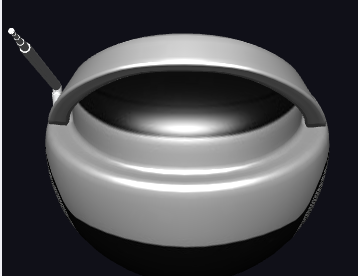
The model below is the Khronos "BoomBox" glTF sample (a CC0 model carrying its own base-color texture), loaded this way and drawn Phong lit:
Animation
Drive a value (a rotation angle, a position) over time and redraw. A continuous
RenderView calls onFrame every frame; an on-demand view redraws when you call
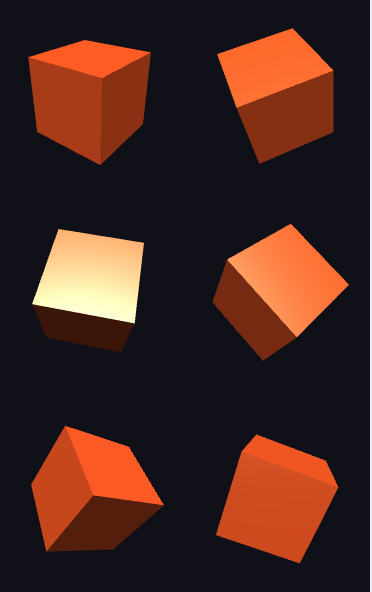
requestRender(). The grid below captures six fixed rotation stages of a spinning
cube, each drawn into its own viewport in a single frame:
Camera and math
Camera builds
the view and projection matrices from an eye position, a look-at target and lens
settings (setPerspective or setOrthographic). All matrix helpers live in
Matrix4
(column-major float[16]): translation, scaling, rotation, multiply,
lookAt, perspective, ortho. Pass a model matrix as the third argument to
draw, or null for the identity.
Platform notes
JavaSE simulator - OpenGL through JOGL, loaded from an isolated class so a missing or failing GL driver degrades to a built in software rasterizer instead of breaking the simulator. Lets you develop and debug 3D without a device.
Android - OpenGL ES 2 via a
GLSurfaceViewhosted as a native peer.iOS and macOS - Metal. Shaders are generated as Metal Shading Language and compiled at runtime; vertex/index data is uploaded to `MTLBuffer`s, zero-copy where the SIMD allocation permits.
Native Windows - Direct3D 11. Shaders are generated as HLSL and compiled with
D3DCompile; the offscreen render target is read back and composited into the UI.JavaScript - WebGL on a
<canvas>peer; the generated GLSL ES runs unmodified.
Querying capabilities at runtime:
if (CN.isGpuSupported()) {
    GpuCapabilities caps = device.getCapabilities();
    Log.p("GPU " + caps.getRendererName()
            + ", max texture " + caps.getMaxTextureSize()
            + ", shader level 3: " + caps.isShaderLevel3());

    // Size the atlas to what this device can actually hold rather than
    // assuming a figure: the limit is as low as 2048 on older hardware.
    int edge = Math.min(2048, caps.getMaxTextureSize());
    Log.p("atlas edge " + edge);

    if (caps.isIntIndicesSupported()) {
        // 32-bit indices are available, so a mesh may exceed 65535 vertices
    }
}
Threading
Renderer callbacks run on the platform render thread, not the Codename One EDT.
Don’t touch UI components from inside them. To move data the other way (for
example to update a HUD label from a game loop), use CN.callSerially(…).