Both Apple and Google provide an in-app review prompt that lets the user rate your app without leaving it. Asking for a review at the right moment is one of the most effective ways to improve your store rating. Codename One exposes this through the com.codename1.appreview.AppReview API, which uses the native review sheet (SKStoreReviewController on iOS, the Play In-App Review API on Android) when it’s available and falls back to a Codename One drawn rating widget everywhere else (the simulator, desktop, the web target and older OS versions).
The native prompt is the store-sanctioned way to ask for a review, so prefer it over a hand-rolled dialog: the operating system controls how often it appears and throttles excessive prompts, which keeps your app within store policy.
Asking for a review
The simplest usage is a single call at a moment that makes sense in your app — typically right after the user completed something rewarding (finished a level, saved a document, completed an order):
// Configure the store URL and the feedback route first -- the next
// sample does that. Where no native review prompt exists this opens the
// fallback widget, and without them a high rating opens nothing while
// low-rating feedback goes nowhere. The flow still records itself as
// completed, so the user is never asked again.
AppReview.getInstance().requestReview();
requestReview() shows the native review sheet when the platform supports it. On platforms without a native prompt it shows the built-in rating widget instead. You decide the timing.
The engagement scheduler
Rather than picking the moment yourself, you can let AppReview decide based on simple engagement heuristics: how many times the app was launched, how long ago it was installed, and how long since it last asked. Configure it once (for example in your app’s init or start method) and call registerSession() on every launch — but after a form is showing, not during init. It prompts as soon as the thresholds are met, and on a platform with no native prompt that dialog is a Sheet, which needs something to show on:
// When no native review prompt is available the dialog falls back to
// opening this URL, and that happens on the simulator, the desktop and
// the web target as well as on a device, so every target needs an answer
// rather than everything-except-Android getting the Apple listing.
String storeUrl;
if ("ios".equals(CN.getPlatformName())) {
    storeUrl = "https://apps.apple.com/app/id0000000000";
} else if ("and".equals(CN.getPlatformName())) {
    storeUrl = "https://play.google.com/store/apps/details?id=com.example.app";
} else {
    storeUrl = "https://example.com/app";   // no store listing to send them to
}

AppReview.getInstance()
        .setMinimumLaunches(5)          // at least 5 launches
        .setMinimumDaysInstalled(3)     // and installed at least 3 days
        .setDaysBetweenPrompts(30)      // never nag more than monthly
        .setStoreUrl(storeUrl)
        .setSupportEmail("[email protected]");

// registerSession() prompts as soon as the thresholds are met, and the
// fallback dialog is a Sheet, which throws when no form is current. That
// is exactly the state during init, so configure there and record the
// session once a form is up.
form.addShowListener(new ActionListener() {
    public void actionPerformed(ActionEvent e) {
        // Once per launch. registerSession() increments the launch
        // counter, and a show listener fires again every time the user
        // navigates back here -- which would reach the thresholds after
        // a few screens rather than after the launches you configured.
        form.removeShowListener(this);
        AppReview.getInstance().registerSession();
    }
});
registerSession() records the launch and, once the thresholds are met and the user hasn’t already rated or opted out, prompts. The bookkeeping (launch count, install date, last-prompt time and a completion flag) is stored in Preferences so it survives restarts. Once the user rates the app or chooses to stop, AppReview stops prompting. Call reset() to clear this state.
registerSession() for the automatic cadence and still call requestReview() from a "Rate this app" menu item.Smart feedback split
The fallback widget is presented as a bottom sheet, so the user can swipe it away instead of dismissing a blocking dialog. It asks for a star rating and then routes the user based on the result. A high rating (at or above the threshold set by setHighRatingThreshold(int), four stars by default) sends the user to your store listing. A low rating opens a private feedback step instead, so unhappy users reach you directly rather than posting a one-star public review.
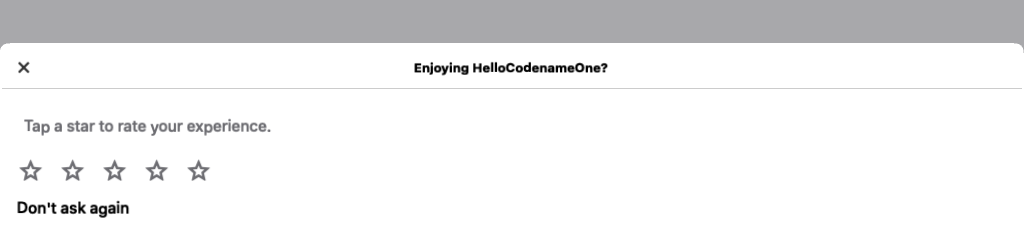
By default the low-rating feedback is collected through an e-mail to the address passed to setSupportEmail(String). To deliver feedback through your own backend, register a FeedbackListener:
AppReview.getInstance().setFeedbackListener(new FeedbackListener() {
    public boolean lowRating(int rating) {
        // return true to present your own feedback UI and suppress the
        // built-in e-mail composer
        return false;
    }

    public void feedback(int rating, String text) {
        // called with the free text the user typed in the built-in composer
        myBackend.submitFeedback(rating, text);
    }
});
How the platform decides
AppReview checks CN.isNativeInAppReviewSupported() to choose between the native prompt and the fallback sheet. On Android the native path is active only when the app references the app-review API — the build adds the Play In-App Review library in that case, so apps that never ask for a review carry no extra dependency. On iOS the StoreKit review controller is linked the same way, only when the API is used.
The native prompts are drawn by the operating system, so this guide can’t show them as Codename One screenshots. On iOS the prompt is the StoreKit rating panel: a star selector the system overlays on your app, submitted without leaving it. On Android it’s the Play In-App Review card that slides up from the bottom. Both are styled and rate-limited by the OS — you can’t theme them, force them to appear, or read the outcome, which is why the fallback sheet shown above renders on every other platform.