Bazaar is a sample commerce platform with a server behind it. Shoppers browse a store, fill a cart and check out. The merchant’s staff manage the catalog and the stock, pack and ship the orders, and sell over the counter on a register that keeps working with no network. An administrator runs the platform the stores live on. The app and the server are one Maven project, written in Java on both sides.
This chapter is the user’s guide: what each kind of user sees and can do. Bazaar: Building on the sample is the other half. It explains how the project is built and what to replace before it takes real orders. Bazaar: Feature comparison sets Bazaar’s features beside other commerce platforms.
One app serves everyone, on a phone, a tablet, a desktop or in a browser. The server gives every account a set of roles, and the app opens on the screen that fits them. On a phone the sections are tabs at the bottom, and the button at the top right opens a More options sheet that switches between the shop, the back office and the register the account can use, and holds Settings and Sign in or Sign out. On a wide screen the sections are a sidebar, and on a desktop the app adds native menus, keyboard shortcuts, right-click menus on rows and second windows.
| Role | What it adds |
|---|---|
Shopper | Every account is a shopper, and a guest can browse and fill a cart before signing in. Browse and search a store, choose variants, check out, follow the order, keep a wishlist and saved addresses, and review what they bought. |
Owner or manager | Runs a store: the dashboard, products, inventory, orders and fulfilment, customers, discounts, gift cards, shipping and taxes, analytics, automations, webhooks and the store’s settings. |
Cashier | Works the store’s register: opens a shift, sells, takes returns and closes the shift with a cash count. |
Administrator | Runs the platform: approves and suspends stores, manages accounts and sees the platform’s payments and totals. |
Trying it
Start the server on the development profile and run the app, as
Running it shows. The development profile creates these accounts, all
with the password bazaar-demo:
| Account | Who |
|---|---|
Shoppers | |
A shopper an administrator has flagged | |
Owns Northwind Outfitters | |
Works the Northwind register; the register PIN is | |
Runs the platform |
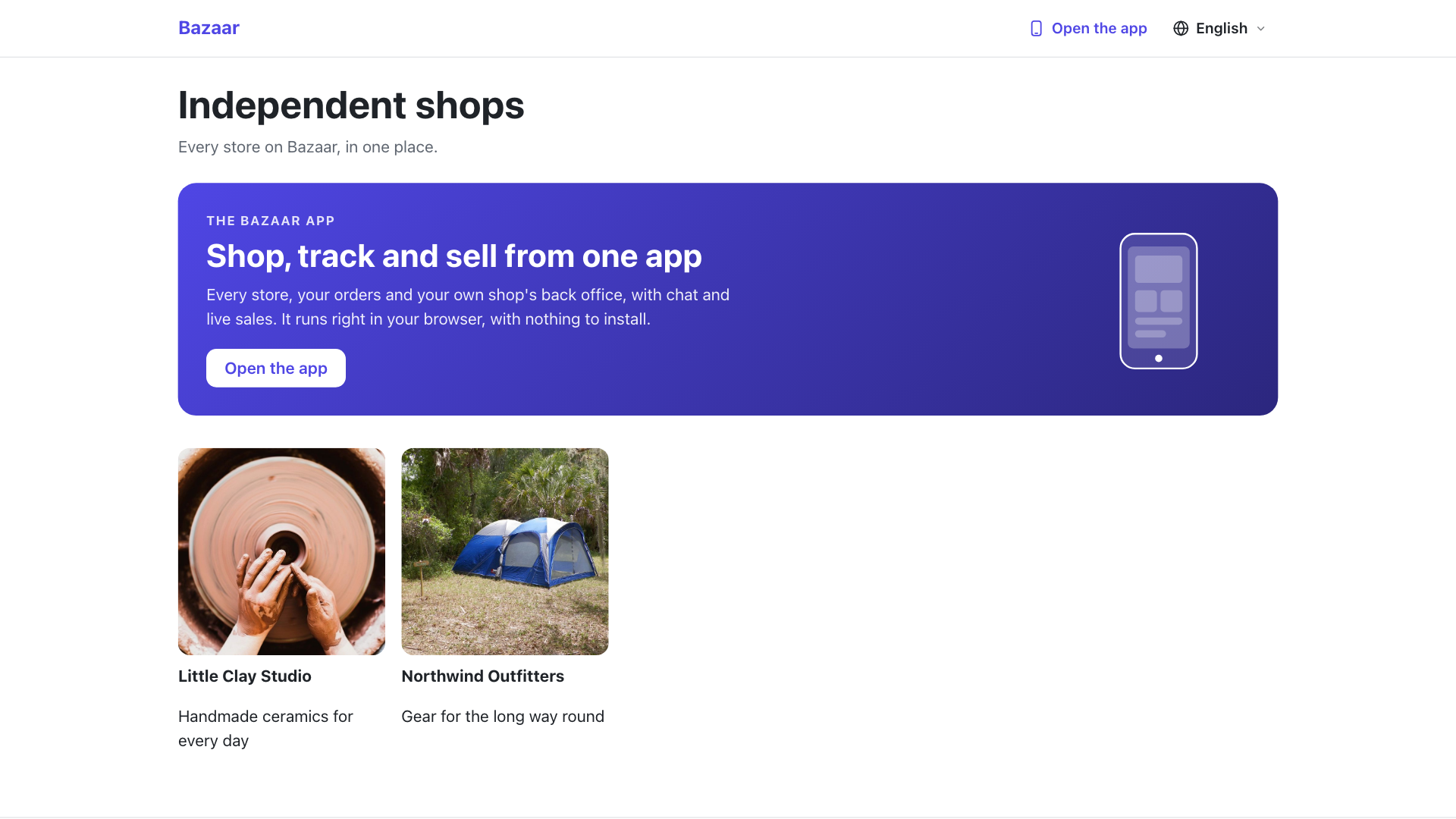
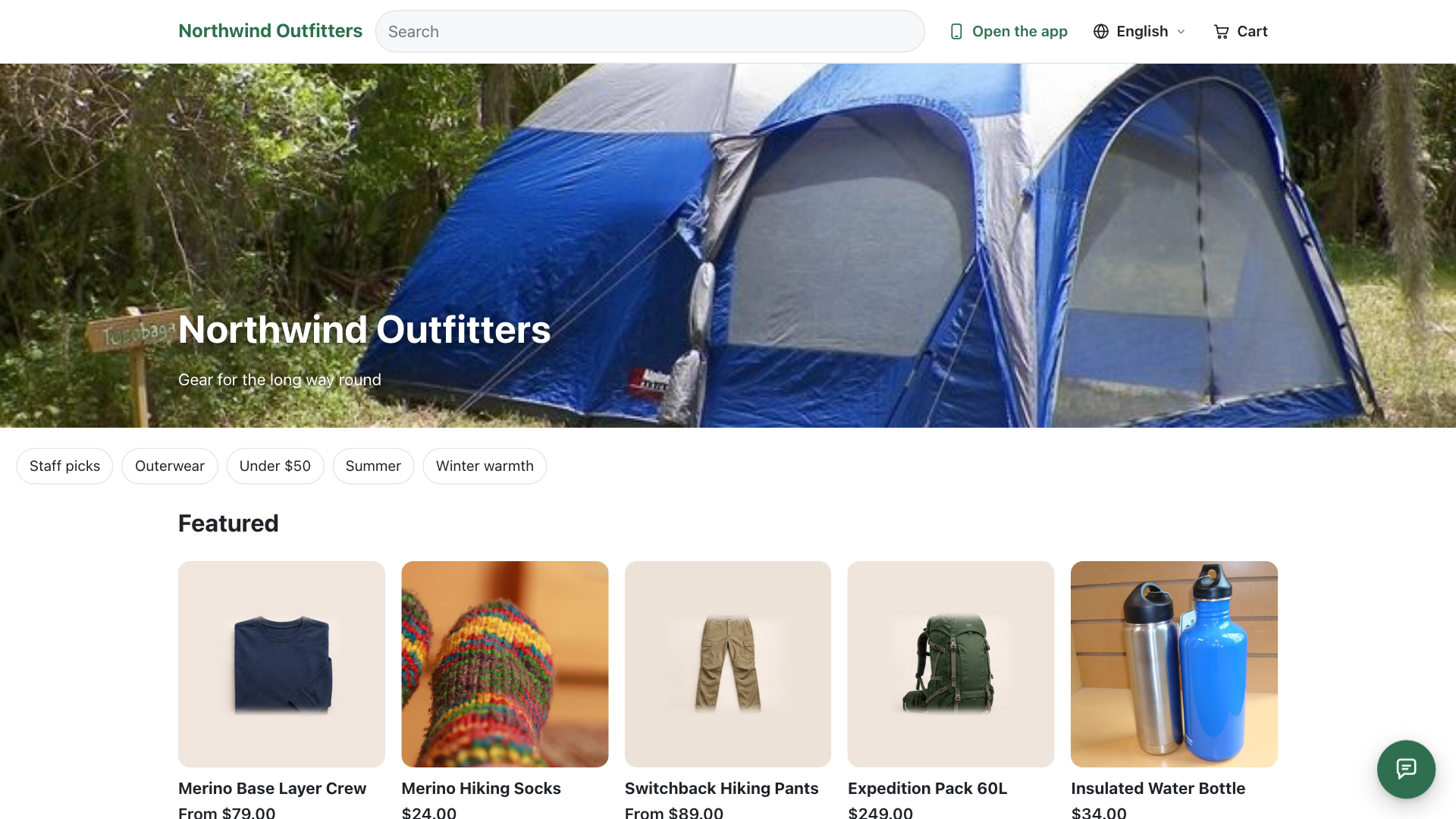
It also creates two stores. Northwind Outfitters (handle northwind) sells
apparel and outdoor gear from a warehouse, a downtown store and a weekend pop-up.
Little Clay Studio (handle littleclay) sells ceramics from one studio shop. Each
has about thirty products with stock that’s plentiful, low and gone, collections,
a supplier and an open purchase order, shipping zones and tax rates, and three
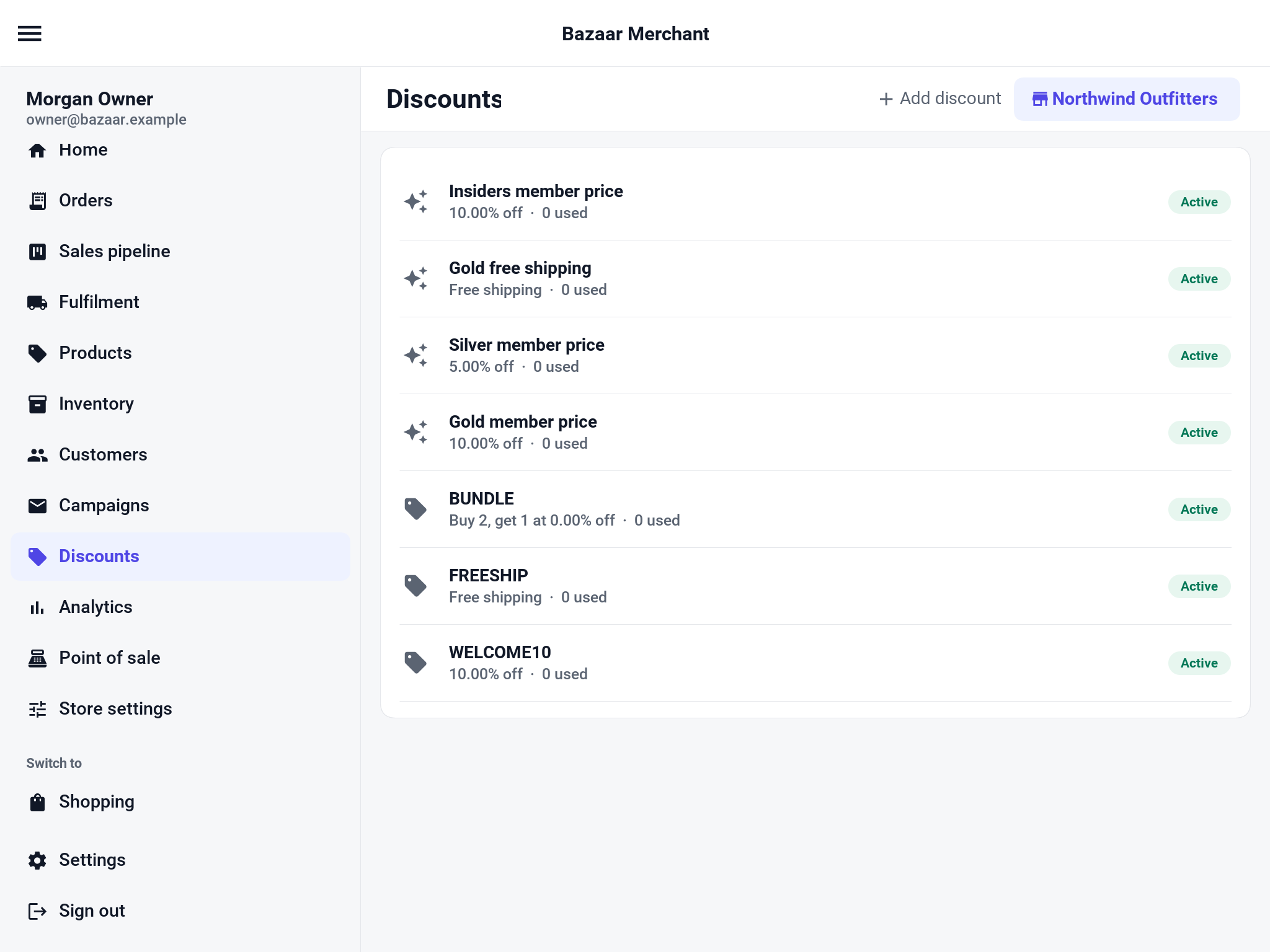
discount codes: WELCOME10 (10% off a first order), FREESHIP (free shipping
over $75) and BUNDLE (buy 2, get 1 free).
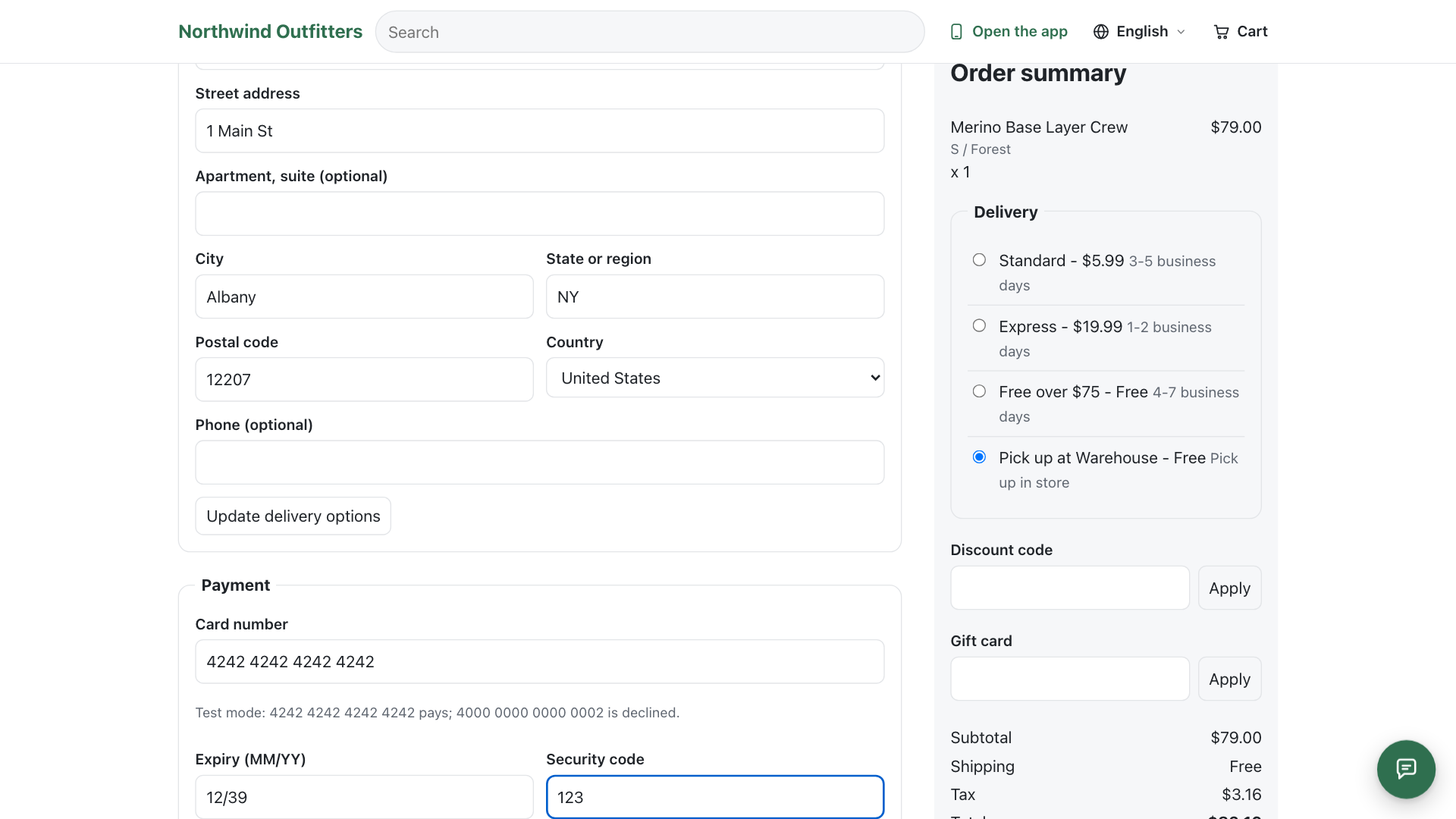
Cards are simulated: 4242 4242 4242 4242 is accepted and 4000 0000 0000 0002
is declined. No money moves.
The shopper
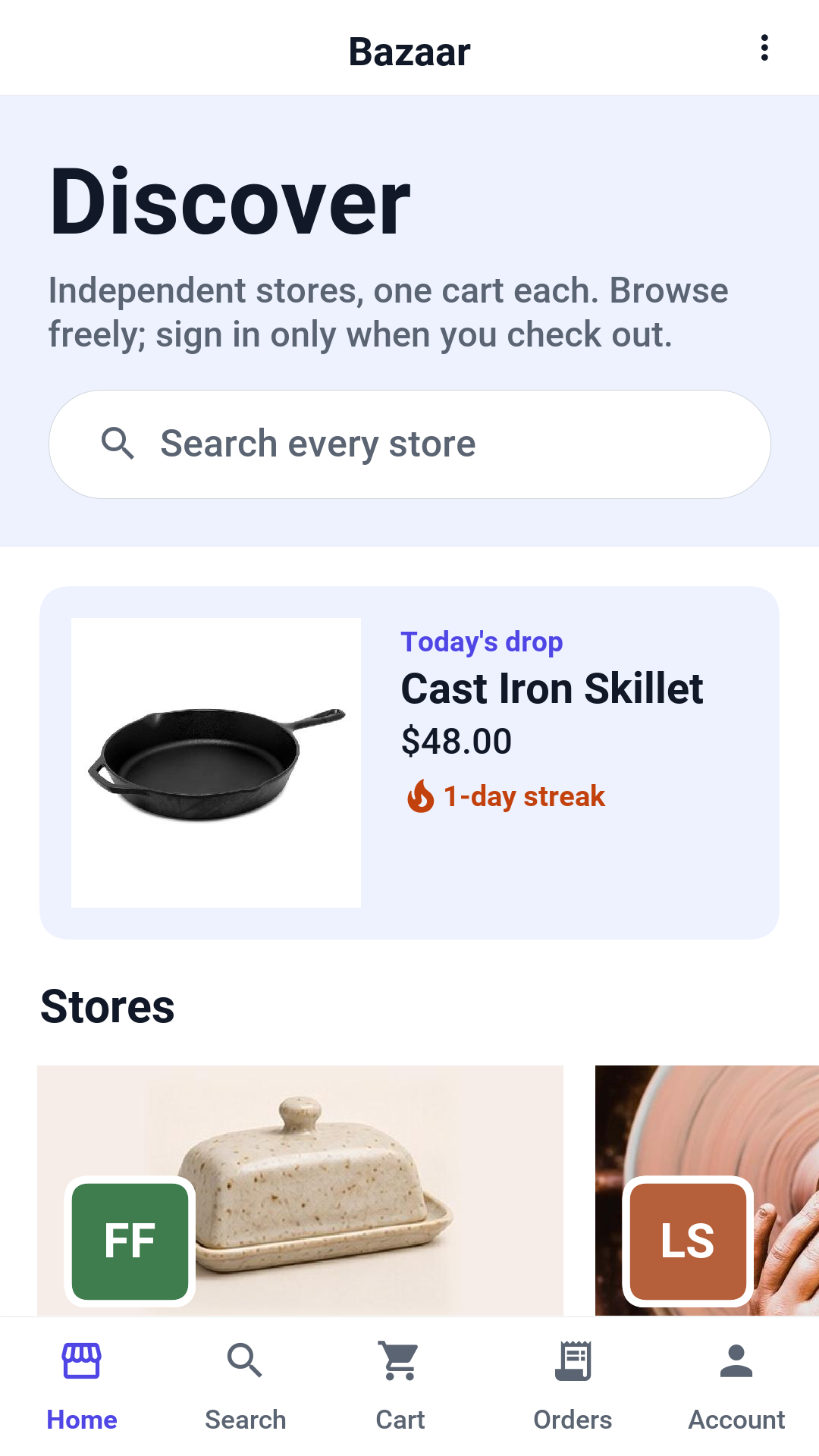
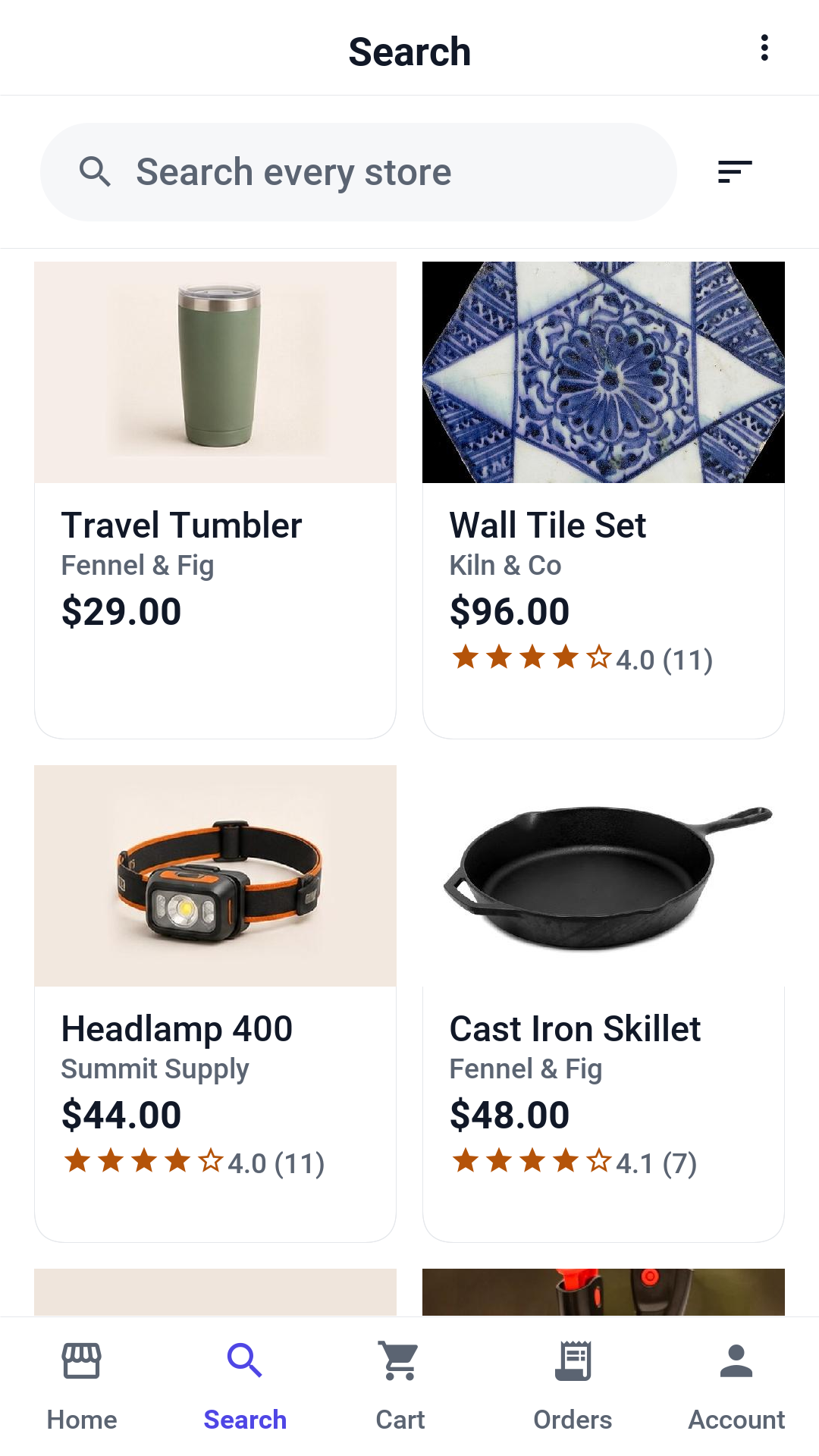
The app opens straight into shopping. Nobody has to sign in to look around: the Discover tab shows every store on the platform, what’s popular and the newest products across them all, and Search runs across every store. Opening a store shows its own page: its banner, its collections and new arrivals, and a search that stays inside the store with filters for collection, price, and availability. The arrow on the banner goes back to Discover.
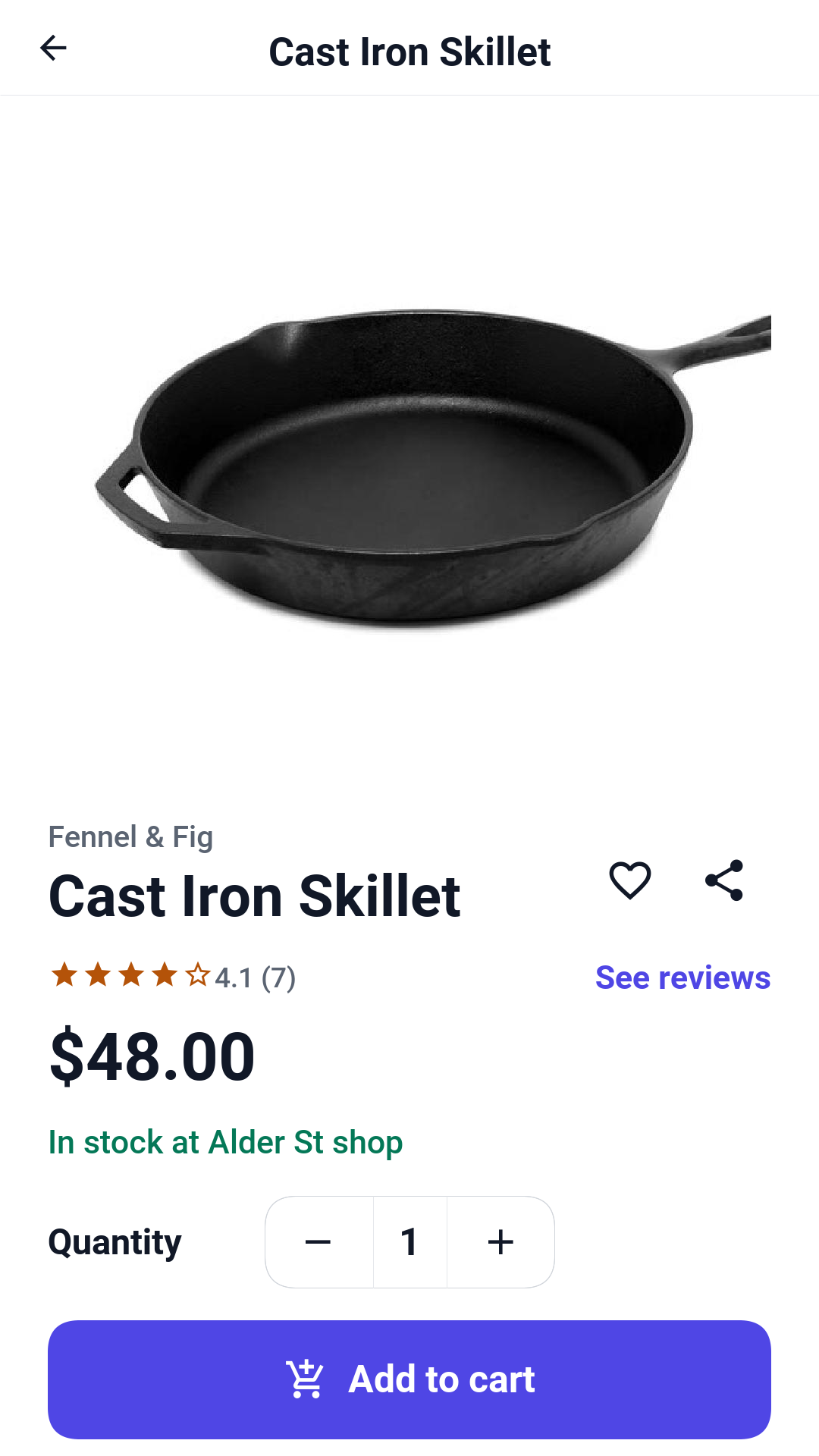
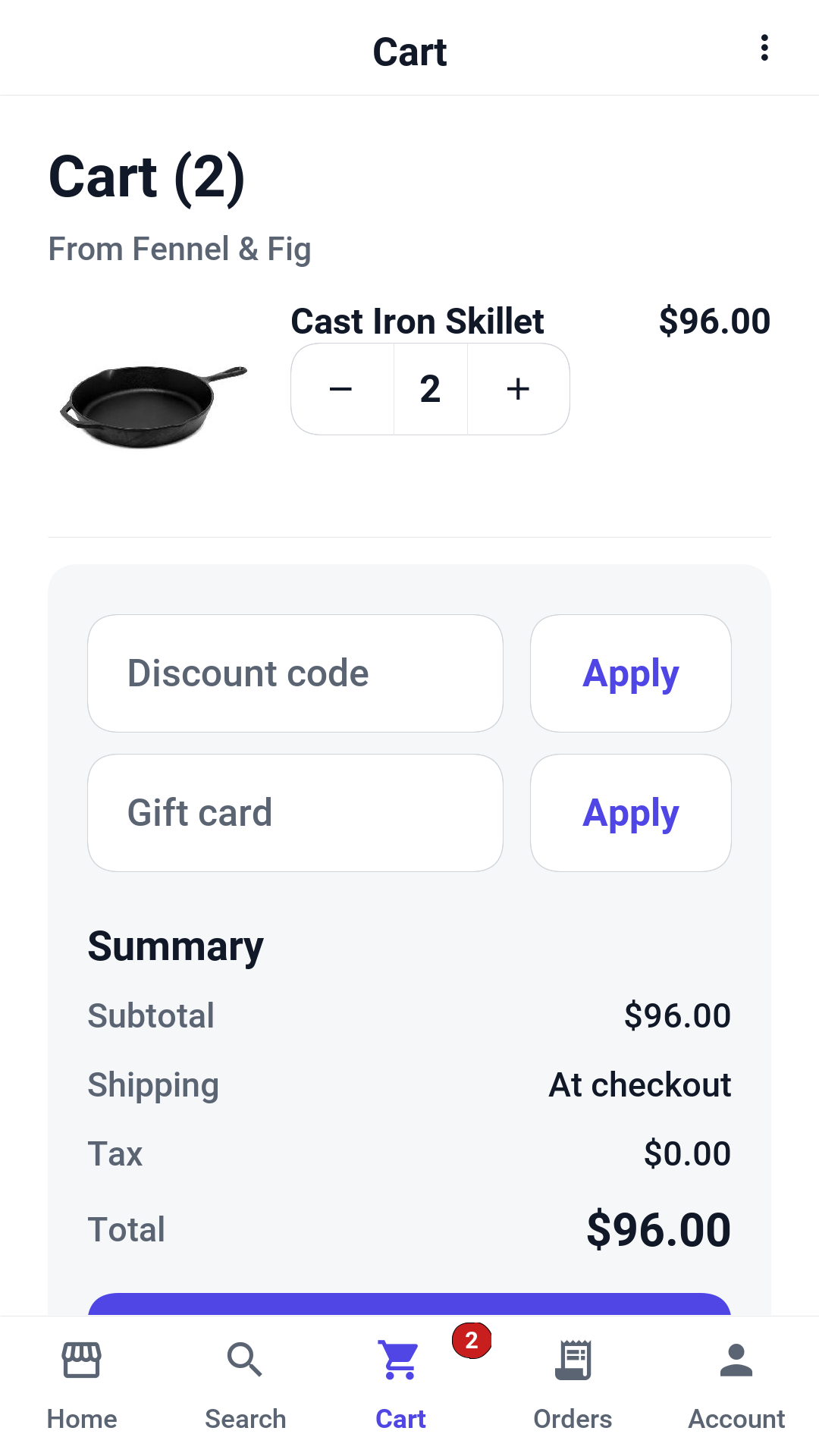
A product page shows its photos, its description and reviews, and lets the shopper choose a variant, such as a size and a color. A variant that’s out of stock says so and can’t be added. Every store has a cart of its own, kept on the server for a guest too, and the Cart tab shows the one of the store the shopper is in, with a discount code field and an estimate of shipping and tax.
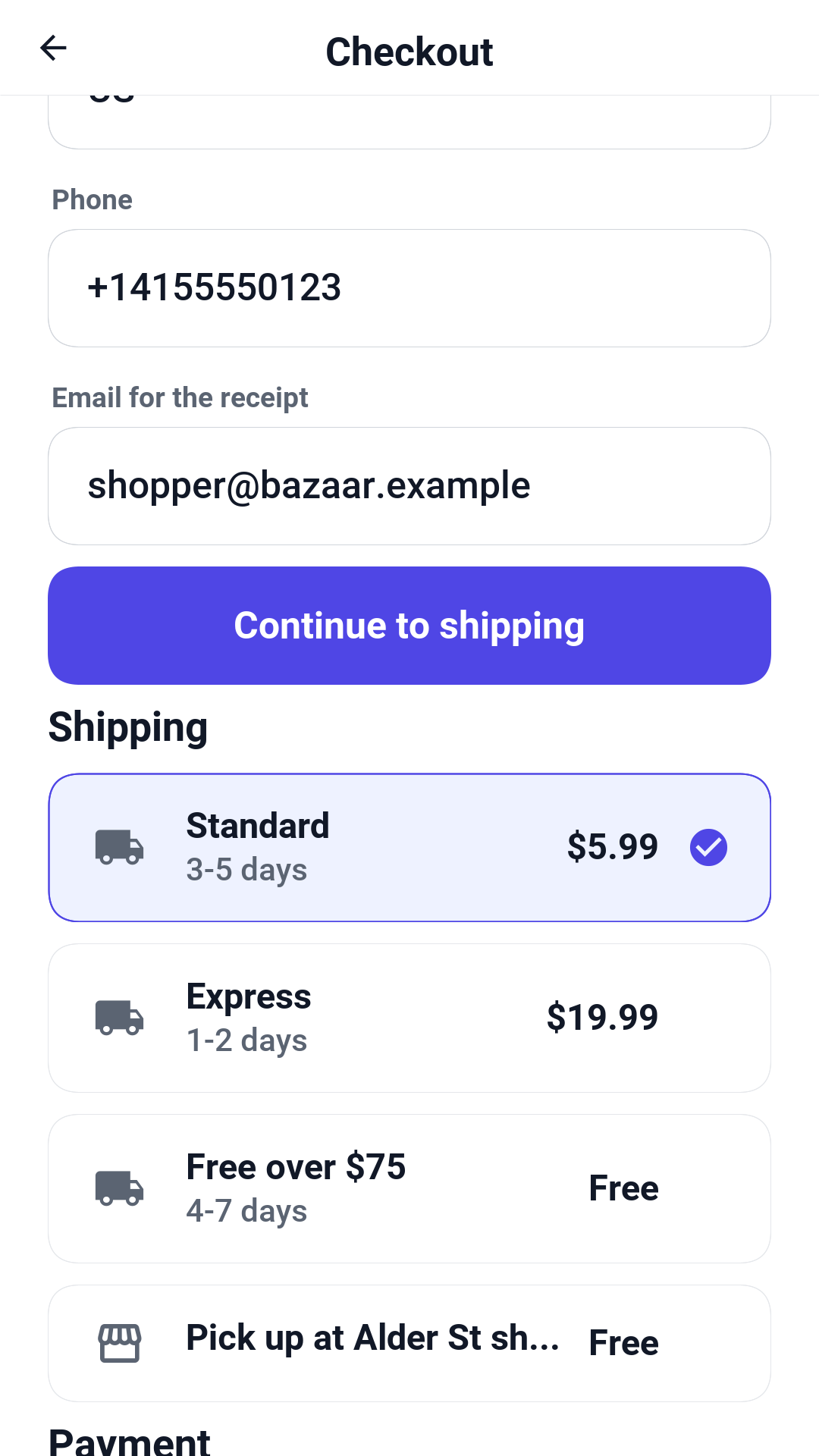
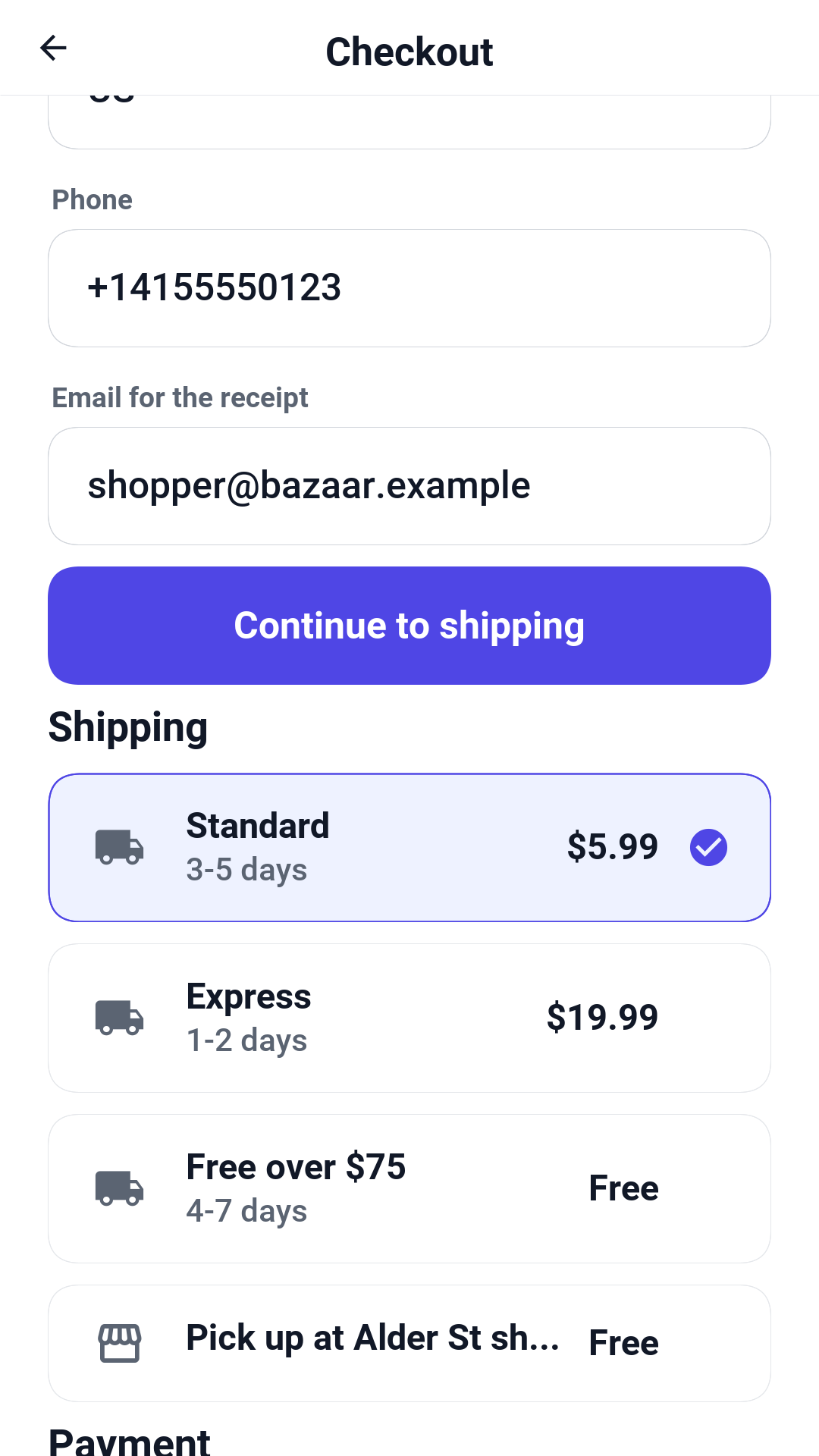
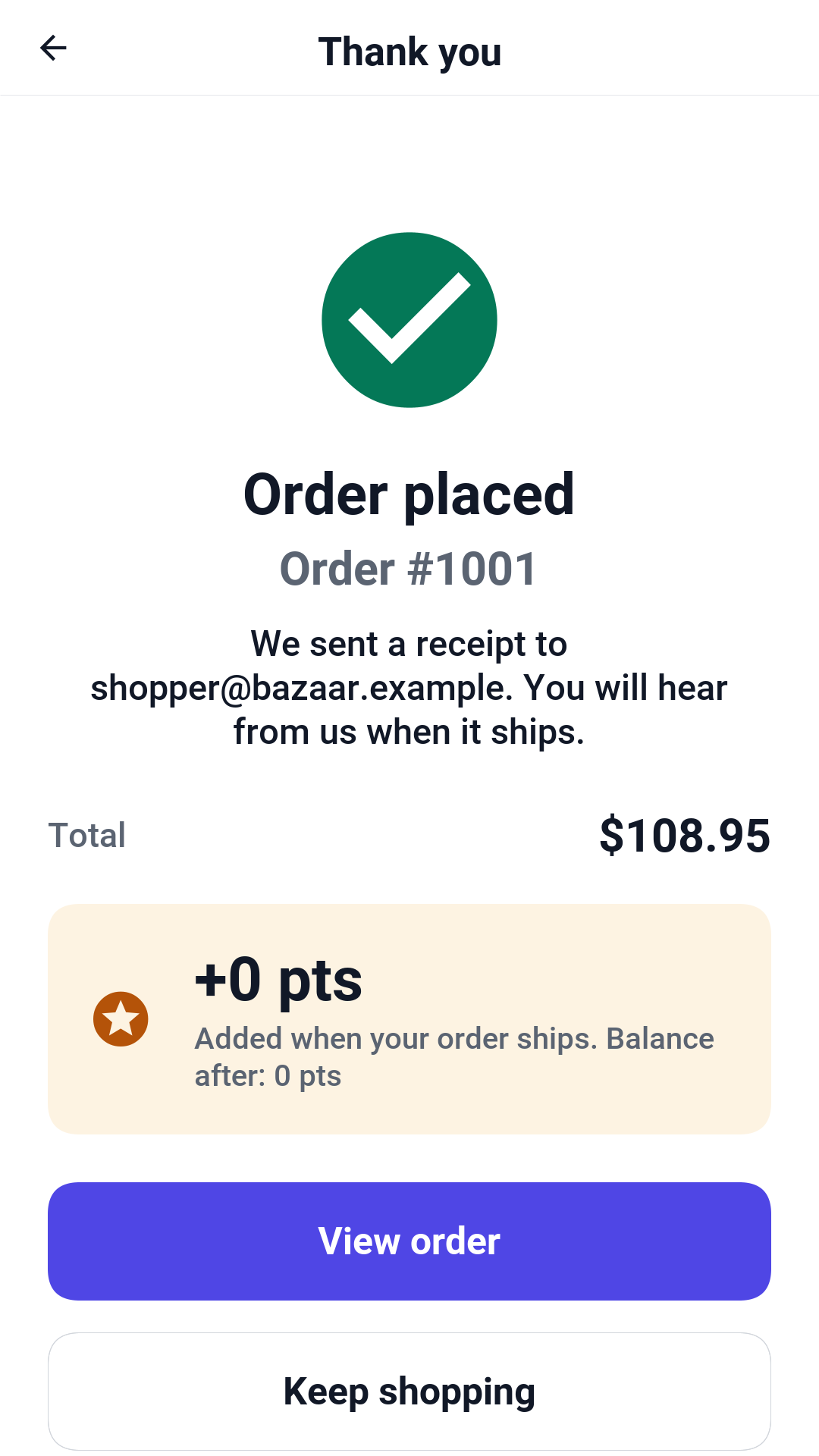
The app asks for a sign-in only where an account is needed: at checkout, to follow a store, to save to the wishlist, and on the Orders and Account tabs. The guest’s cart moves into the account, and the checkout carries on. Checkout asks for the address, from the saved ones or a new one, the shipping method the store offers for it (including pickup or local delivery where the store has them), and the card. A returning shopper finds their default address and card already chosen, so a repeat order is one tap on Place order. The card is held, not charged, until the order ships.
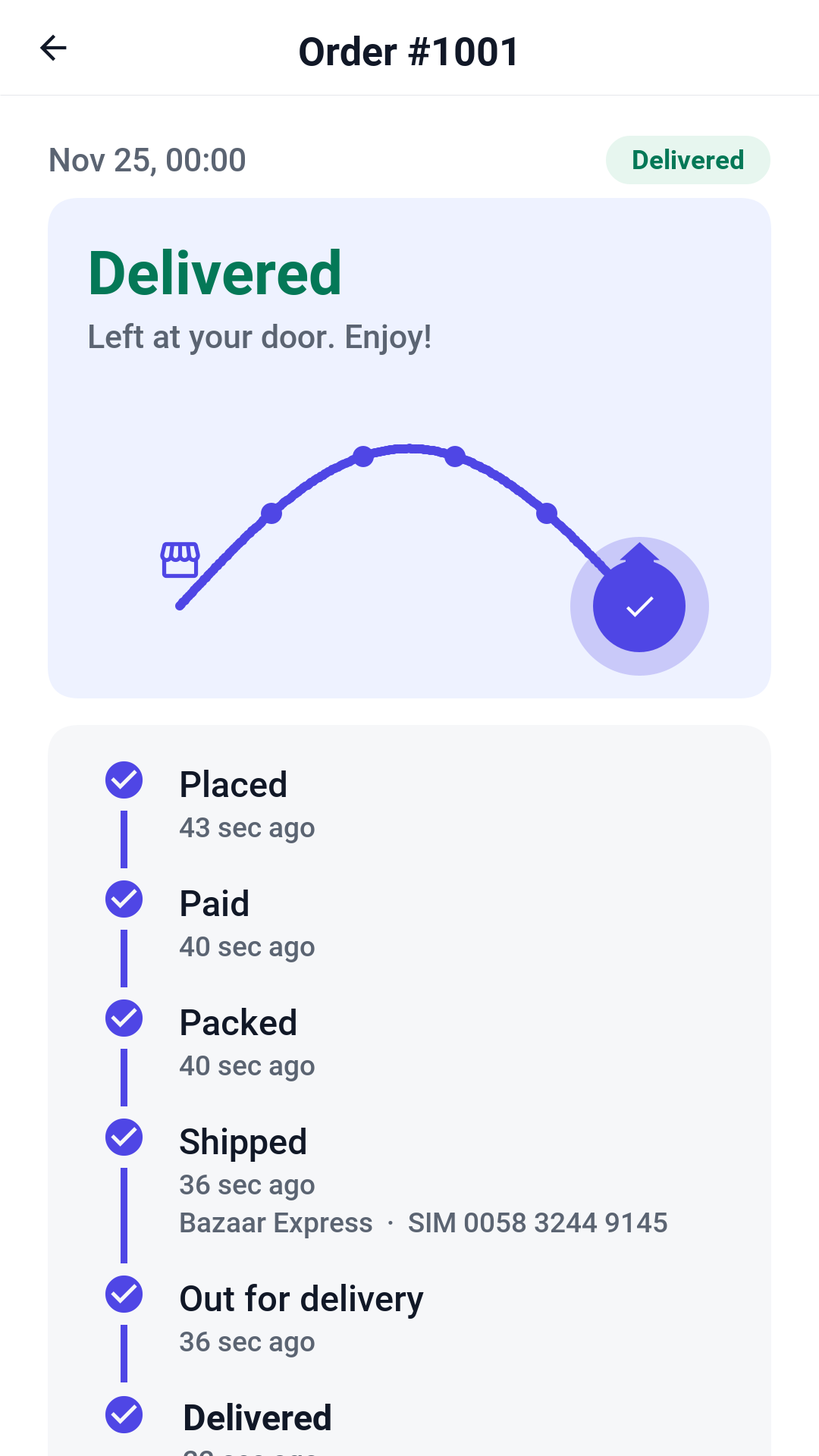
Following a store puts its new products in a row of their own at the top of Discover. The orders tab follows each order through its steps: placed, packed, shipped and delivered, and shows each parcel’s scans from the carrier, newest first. An order can be cancelled until it’s packed. The shopper can download the invoice as a PDF, ask to return lines of a delivered order, and review the products they bought.
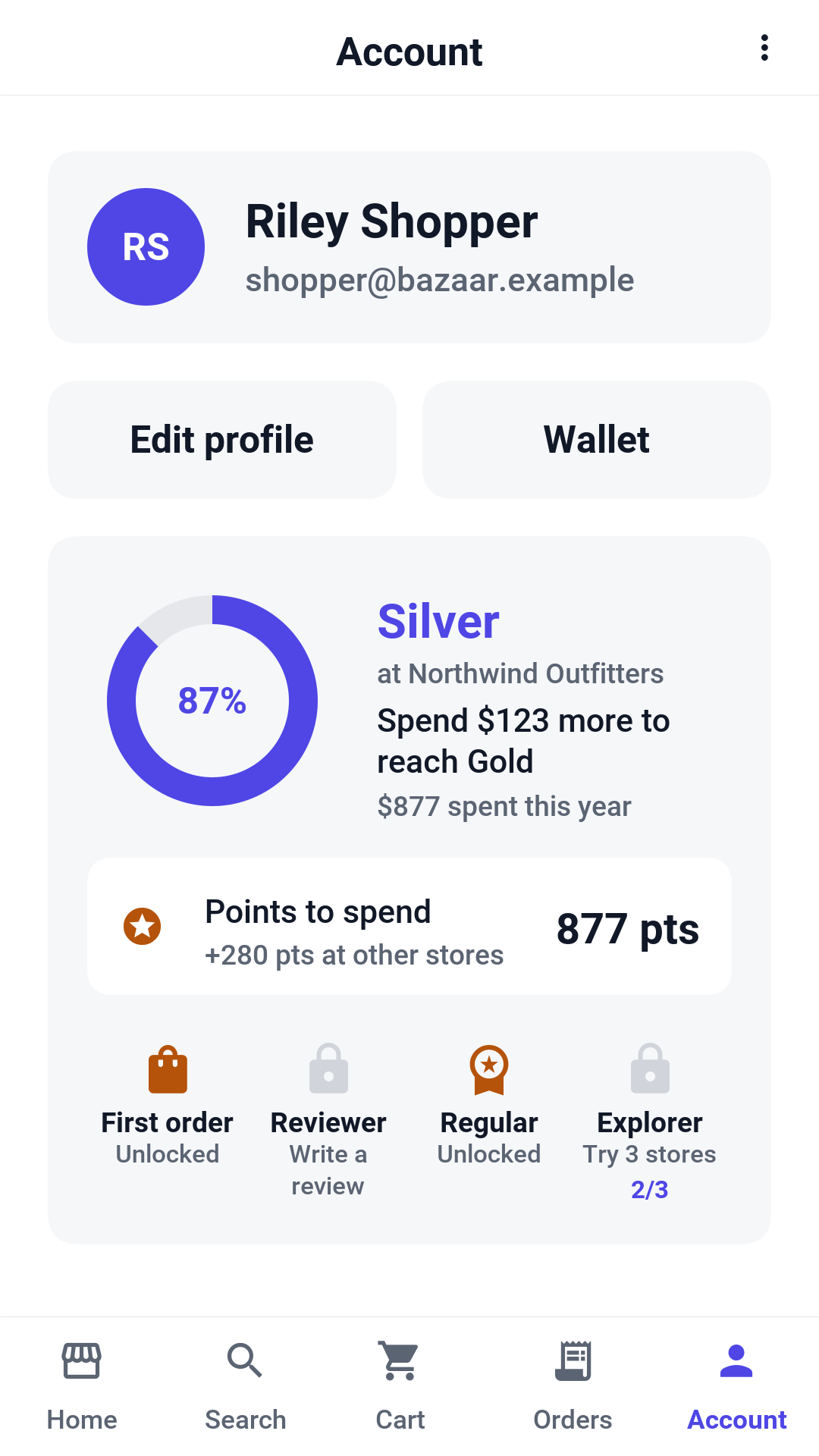
The account tab holds the profile, saved addresses, the wallet of cards and the settings. Store staff and administrators sign in from the account tab too; their role decides which home they land on.
The merchant
Dashboard and analytics
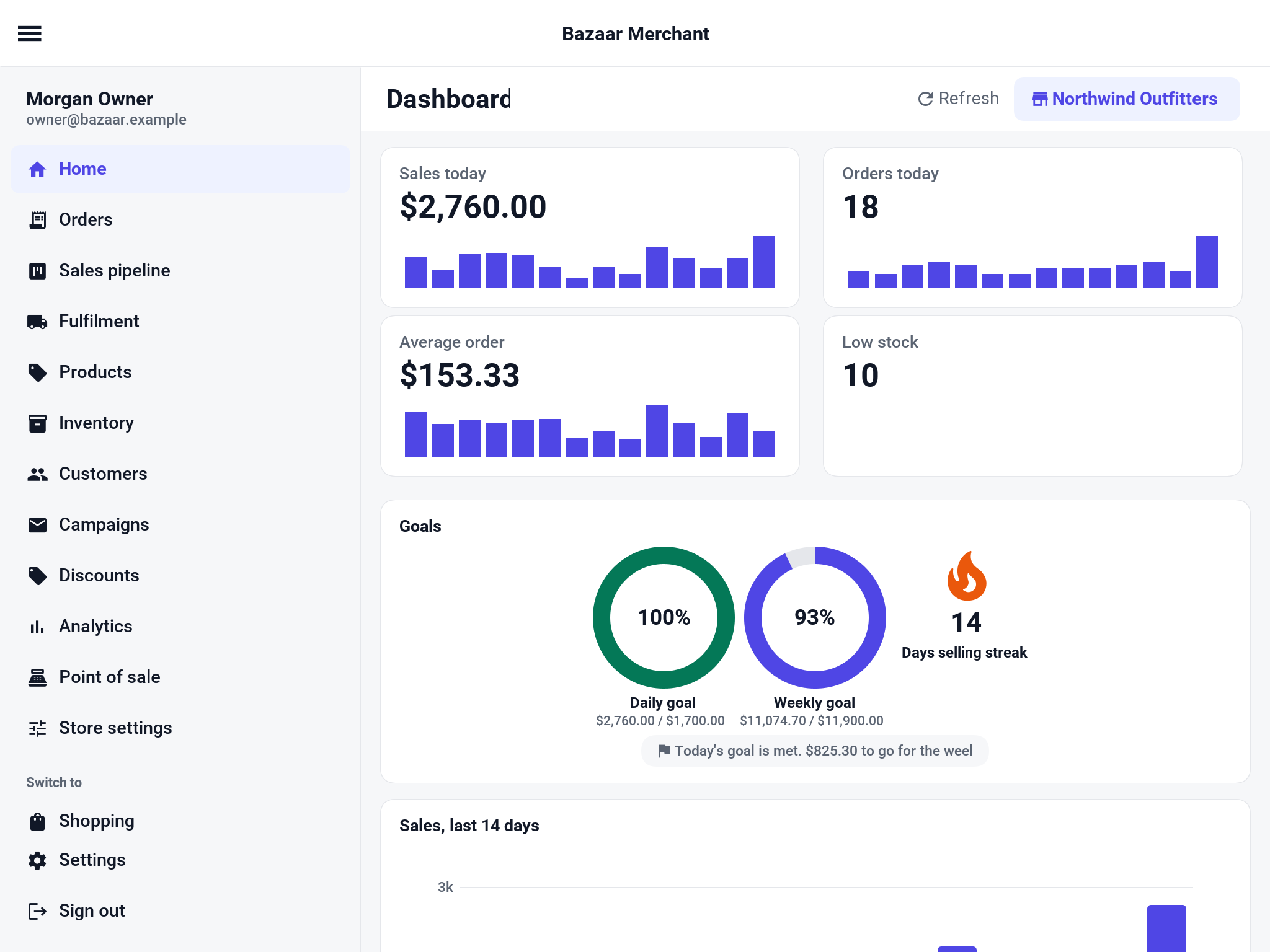
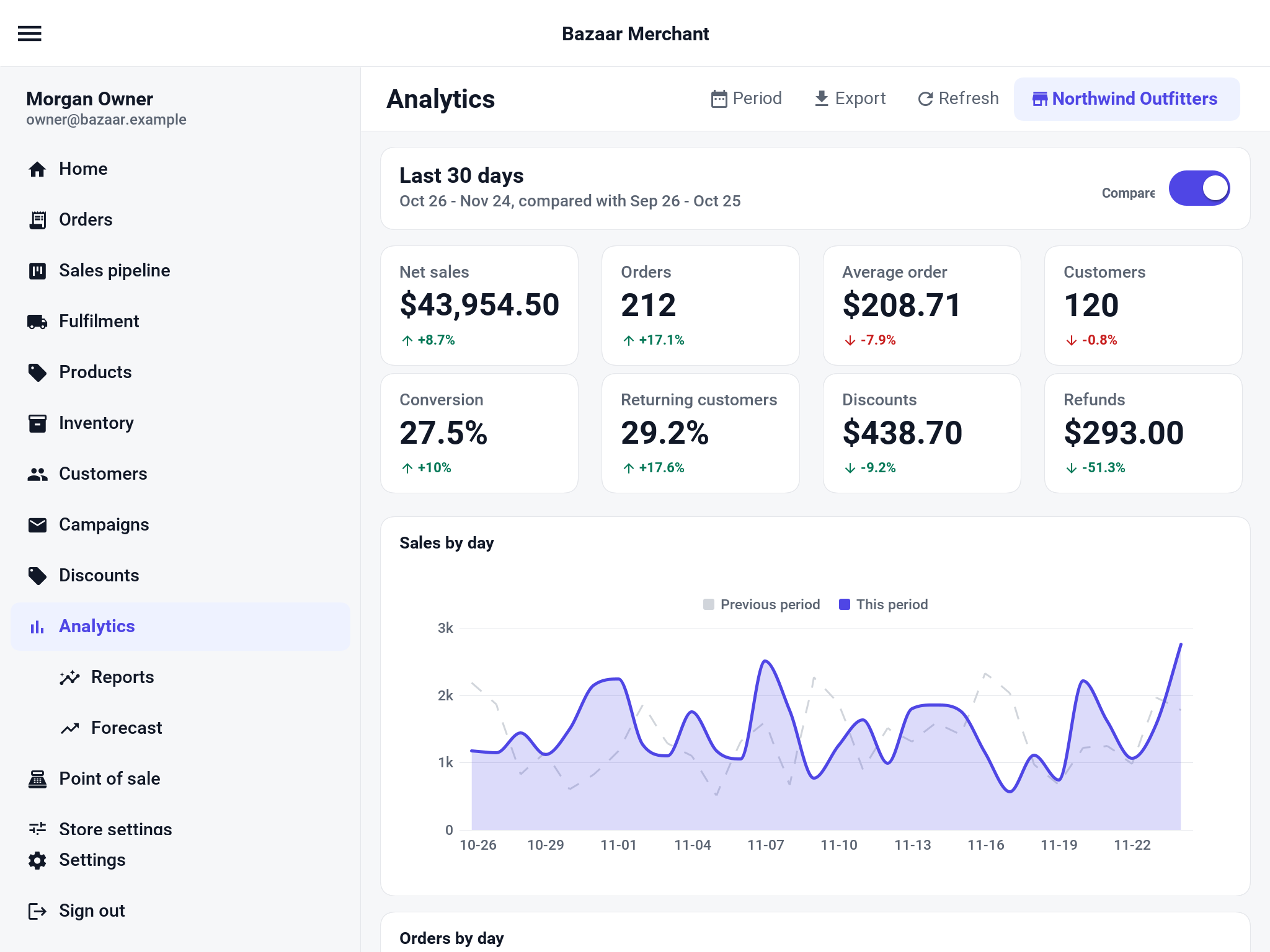
The dashboard shows today’s sales, orders to fulfil, low stock and recent activity. Analytics charts sales over a chosen period, by channel (online store, app, register, marketplaces and draft orders), top products, the conversion funnel from product views to orders and customer segments, and exports what it shows as CSV.
Days and hours in analytics and reports are UTC days and hours, not the store’s local time. Analytics counts a refund on the day it was made, whatever the day of the order, and leaves out refunds of cancelled orders. Reports count an order on the day it was placed and subtract the merchandise part of its refunds (never tax or shipping, and never more than the order’s sales), so the two can differ for a period with refunds of older orders.
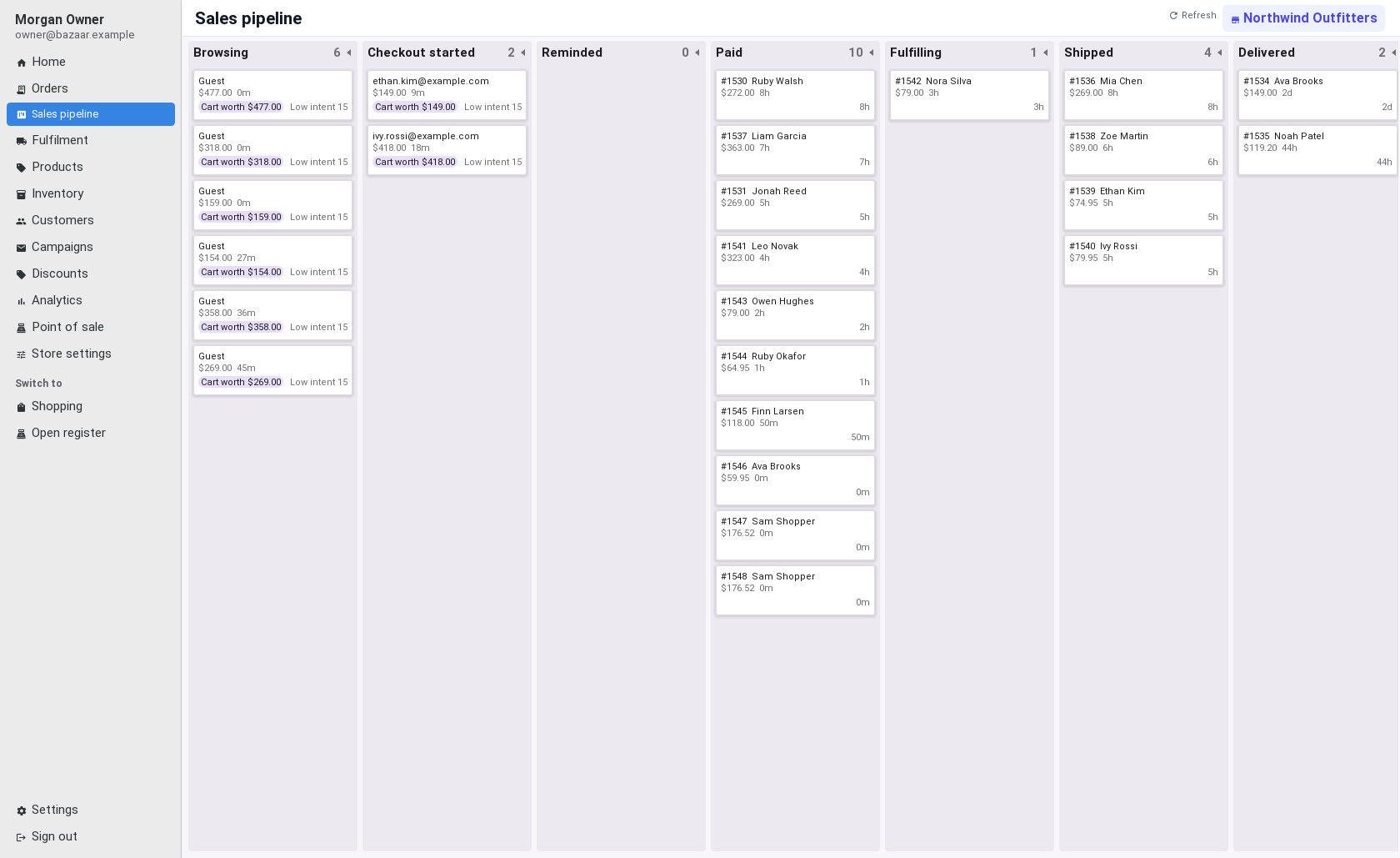
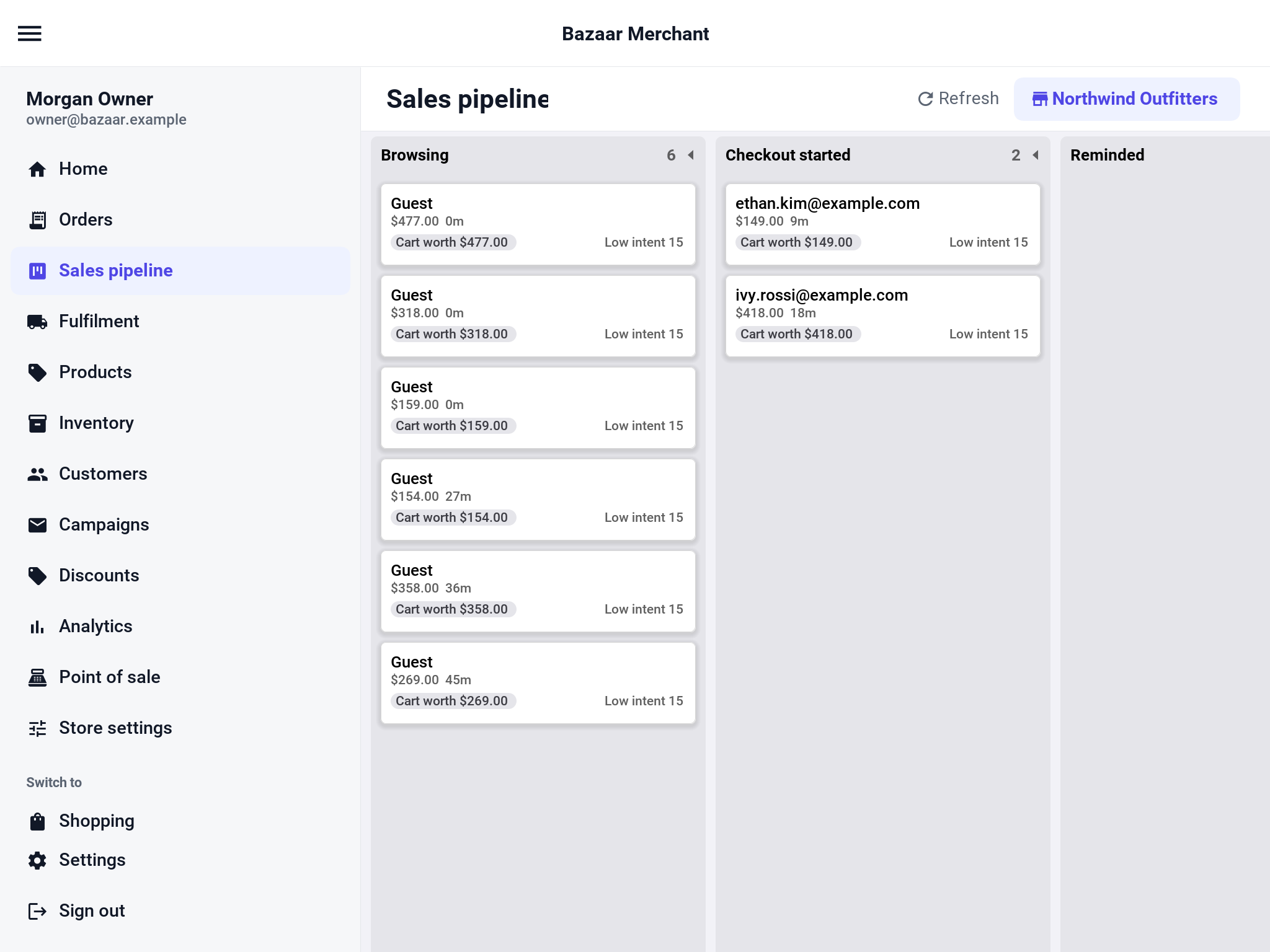
The sales pipeline shows every open cart and order on one board: shoppers browsing, checkouts started, carts already reminded, then paid, fulfilling, shipped, delivered and return requested. Each cart has a purchase-intent score from low to high and the reasons for it, such as "Came back: 3 visits" for a returning shopper. Drag a checkout to Reminded to send its recovery email, or an order one column on to pack, ship or deliver it; on a phone each card has a button for the same step. The back office shows the board under Sales pipeline, read only.
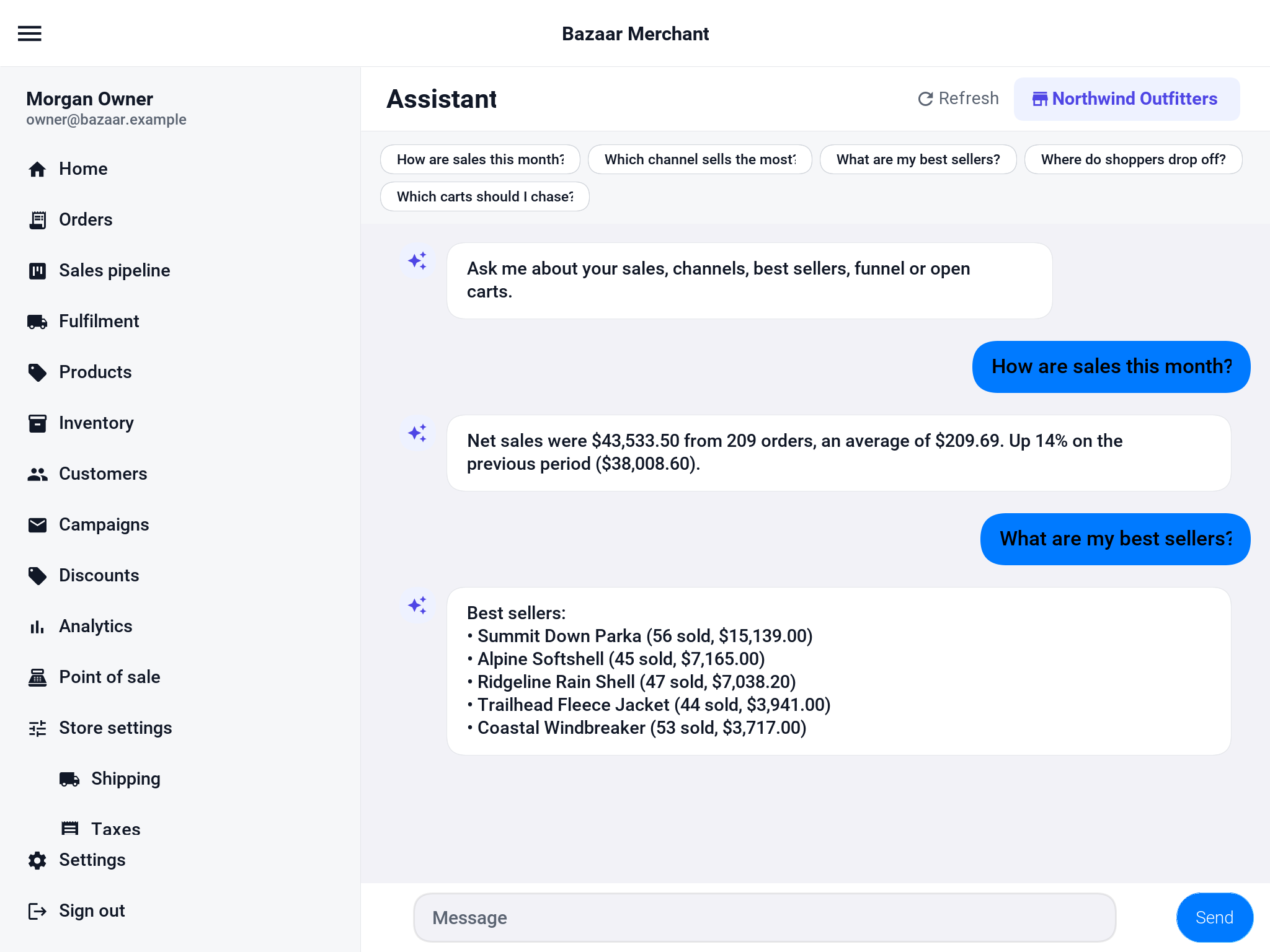
The assistant answers questions about the store, such as which channel sells the most or which carts are worth chasing, with the numbers of the last 30 days. In the product editor, Draft description writes a first description from the title, vendor, type, tags and options for you to edit. Both use the AI provider the store’s server is set up with, and give simpler answers without one.
Products and collections
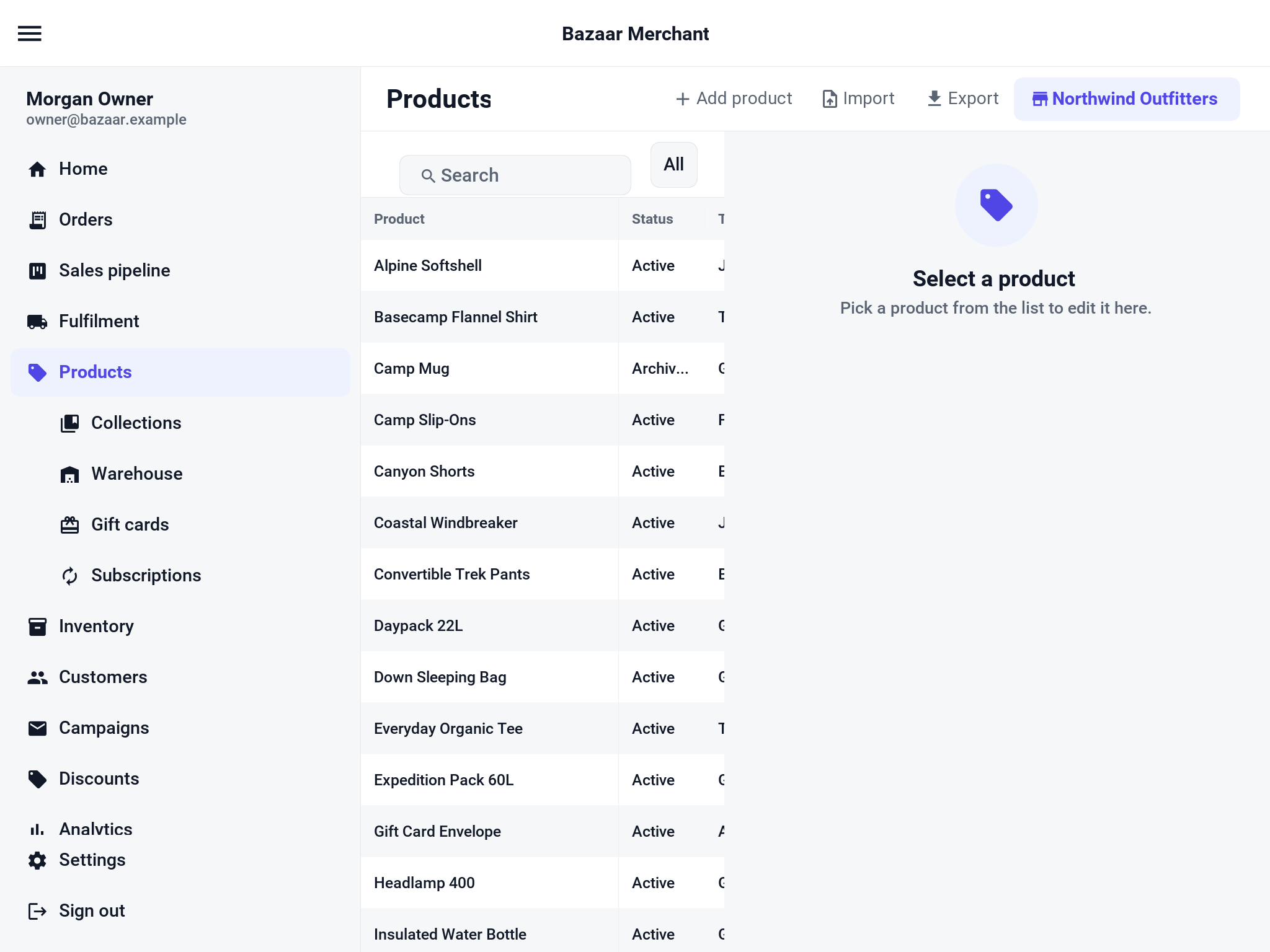
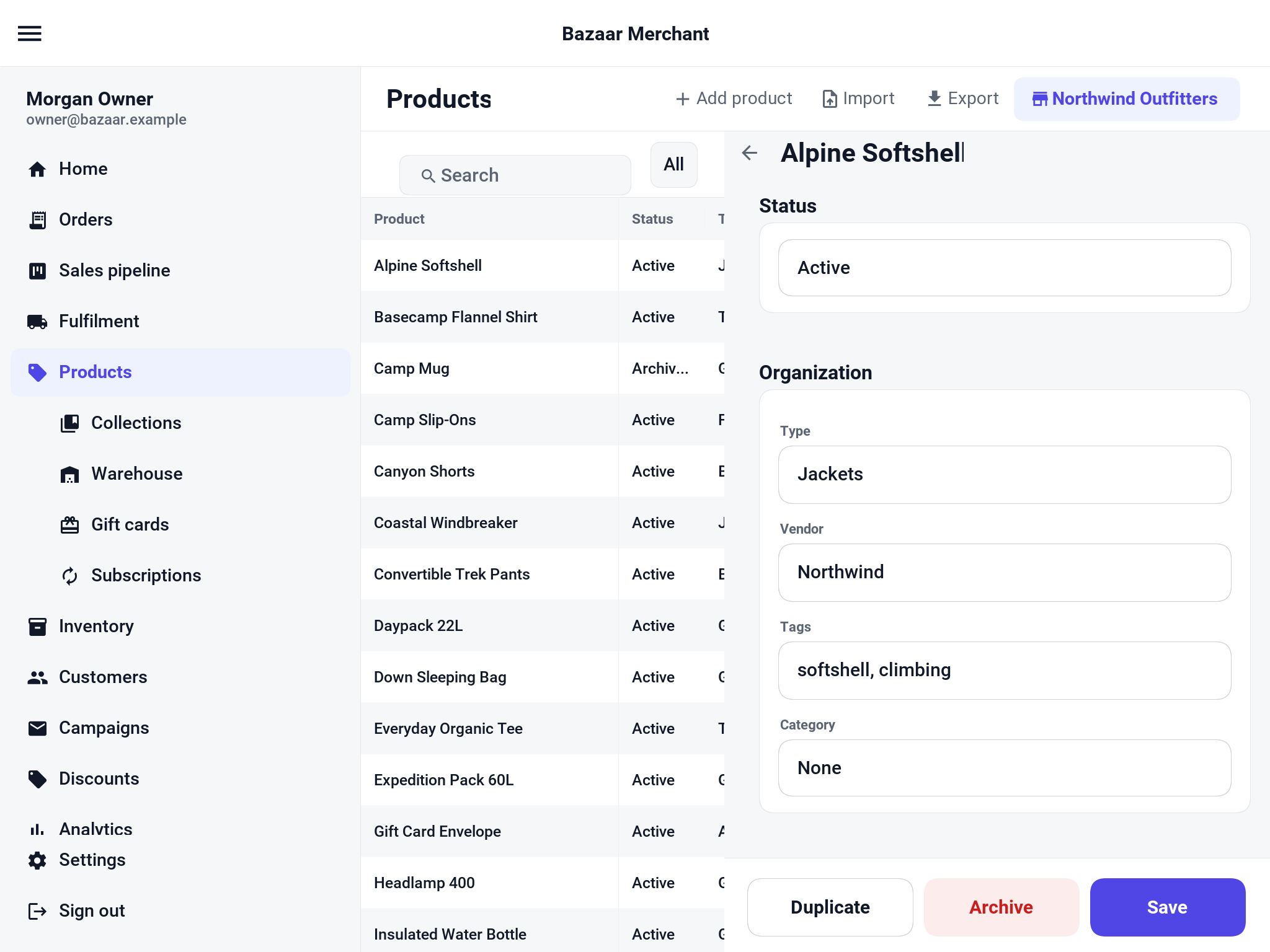
Products are a table on a wide screen and a list on a phone. A product has a
title, description, type, vendor, tags, photos and options; the variant matrix
generates one variant per combination of options, each with its own price, SKU,
barcode and weight. Photos can be dropped onto the editor from the desktop.
Products can be duplicated, edited in bulk, and imported or exported as CSV.
A product can be sold as a bundle: pick its component variants and how many of
each go into one, and give the bundle its own price. Selling a bundle takes its
components out of stock, and the storefront lists what it includes. A product
can also be scheduled per channel (the online store, the register and each
marketplace), with times to publish and unpublish it, in UTC.
A variant marked as a digital download ships nothing: upload its file, set how
many times and for how many days a buyer’s link works, and paste license keys
if it needs them. A cart of downloads only checks out without an address or a
delivery option. Once the order is paid, the links (and a key per unit) appear
in the order mail, on the confirmation page and on the buyer’s order page; a
register sale emails them. A full refund stops a line’s link, and the order page
in the back office can revoke one by hand. The gallery also takes videos (an
MP4 or WebM file, or an https link) and 3D models (.glb files), in any order
with the pictures; the storefront plays the video and shows the model in a
viewer you can turn and zoom, and the app links the model file.
A product can have a category from Google’s product taxonomy, found by typing a word of it, such as tea or shoes, in the product editor. Shopping feeds send it, and a collection page in the browser offers its products' categories as a filter. Each variant can also carry customs details, an HS code and a country of origin, which go to the carrier for a parcel that leaves the country and onto the packing slip of such an order; and a measure with the unit to price it by (250 g, priced per 100 g), so shoppers see "$4.00 / 100 g" beside the price. Collections are either chosen by hand or smart, defined by rules such as a tag or a price range.
Inventory
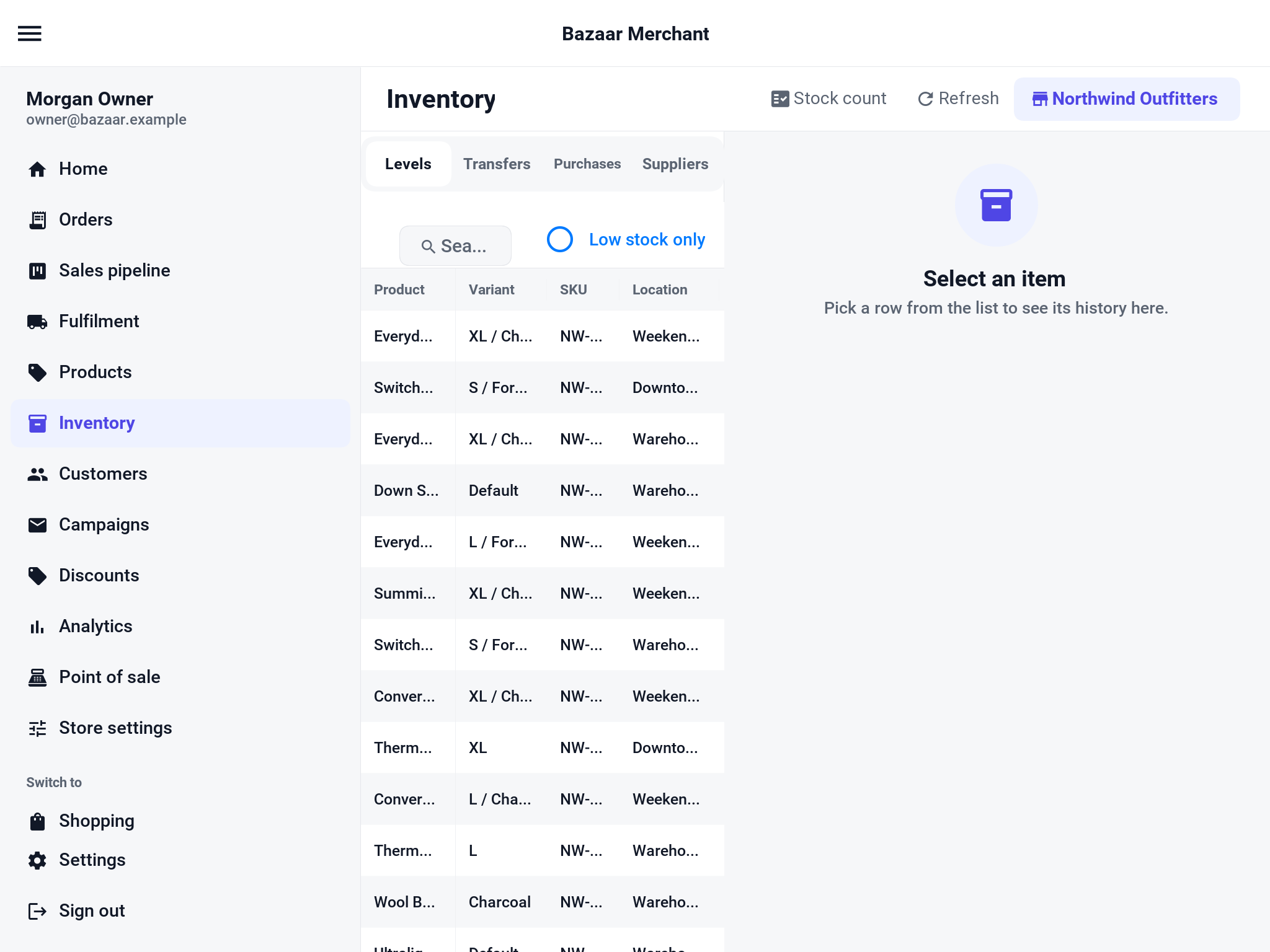
The inventory screen shows what’s on hand, committed and available for each variant at each location. Stock can be adjusted with a reason, counted, moved between locations with a transfer, and received against a purchase order sent to a supplier. A barcode scanner, the camera or a keyboard scanner on a desktop, finds a variant by its code. Every change is listed in the variant’s history.
A variant can keep selling when it runs out; the shortfall shows as backordered on the order. Stock that’s on hand but can’t be sold is set aside as unavailable with a reason: damaged, in quality control or held as safety stock. Variants can be tracked by serial number or by lot with an expiry date, and lots are picked first-expiring-first. Barcode labels print as a PDF, on Avery 30-up sheets or 2 by 1 inch thermal labels, for chosen variants or for everything a purchase order brought in.
Orders and fulfilment
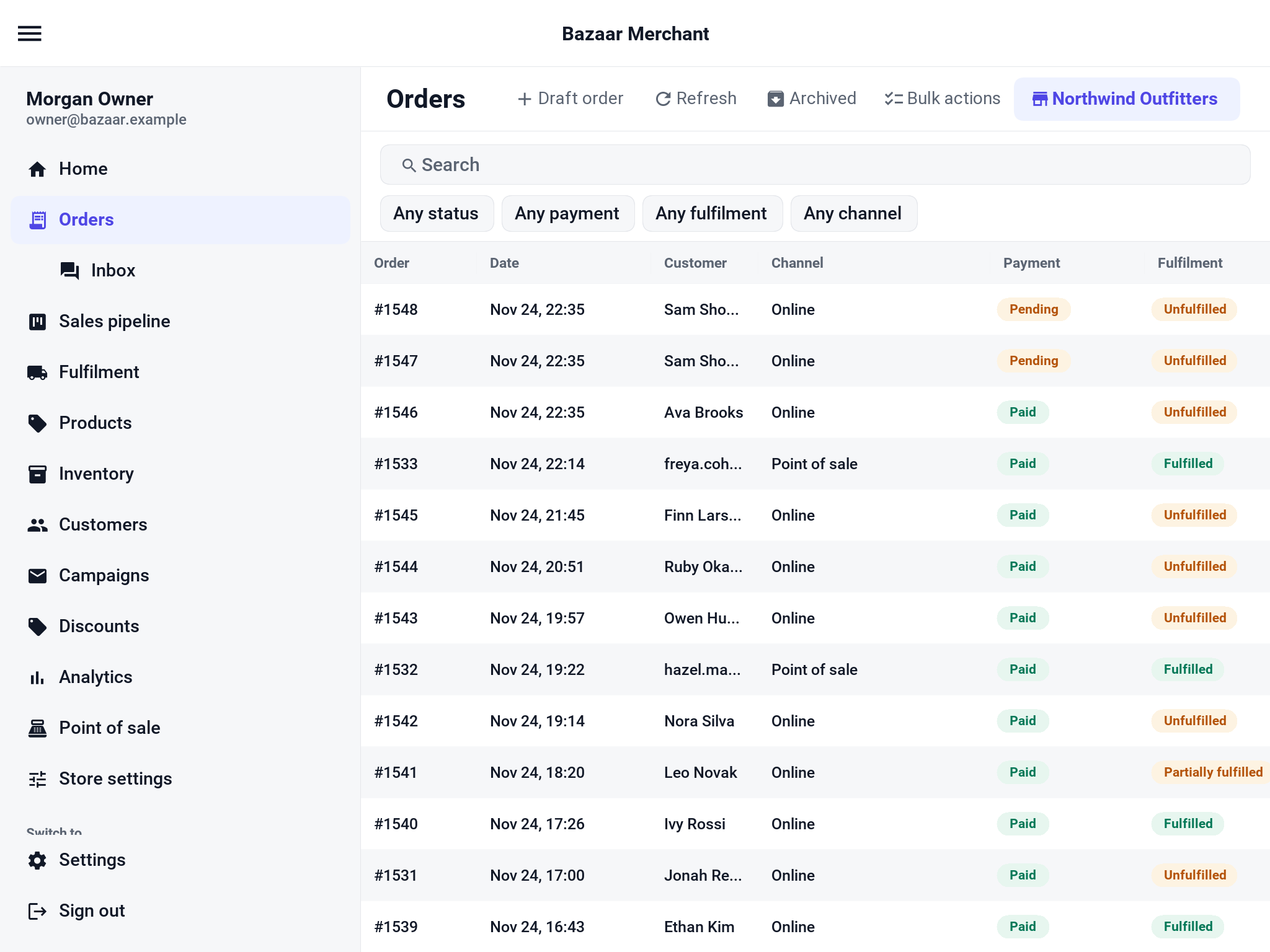
The orders list filters by status, channel, and payment. An order shows its lines, payments, notes and timeline, and can be cancelled, refunded in part or in full, or marked paid. A draft order is an order the merchant builds by hand, for a phone sale; a pay link emails the buyer a checkout page for it, and the link is printed on the invoice. Orders can be archived out of the list, by hand or automatically once fulfilled and paid, and many orders can be fulfilled, labelled, printed, marked paid, archived or tagged at once.
The store’s return rules set the return window, which products and collections are final sale, a restocking fee and a return shipping fee. A shopper asking for a return chooses a refund, store credit or an exchange for another variant; an exchange that costs more sends a pay link for the difference. Every email and the register’s SMS receipt can be reworded per language, previewed, and reset.
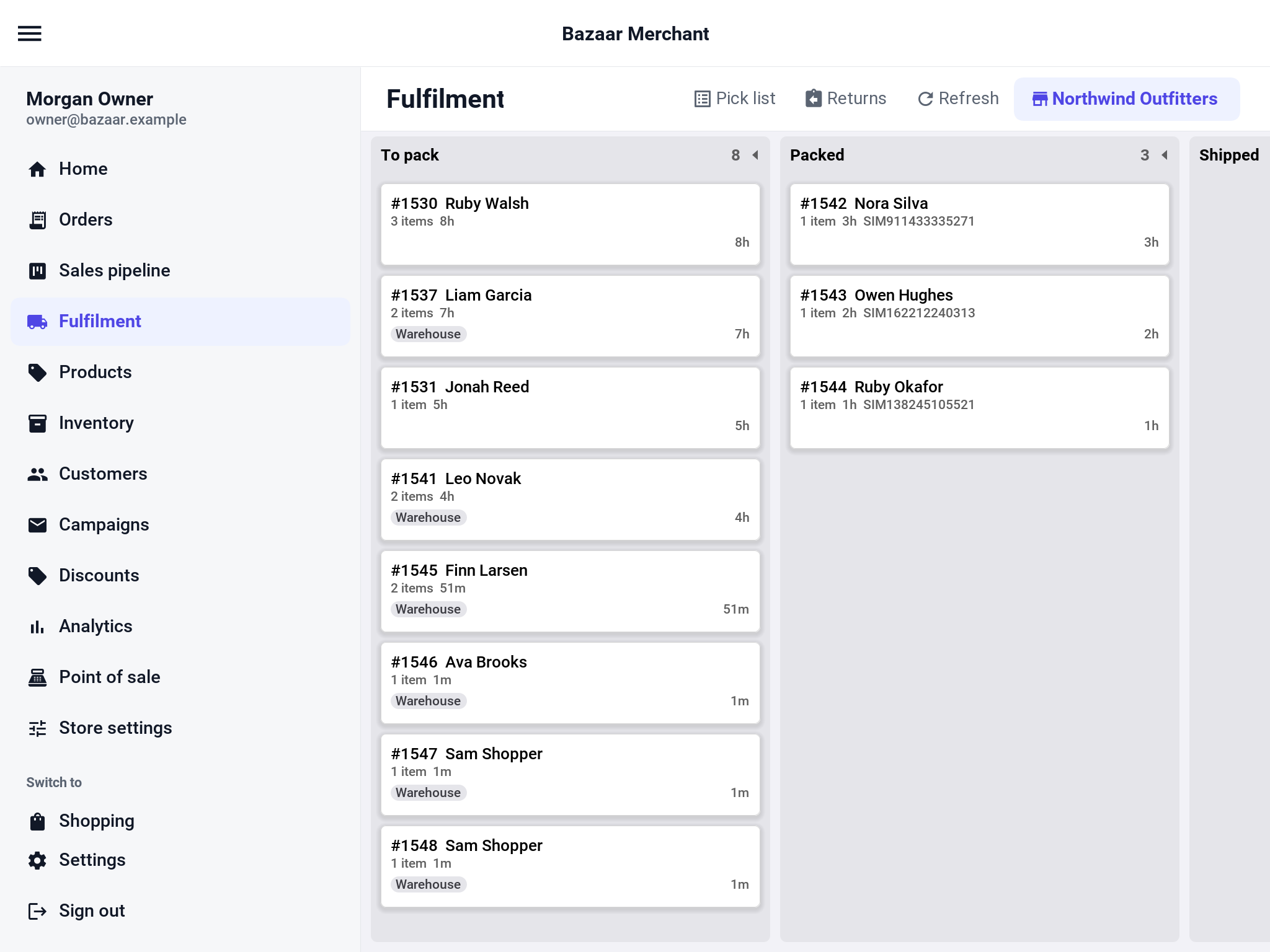
The fulfilment board shows every open order as a card in To pack, Packed, Shipped or Delivered. Dragging a card to the next column packs it, buys a label and ships it, or marks it delivered; on a phone each card has a button that moves it on. The board makes a pick list for a column as a PDF, and opens the returns queue, where returned goods are received and refunded. Packing slips, labels, invoices, credit notes and purchase orders can be previewed, printed, shared or, on a desktop, dragged out of the window as files.
Customers, discounts and gift cards
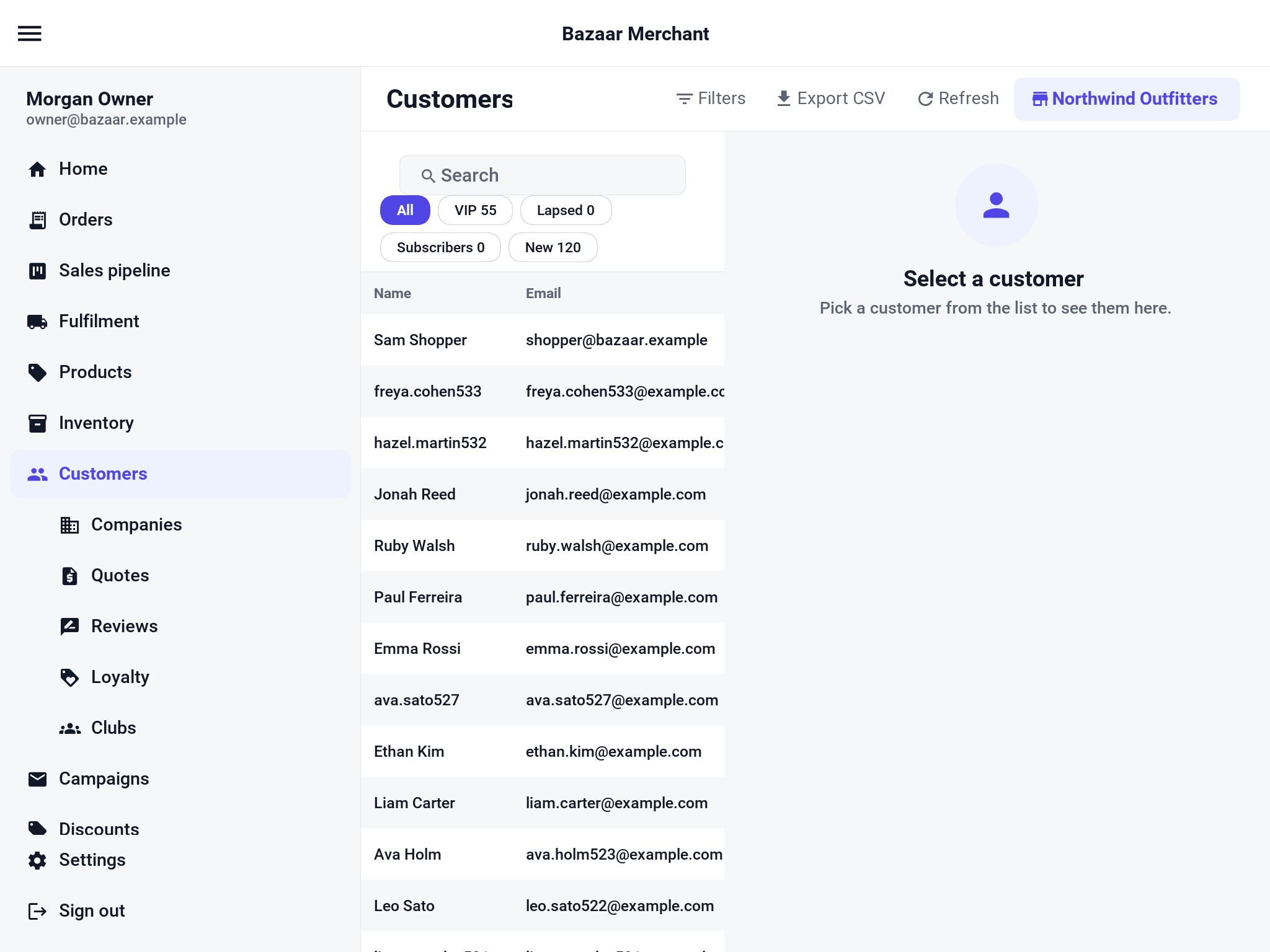
The customers screen lists the store’s customers with their orders, total spent, tags and store credit. Discounts are codes for a percentage or an amount off, free shipping, or buy some and get some free, with limits on use and dates. Gift cards are issued with a code and a QR code, and their balance can be checked.
A customer’s page can merge a duplicate record into it, download everything the store holds about the customer as a zip, or erase their personal data while the orders keep their amounts. Shoppers ask for an export or an erasure from their account, and the requests wait on the data requests page. Store credit can be given with an expiry date; the credit that lapses first is spent first, and signed-in shoppers choose to spend it at checkout. A discount can be copied into a batch of single-use codes with a prefix, saved as a CSV. A gift card can go straight to a recipient’s address with a message, now or on a chosen day.
The store mails some messages by itself: a shopper who looked at a product and left without buying hears about it once (only with marketing consent, and at most once a week), and a review request with a one-click link goes a week after an order is delivered.
Shipping, taxes and settings
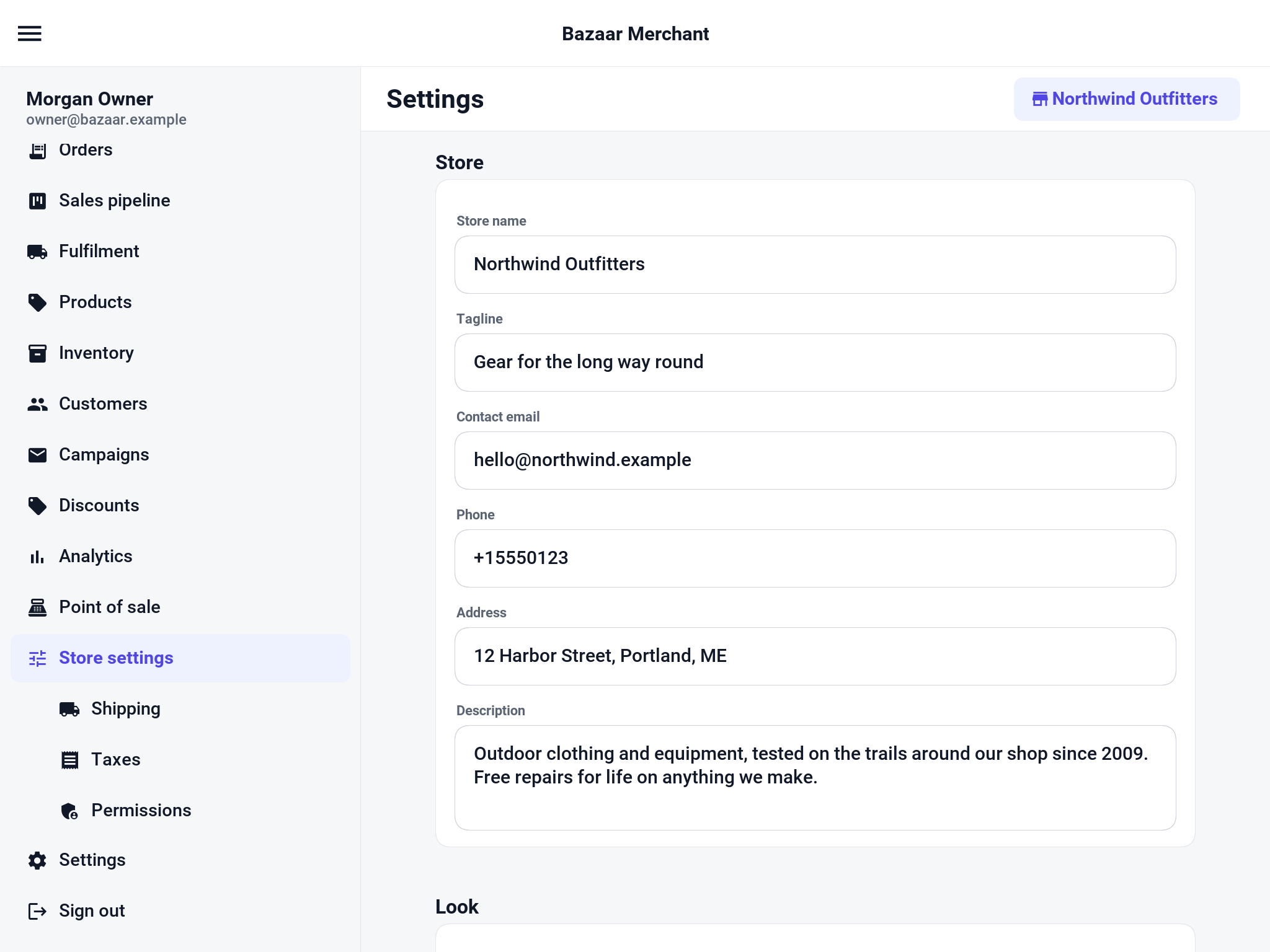
Shipping zones group countries, each with rates: flat, by weight, by price, free over an amount, pickup or local delivery. Tax rates are set per country and region. The settings hold the store’s name, description, logo and banner, locations, staff and their roles, and the registers.
Time zone. A store counts its days in UTC until it’s given a time zone.
Settings > Time zone in the app lists the common zones, each by its city, its
area and its IANA name such as Europe/Paris; pick one and tap Save time
zone. A zone saved some other way, through the store’s API
(/api/merchant/stores/{storeId}/time-zone), shows at the top of the list.
Analytics, reports and "today" then start and end the day at the store’s
midnight.
Settings > Two-factor sign-in in the app turns on authenticator codes for the account: scan the QR code, enter a code, and keep the recovery codes it shows once. When an account has it, signing in asks for the code on its own screen.
Shipping profiles give some products zones and rates of their own: a Bulky profile can charge freight while everything else ships at the usual rates. Edit a profile and tick its products. A cart holding products from several profiles is quoted per profile and the prices are added up, and the delivery estimate is the slowest of them.
Order routing decides which location ships each line. Without rules, the first location holding the stock does. Rules, applied in order, prefer the location closest to the shopper, a priority list of locations, or the one with the most stock. Turn off splitting to ship a whole order from one location whenever one can fill it. A location run by a fulfilment service (a 3PL) has its paid orders handed over automatically; when the service ships, the order is fulfilled with its tracking number and the shopper is told. The same page, Shipping in the back office, lists what was handed over.
Approving a return buys a prepaid return label and mails it to the shopper. An international fulfilment has a customs form (CN 22 or CN 23) beside its label, filled from each variant’s HS code and country of origin.
Checkout settings, under Store settings in the app, has a switch for each
payment method the store takes beside cards (Klarna, Afterpay/Clearpay, iDEAL, Bancontact,
SEPA debit and more). Checkout offers each one only where the order’s currency
and country allow it. An order paid by a pay-later or bank method shows
"payment pending" until the payment clears; if it fails, the order is
cancelled and its stock goes back on sale. Cash on delivery and bank transfer
are on the same list: such an order is placed unpaid, and a manager marks it
paid from the order once the money arrives. The same checkout settings, saved
through the store’s API, turn on tips, with
up to four presets such as 15%, 20%, 5.00, and list the questions shoppers
answer at checkout, one per line as Label | text, checkbox or select |
required | choice; choice. Tips are charged outside the order total and show in
the Tips report; answers show on the order, in the confirmation mail and in the
app. Shoppers with Apple Pay or Google Pay see a wallet button on the product
page, the cart and the checkout. The app pays by card and offers Pay another
way, which opens the store’s web checkout.
Automations
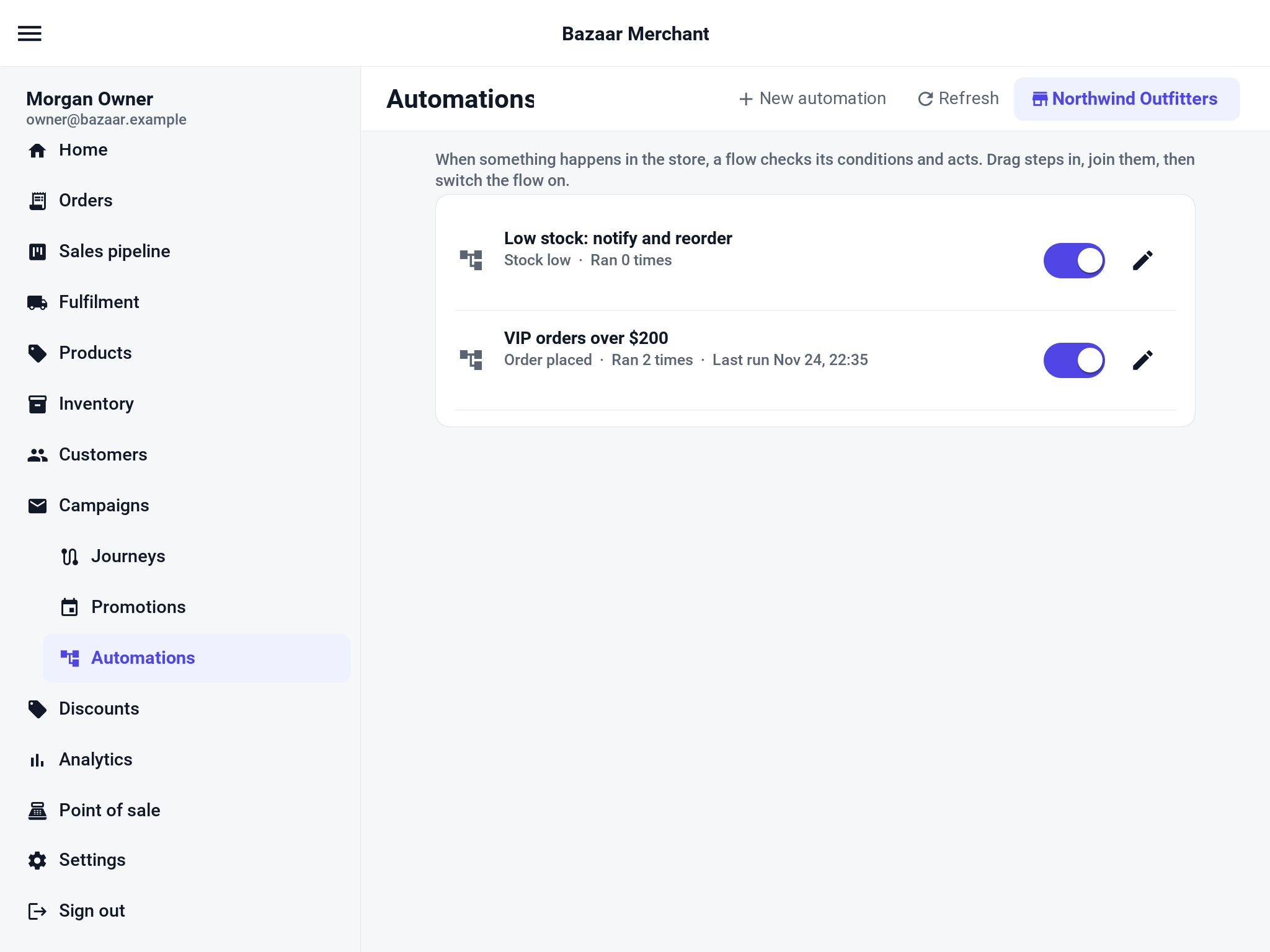
An automation is drawn as a graph: a trigger, such as an order being paid or stock running low, leads through conditions, such as an order total over an amount or a customer tag, to actions, such as tagging the order, notifying staff, emailing the customer, creating a discount code, drafting a reorder, sending a webhook or waiting. Nodes are added from the palette and joined by dragging from an output to an input. The store starts with two examples. An automation is saved as a draft until it’s switched on, and its activity log shows what each run did.
Webhooks
The webhooks page registers addresses to be told about orders, refunds, low stock, products and customers. Each webhook has a secret that signs its deliveries, and the page lists every delivery with its status and response and can send one again.
Apps
Apps are services from other developers that add to a store: back-in-stock alerts, reviews, shipping rules and the like. Apps in the merchant app lists the installed apps and opens the app directory (Browse apps), which can be searched and filtered by category and shows each app’s rating, pricing and reviews.
Installing. Install opens the app’s consent page, which lists what the app asks to read and change in the store, such as products, orders, or inventory. Approving sends the browser back to the app, which finishes installing itself. When an installed app later asks for more, the page lists only what’s added. Only the store’s owner installs and removes apps. Remove, on an installed app, revokes its access at once and deletes what it added to the store’s pages. The app is told, and 48 hours later it’s asked to delete the store’s data.
Charges. An app that charges asks first. Charges to approve lists each request with its name and amount, whether it recurs every 30 days, and any free trial. Approve or Decline answers it; until then nothing is charged. Removing an app cancels its charges.
Reviews. An owner whose store has, or once had, an app installed can rate it from 1 to 5 and write a review. A store has one review per app, and writing again replaces it.
What an app adds. An app may add:
a block to the product, order or customer pages of the merchant app, filled with the app’s own figures, and buttons that ask the app to do something, such as Notify now; the app’s answer shows as a message;
its own page, which opens inside the merchant app already signed in as the merchant;
a block on the storefront, below a product’s price, below the cart total or on the order confirmation, and pages of its own under
/s/<handle>/apps/;questions at checkout. A shopper’s answers are kept on the order, labelled with the app’s name, beside the store’s own checkout questions;
rules that change checkout: discounts, which shipping rates and payment methods are offered and in what order, or a limit that stops an order. A rule that fails is skipped and checkout goes on without it.
App slots are a separate thing: snippets from other services, such as an analytics script, a pixel or a widget, which the store’s owner places at the page head, at the end of every page or at one of the three storefront places. Each names a consent category. A necessary snippet always loads, and an analytics or marketing snippet loads only once the visitor accepted that category in the cookie banner. Checkout loads only necessary snippets.
Extending Bazaar with apps describes the same features for the people who write apps.
The register
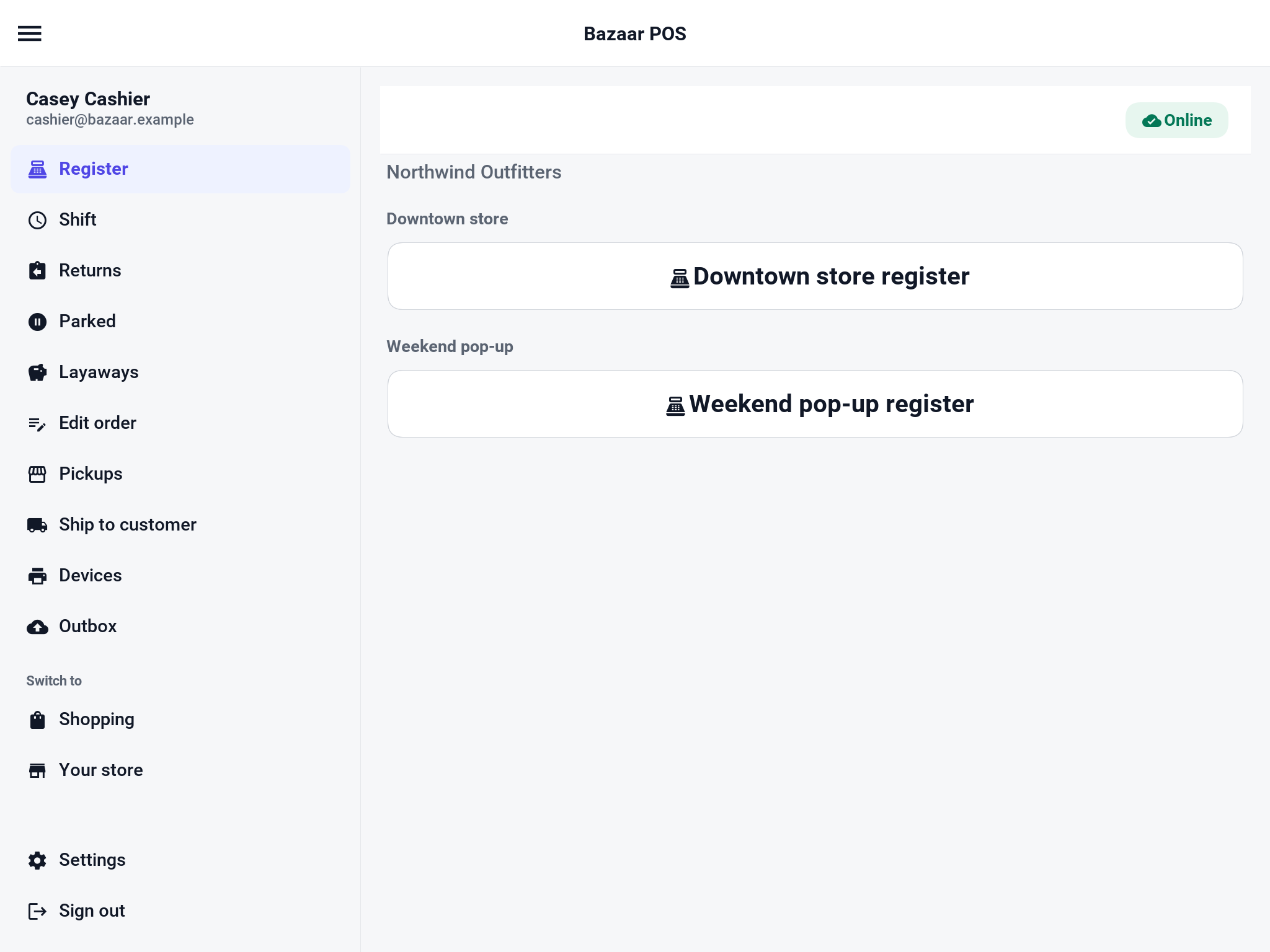
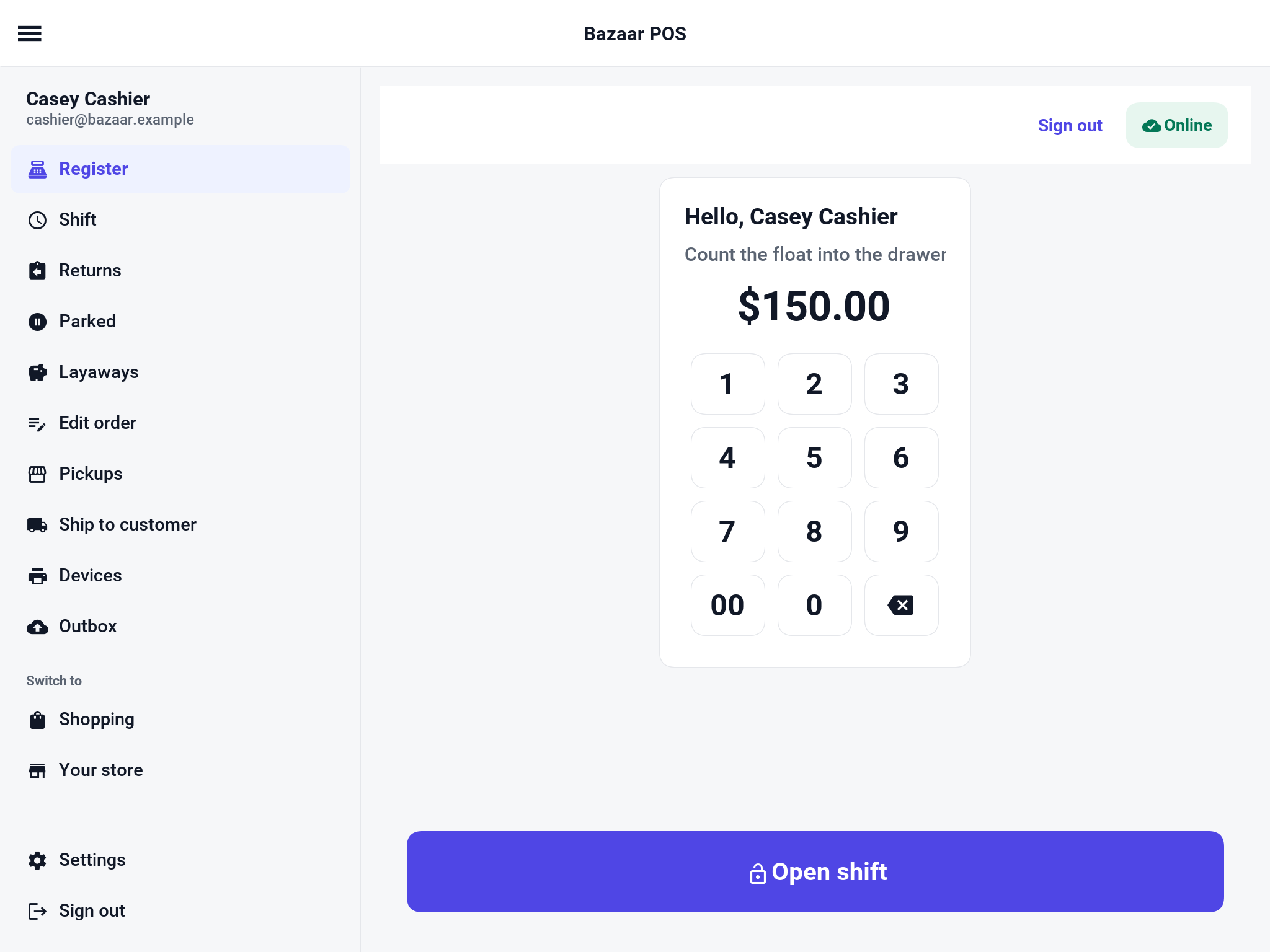
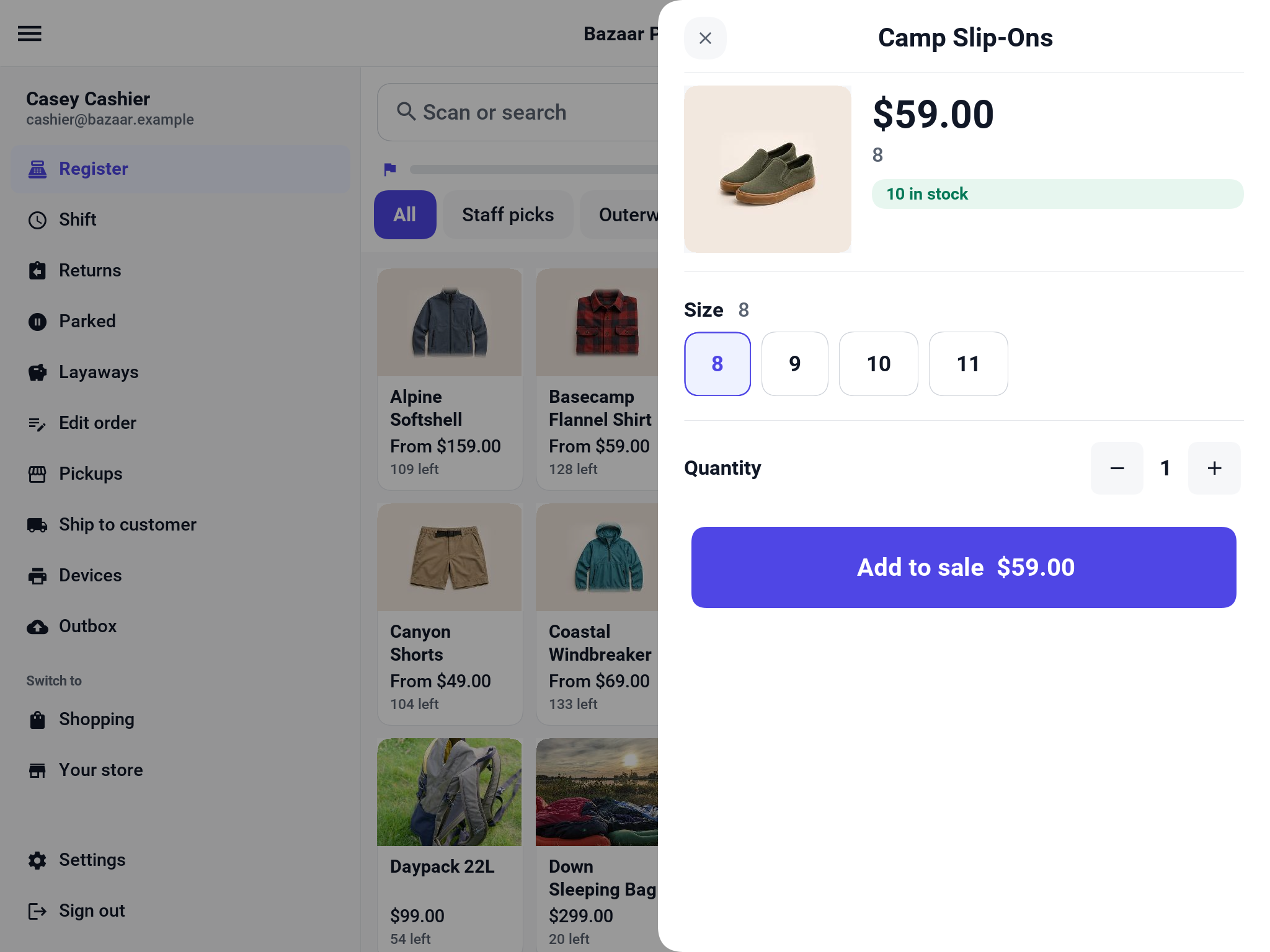
A cashier signs in, chooses the register and enters the PIN (1234 for the demo
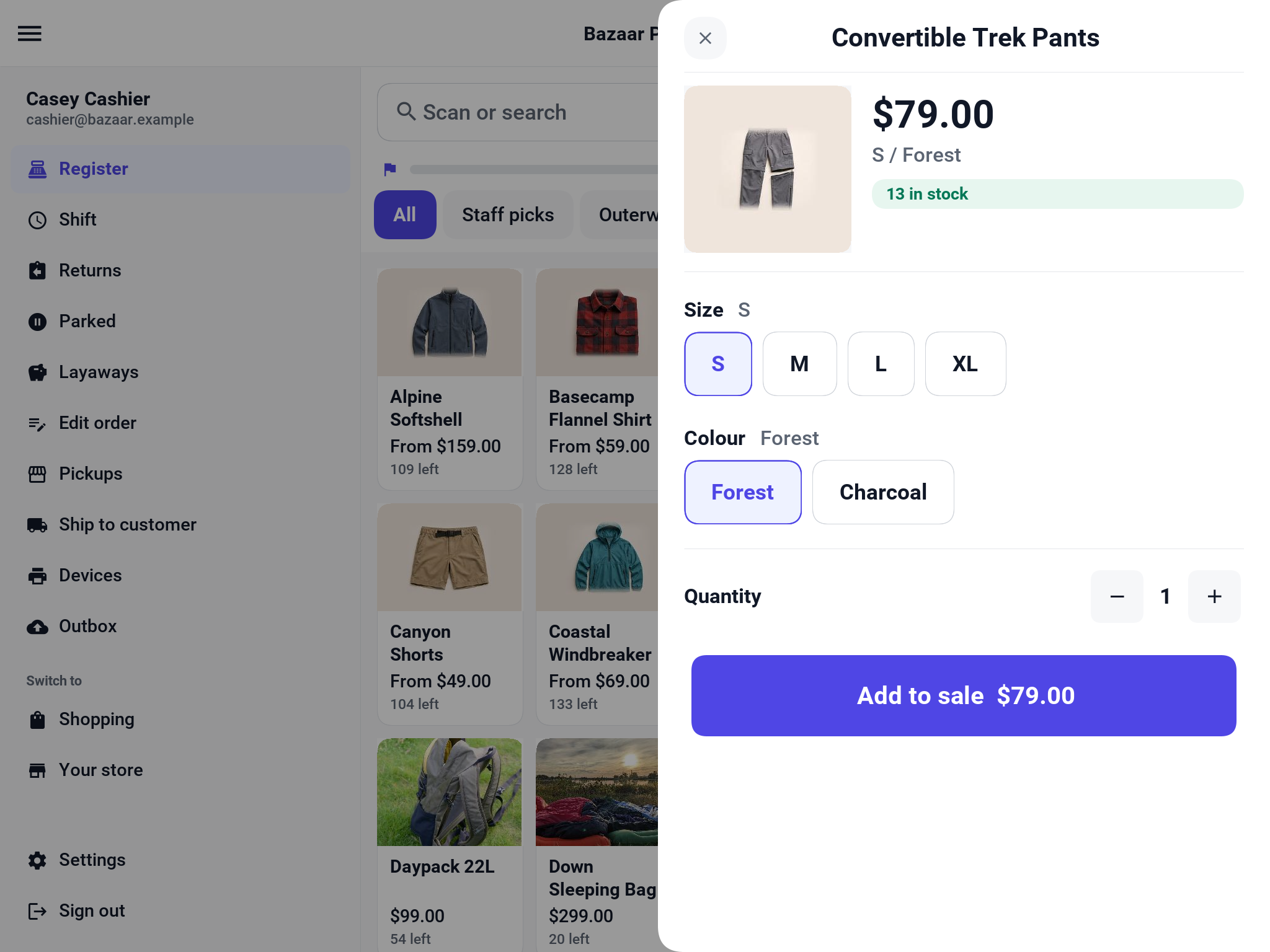
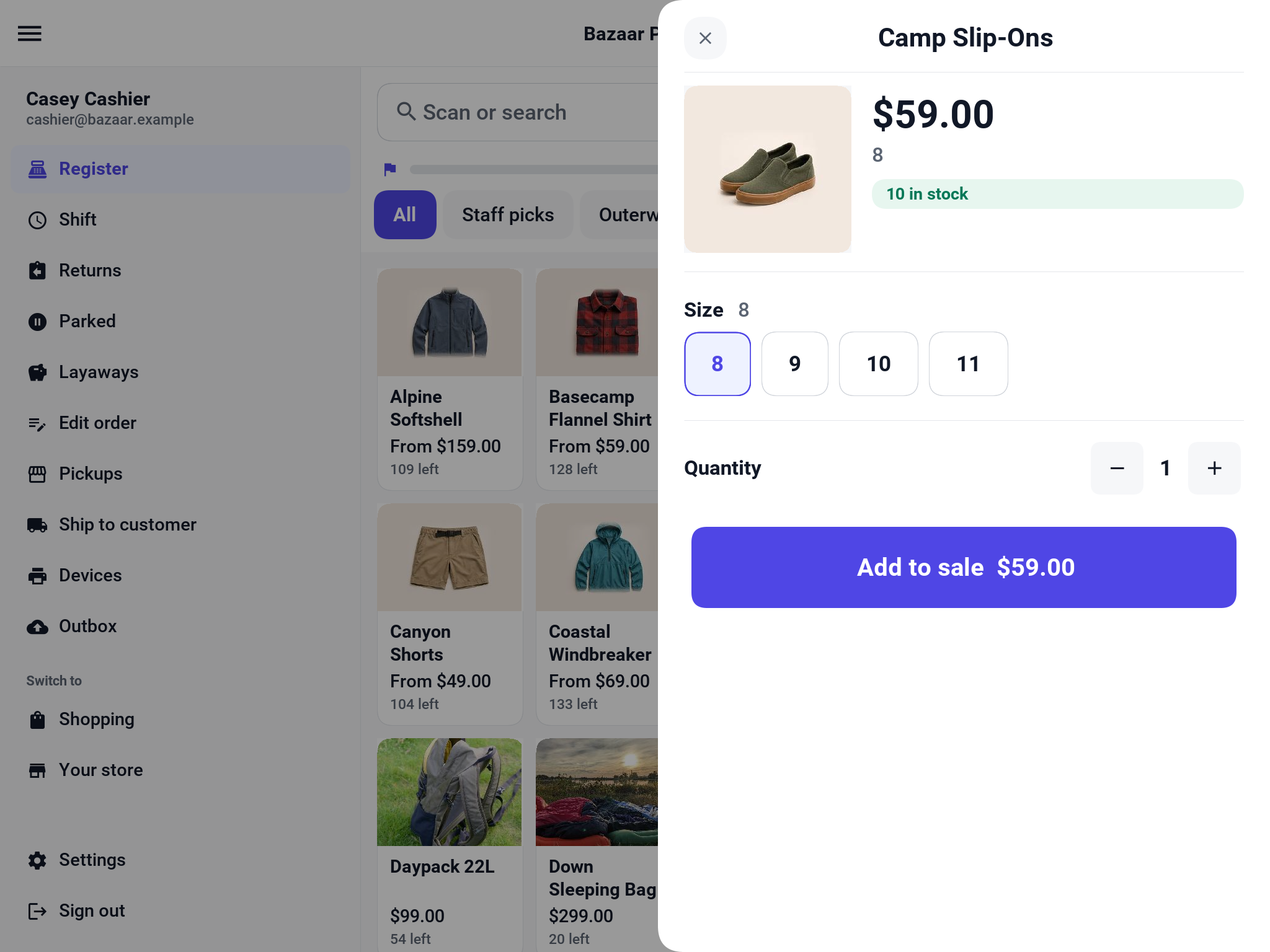
cashier), and opens a shift with the cash in the drawer. The sell screen is a
grid of products and a cart; scanning a barcode adds the item. A sale can be
attached to a customer, discounted, and paid with any mix of card, cash, gift card
and store credit, with change worked out for cash. The receipt can be printed,
emailed or shown as a QR code, and a second window on a desktop shows the cart to
the customer.
The register keeps selling with no network. Sales wait in the outbox and are sent when the connection comes back; the outbox screen shows each one’s state, and a sale the server refused, such as one paid with a gift card that ran out while the register was offline, can be retried after it’s sorted out. Returns are taken against a receipt. At the end of the shift the cashier counts the drawer, and the shift report shows the expected and counted cash.
The register works with the counter’s hardware. Under Devices, a manager pairs a
card reader by typing the code it shows (simulated-front pairs the demo’s
simulated reader); with a reader at the register, Card sends the amount to it and
the sale waits for the tap, and without one the standalone terminal is used. The
same screen takes the network address of an ESC/POS receipt printer
(192.168.1.50 or 192.168.1.50:9100): the receipt then prints on it, and a cash
sale opens the drawer wired to the printer.
Pickups lists the online orders the shopper chose to collect at this register’s location. Ready for pickup tells the shopper by e-mail and notification, and Picked up hands the order over. Ship to customer sends the sale on the register to an address instead: it quotes the store’s delivery options with the total each makes, takes payment, and the order is packed and shipped from this location like an online order. In the back office, Commissions sets each staff member’s rate and reports what they sold at the counter in the last 30 days; a sale keeps the rate of the day it was made.
The administrator
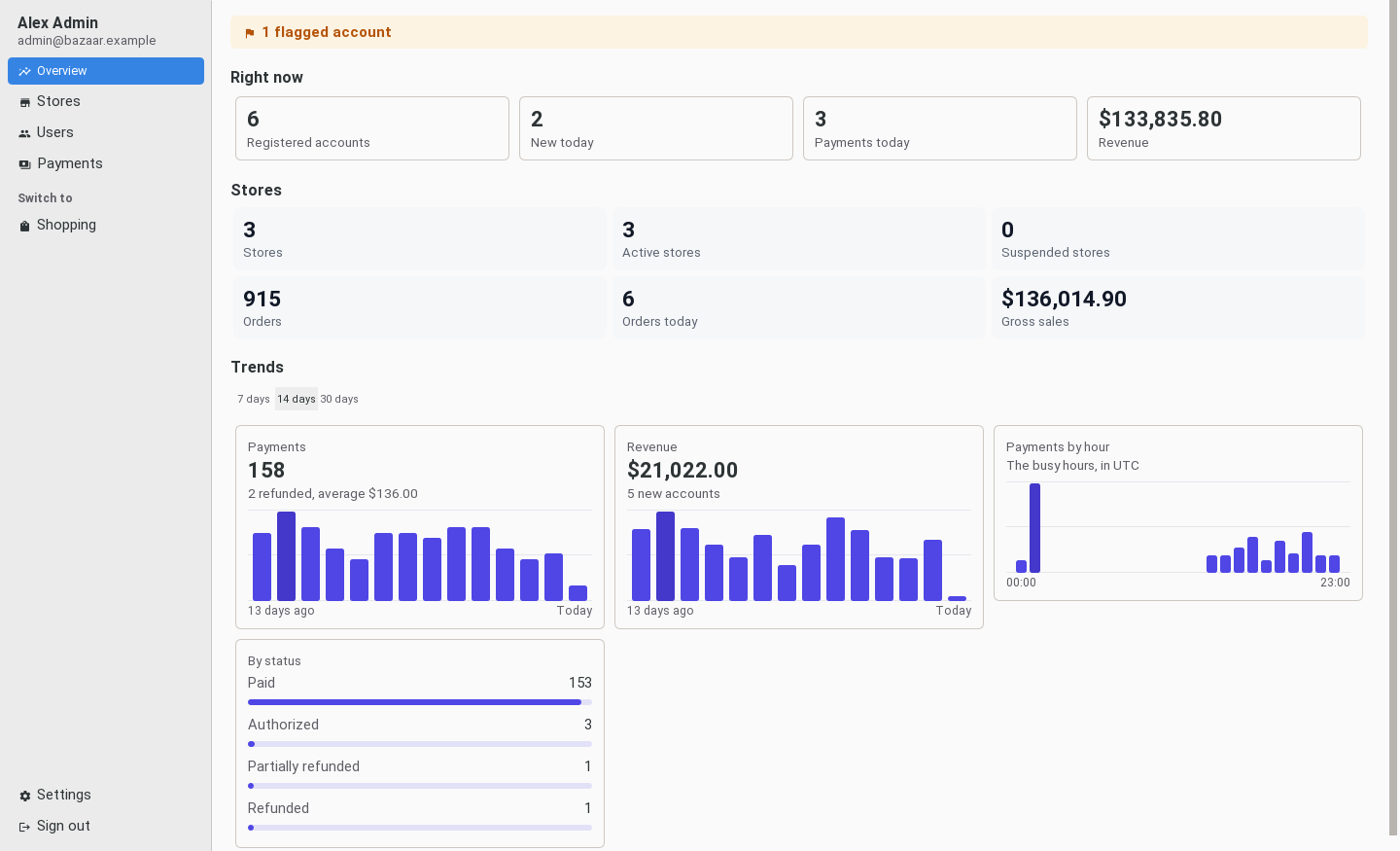
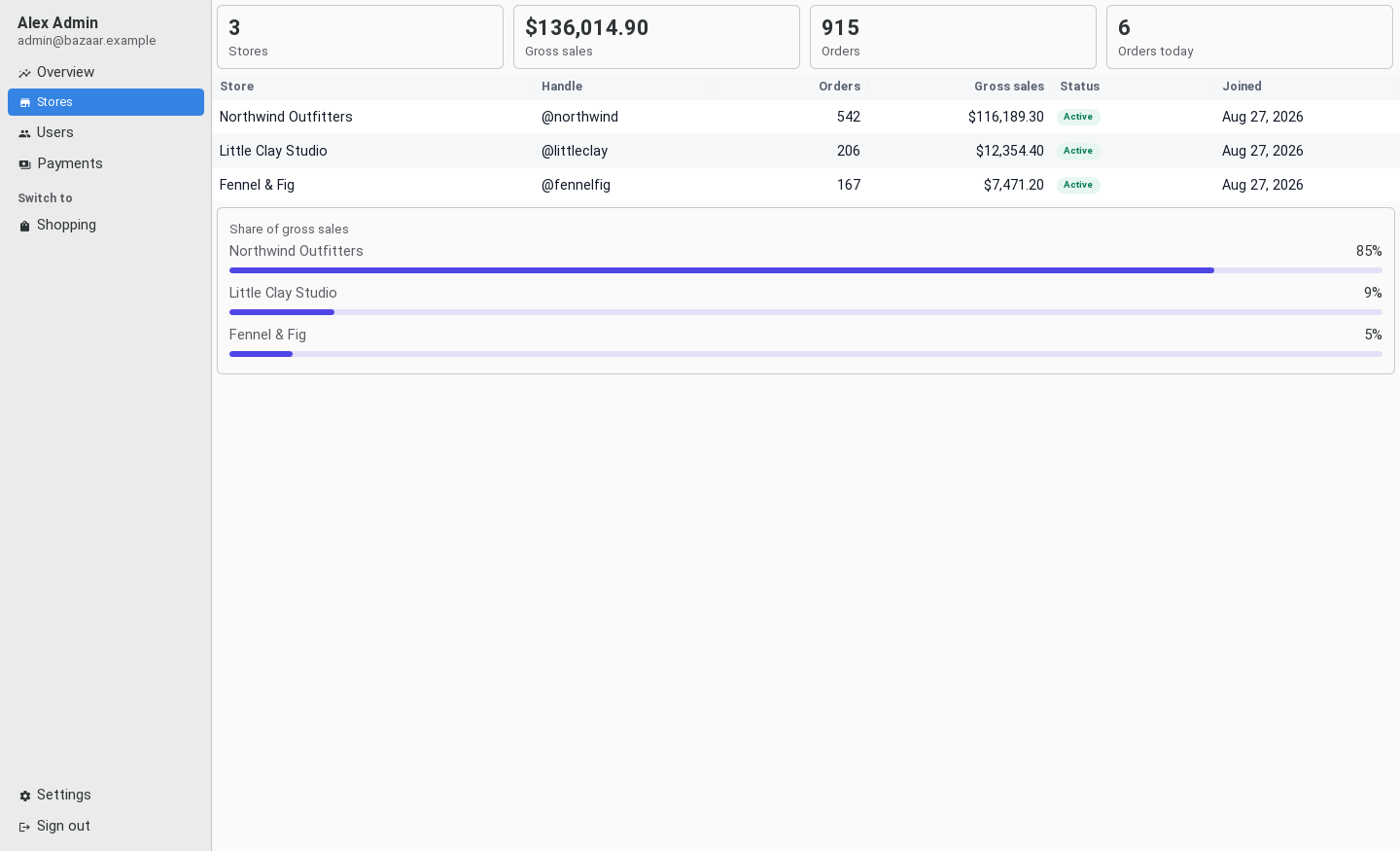
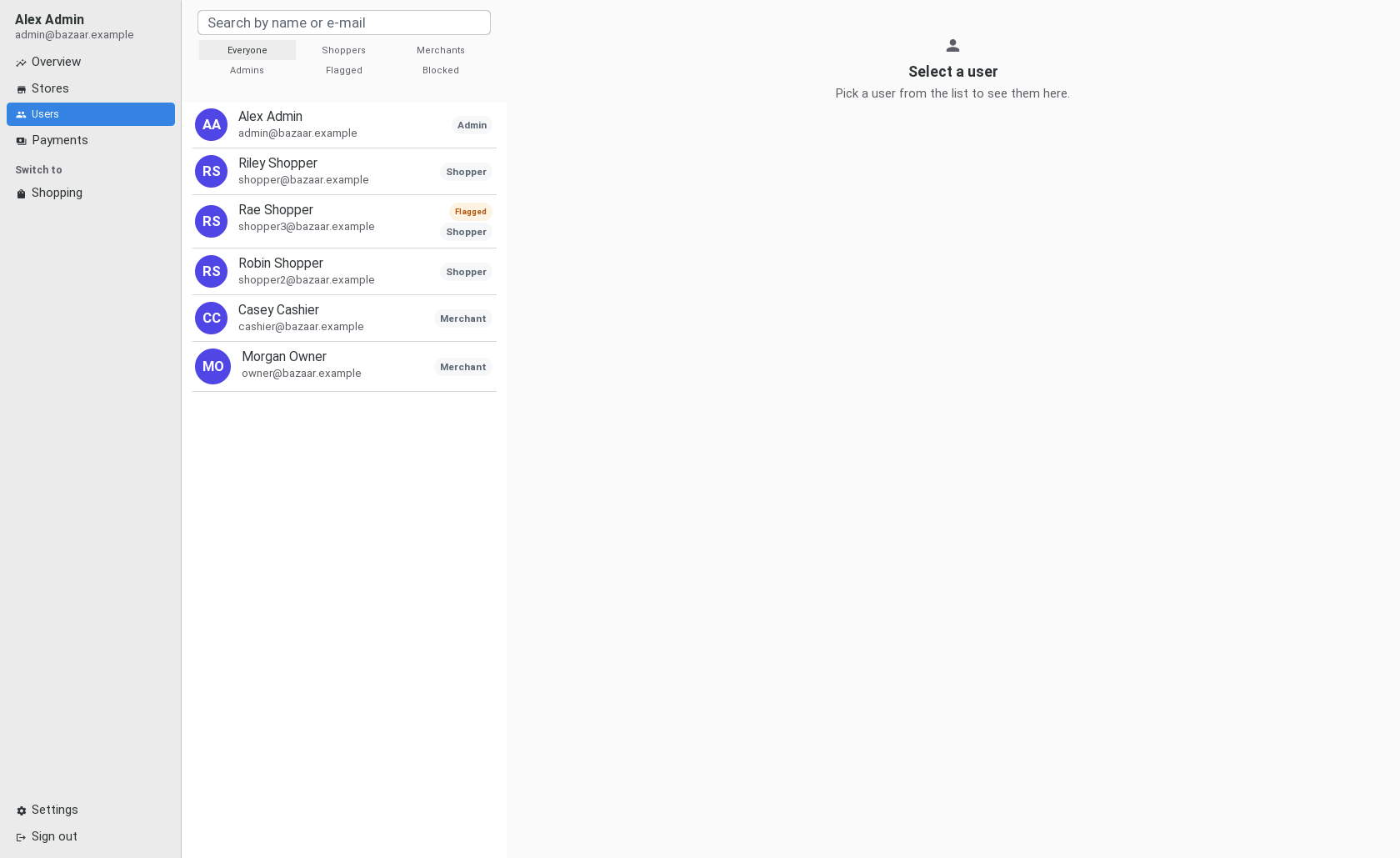
The platform console shows the number of stores, orders and the total sold across the platform. The stores screen approves pending stores and suspends or reinstates active ones, with a reason that stays in the store’s history. The users screen finds accounts, grants and removes roles, and flags or blocks an account. The payments screen lists payments and payouts across the stores.
The App listings screen is where the platform reviews the app directory. A developer’s listing, or a change to one, waits there until an administrator approves it. Reject and Delist each need a reason, which the developer sees; delisting takes an approved app off the directory. Each listing shows its reviews, and Hide takes a review out of the listing and its average rating.
In a browser
The server can host the app itself, so the whole platform runs in a browser with
nothing installed; backend/server.sh run --web builds it and serves it at
http://localhost:8080/. Beside the app, the same server serves a complete web
version of every side of the platform as ordinary HTML pages, which work without
JavaScript and load fast on any device. The rest of this chapter describes
those pages; most of what they do is also on the app’s screens.
Shopping on the web
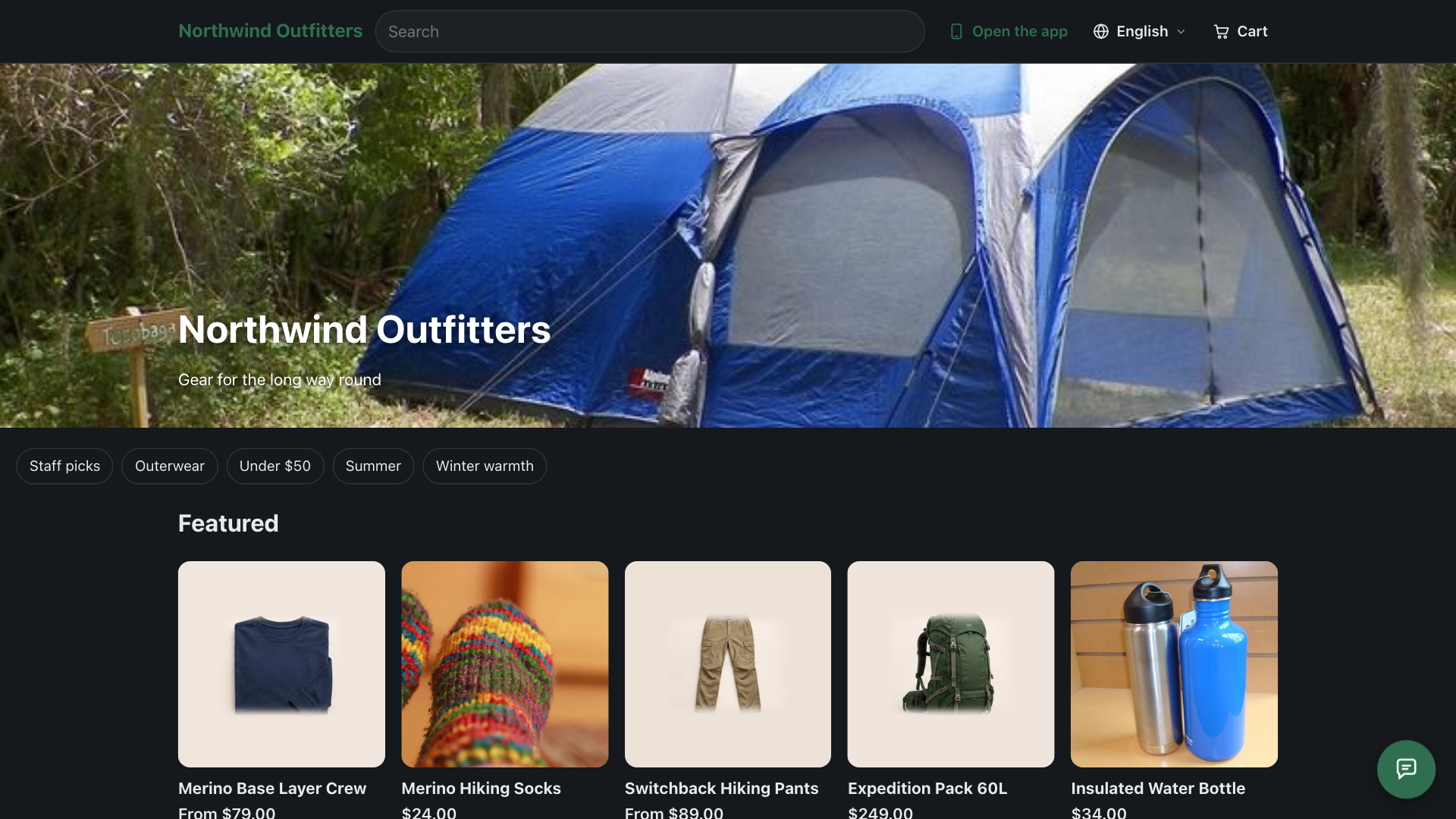
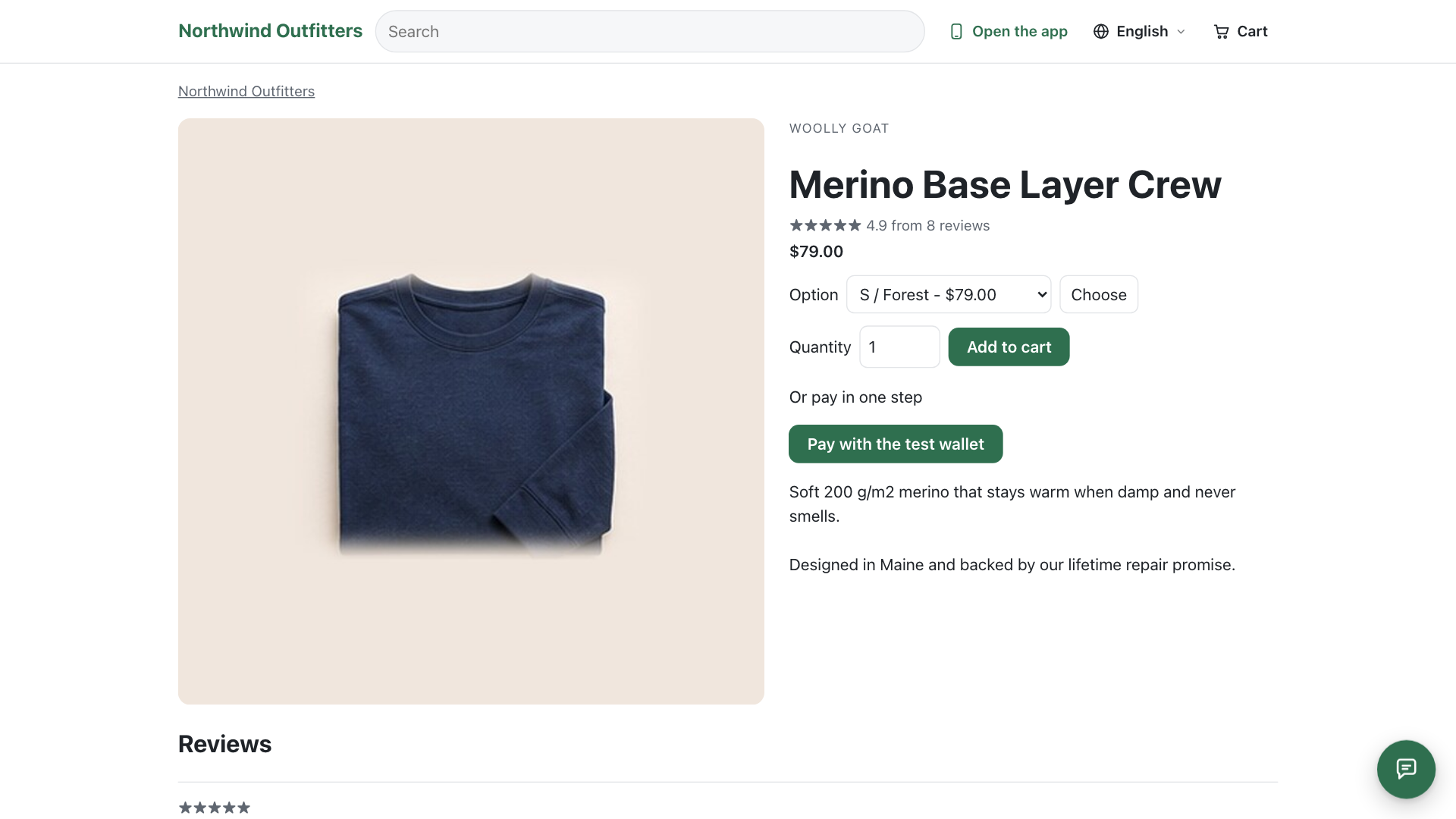
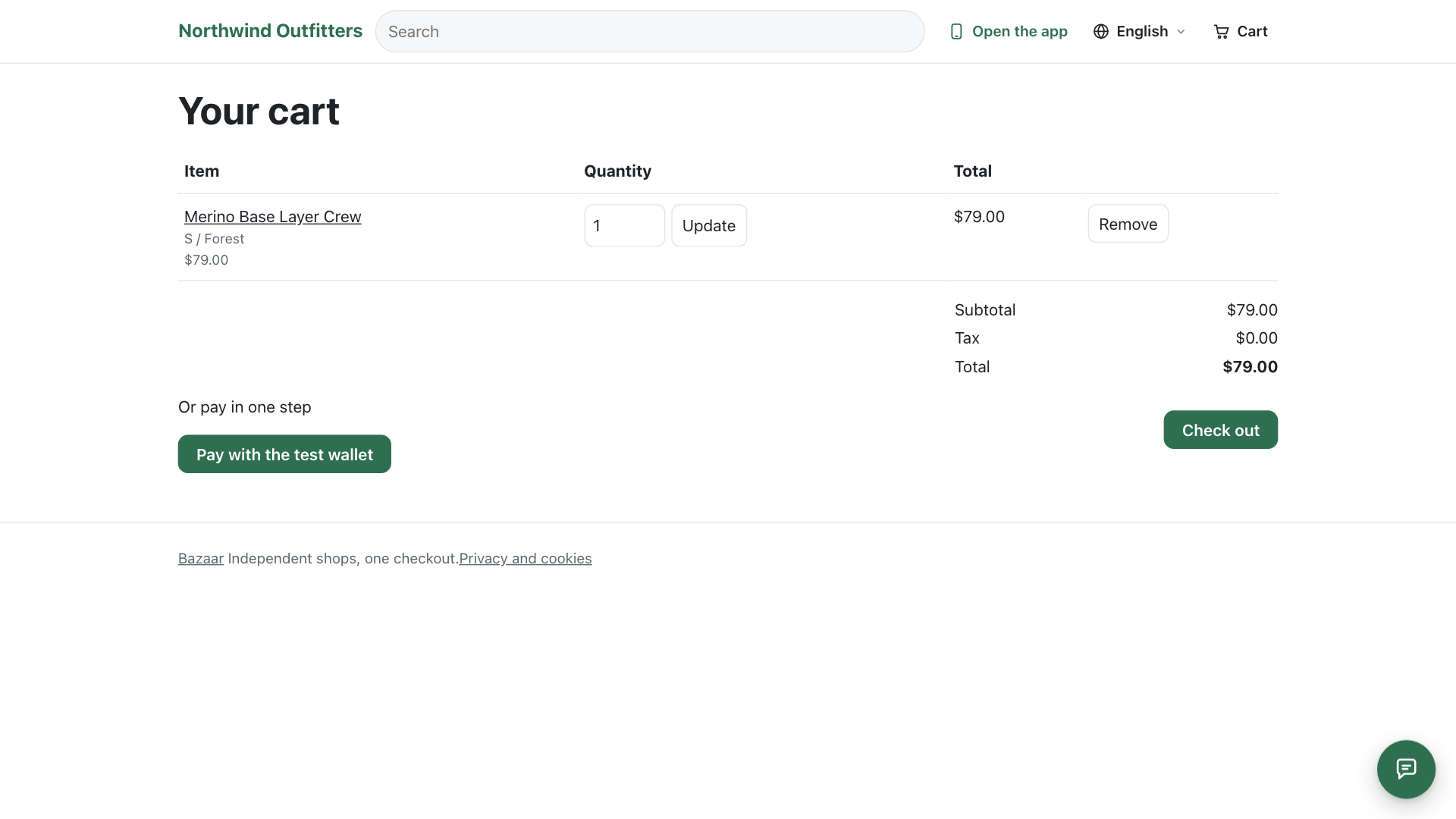
Each store lives at /s/<handle>: home, collections, search, product pages, the
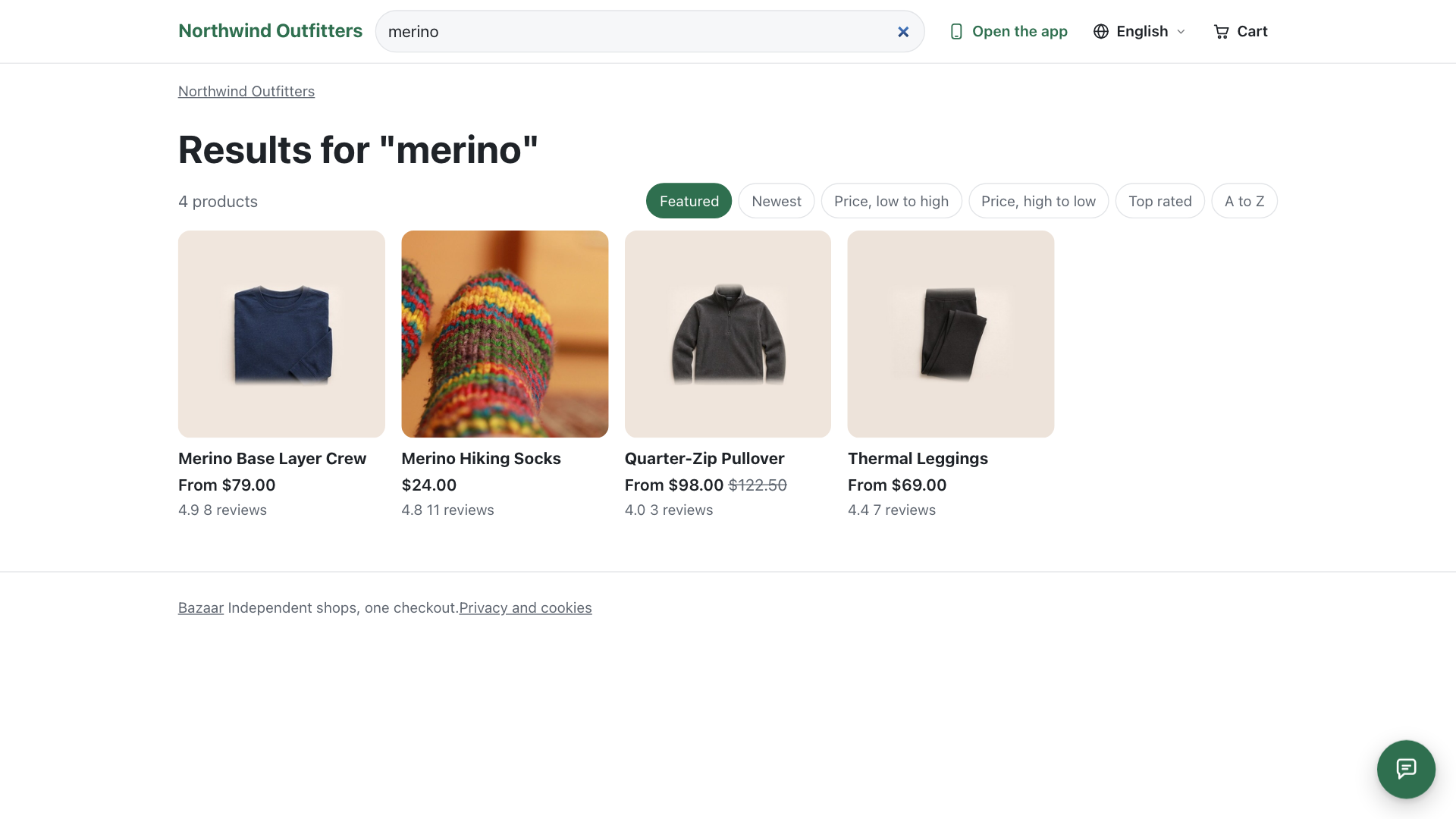
store’s own pages and blog, and a cart. The search box suggests products and collections as the
shopper types, and so does the app’s search field inside a store: tapping a
suggestion opens the product or the collection. On the web admin’s online store page the merchant sets synonym
groups and per-product boosts for search, a storefront password that keeps the
store behind a pre-launch page until launch (staff always get in), and copies
an embed code that puts a product’s buy button on another site. The same form
takes a custom domain such as shop.example.com. The domain is served only once
the store proves it owns it. Saving it gives the store a token, published either
as a file at /.well-known/bazaar-verify/<token> on the domain or as a DNS TXT
record bazaar-verify=<token> on _bazaar-verify.<domain>. A check through the
store’s API (/api/merchant/stores/{storeId}/domain/verify) then confirms it,
and from then on that address serves the store at its root. A domain another
store has proved can’t be claimed. The app does the same under Settings >
Custom domain: type the domain and tap Claim domain, and the page shows its
status, the token, the address for the file and the TXT record to add. Verify
now looks for the token at once and the status turns to Verified when it’s
found; Remove domain gives the address up. The header has a globe menu for the
language (English, Spanish, French, German and Hebrew, each named in its own
language) and, when the store sells in more than one market, a market menu
beside it. A shopper who picks a market sees prices in that market’s currency
and, when the store has translated them, product names and descriptions in its
language. Both menus work from the keyboard, and without JavaScript they’re
plain forms. The header’s Open the app link goes to the Bazaar app at /app/,
and the platform’s home page carries a card for it.
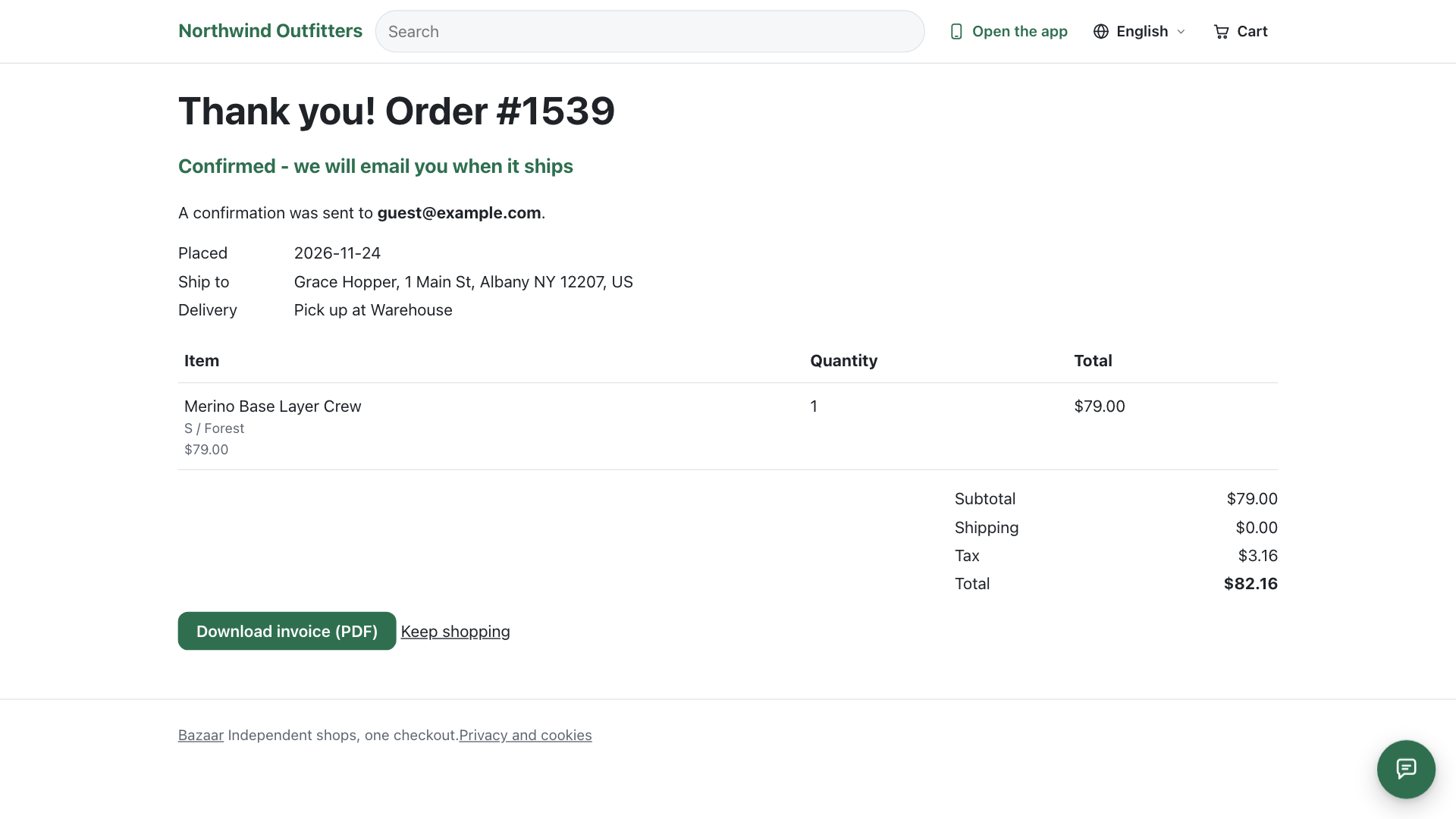
Checkout happens on the page. A guest gives an email address and a delivery address; a signed-in shopper picks one of the saved addresses. Delivery options refresh as the address changes, discount and gift card codes are applied in place, and the card is held when the order is placed. A shopper who chose a market is charged in that market’s currency, at the rate the page showed. The confirmation page and its invoice open from a link in the confirmation email, so a guest can come back to them without an account.
A product that’s out of stock but on pre-order can still be bought; the cart and the confirmation say the item ships when stock arrives. An item that isn’t on pre-order offers a form to be emailed when it’s back. A shopper who left a cart gets a reminder whose link restores that cart on any device.
The chat bubble in the corner of every store page opens a conversation with the store. It shows whether anyone on the staff is online, when they’re typing, and a tick for each message once it’s delivered and another once it’s read. The conversation follows the shopper from page to page and, once they sign in, to their account on another device. A shopper who leaves an email address gets replies there when the chat is closed. While someone on the staff is online the shopper can also place a voice or video call from the chat. The cookie banner asks once which optional cookies the shopper accepts, and the privacy page changes the answer later.
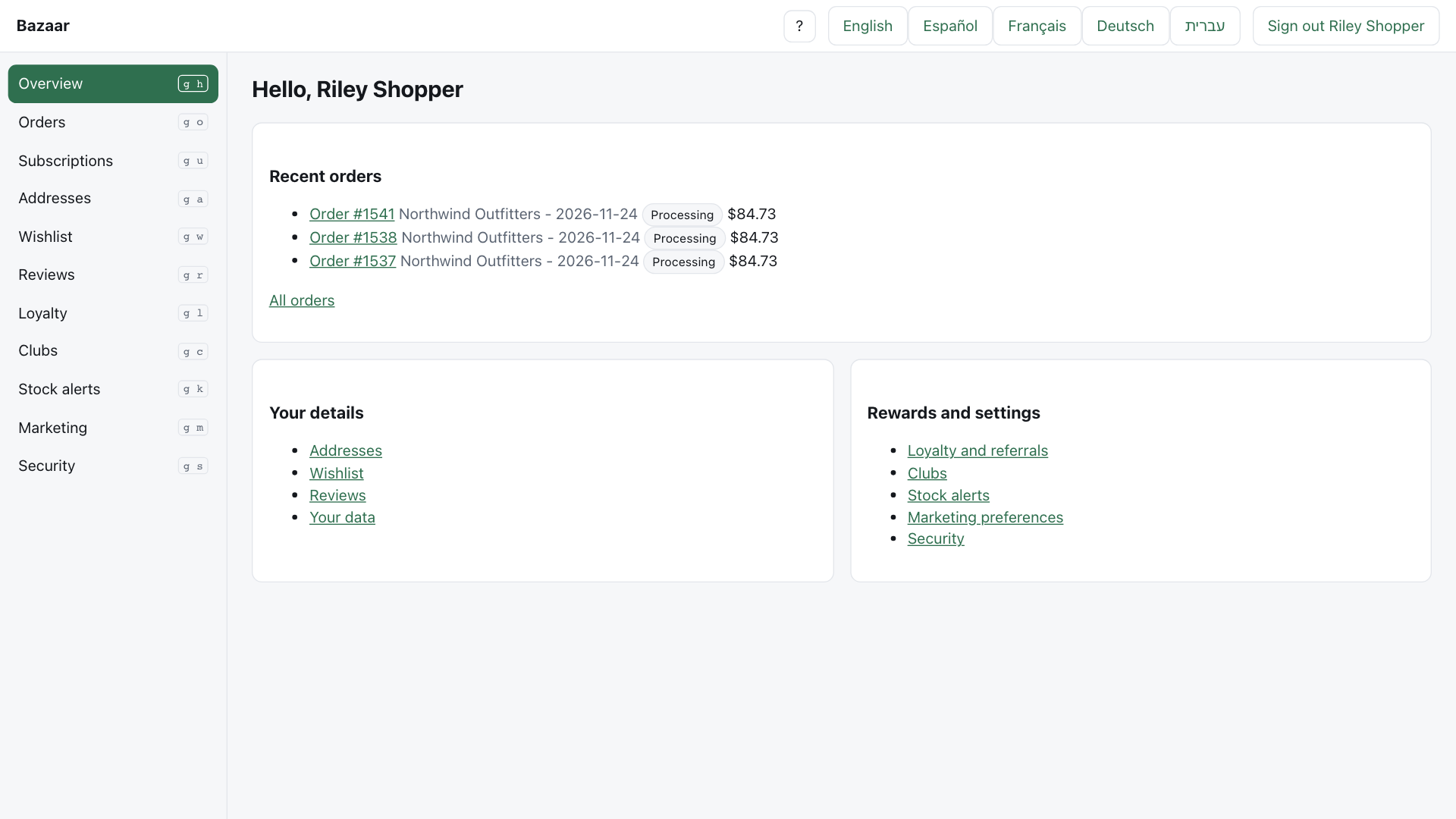
A visitor can create an account at /signup and sign in with a password. Once
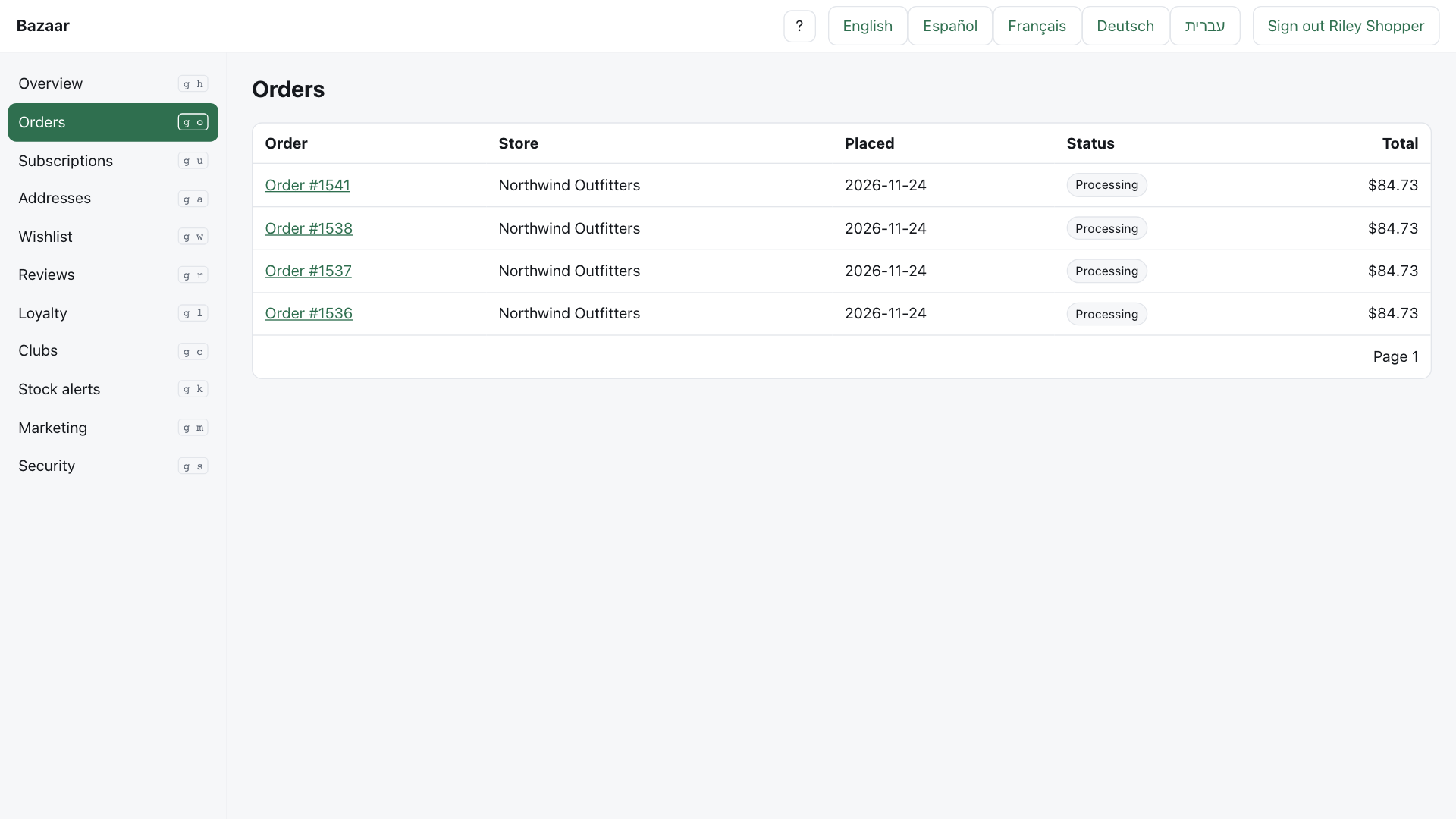
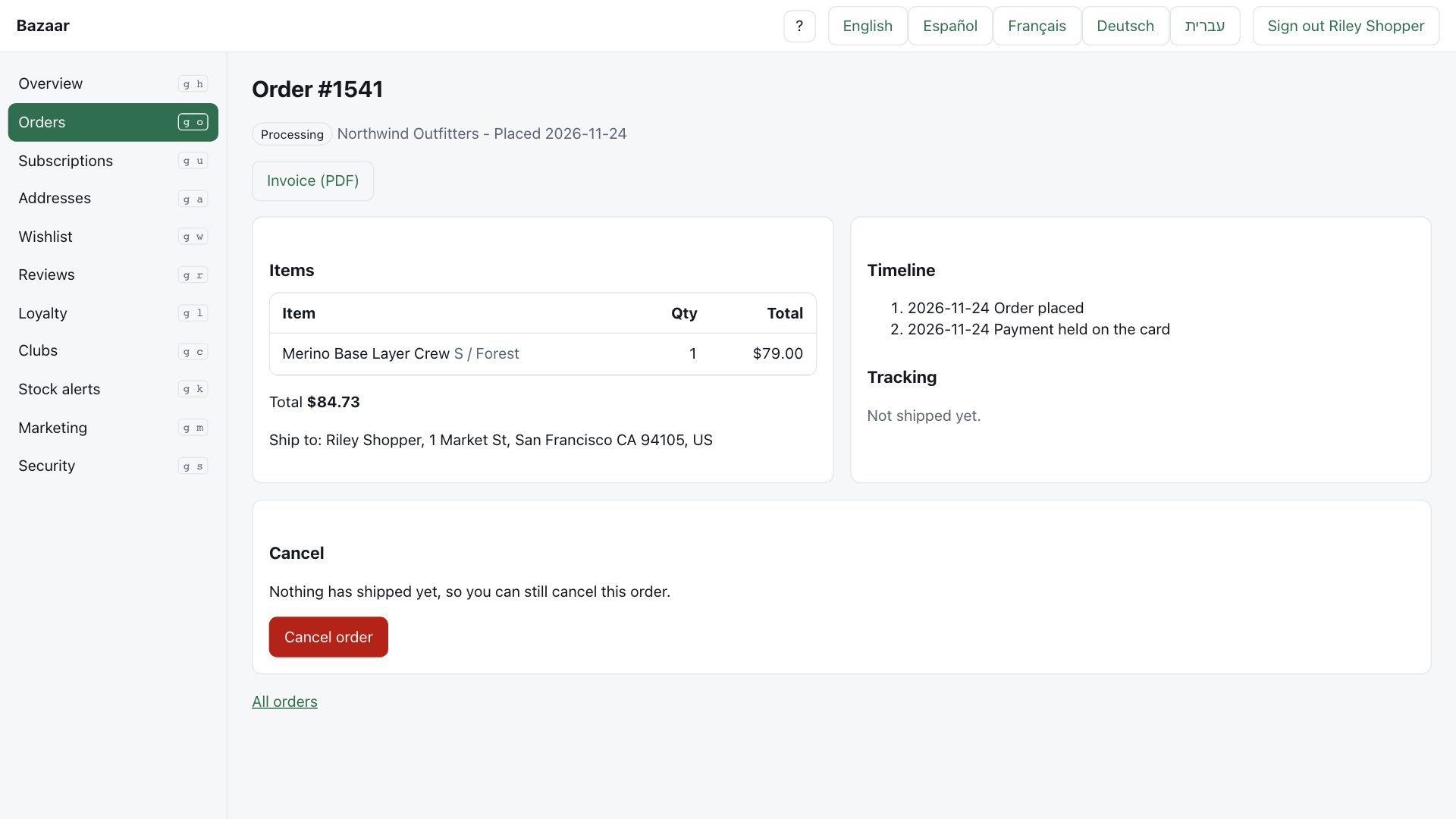
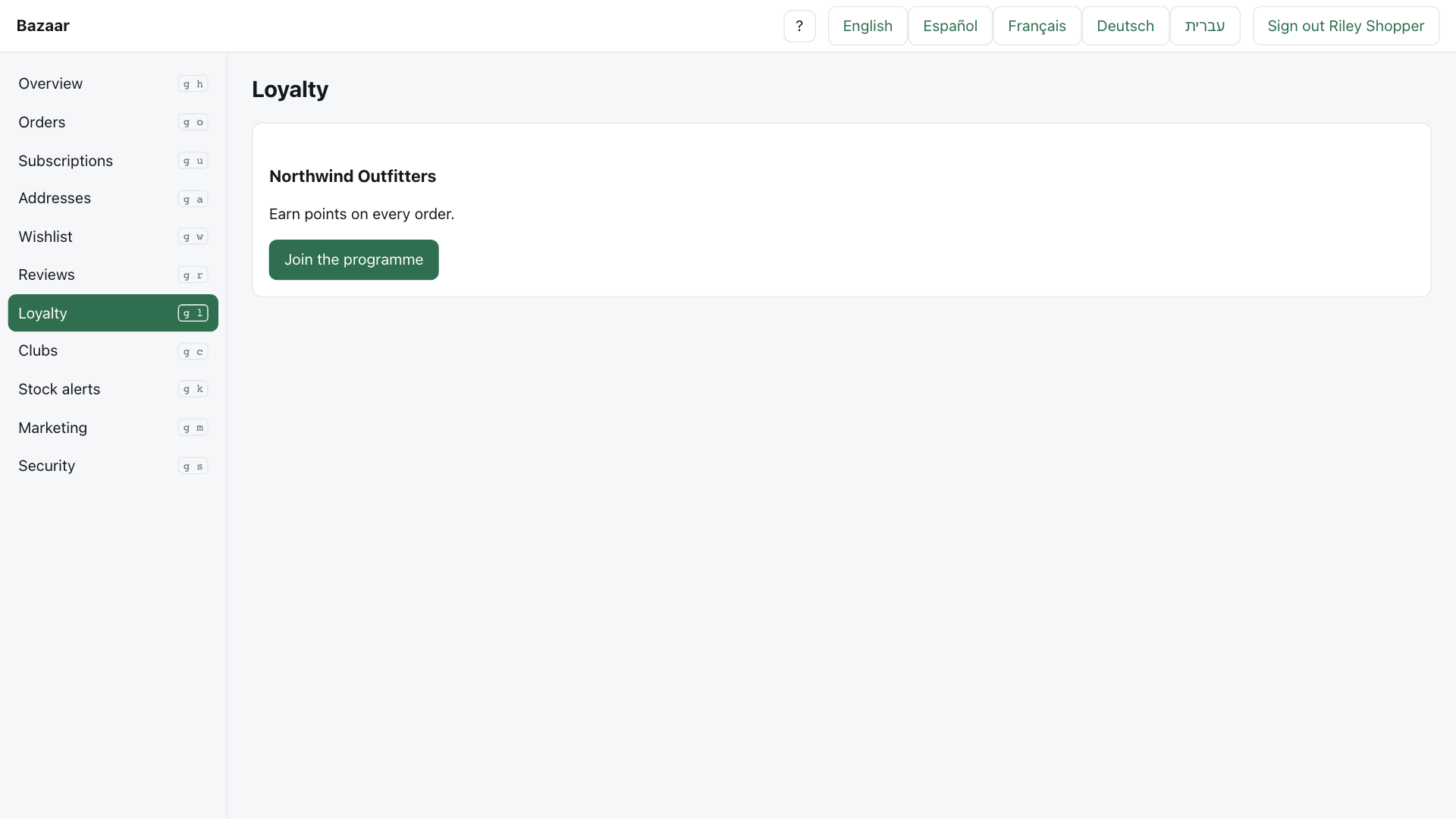
signed in, /account holds:
orders, with tracking, invoices and a return form once an order is delivered;
saved addresses, the wishlist and the reviews they wrote;
loyalty points, kept per store: the balance shown is the store where the shopper stands highest, named beside it, with points at other stores listed apart and never added to it; the member card as a QR code, and clubs they belong to;
back-in-stock alerts and, per store, whether they receive marketing;
subscriptions, which can be paused, resumed, skipped or cancelled;
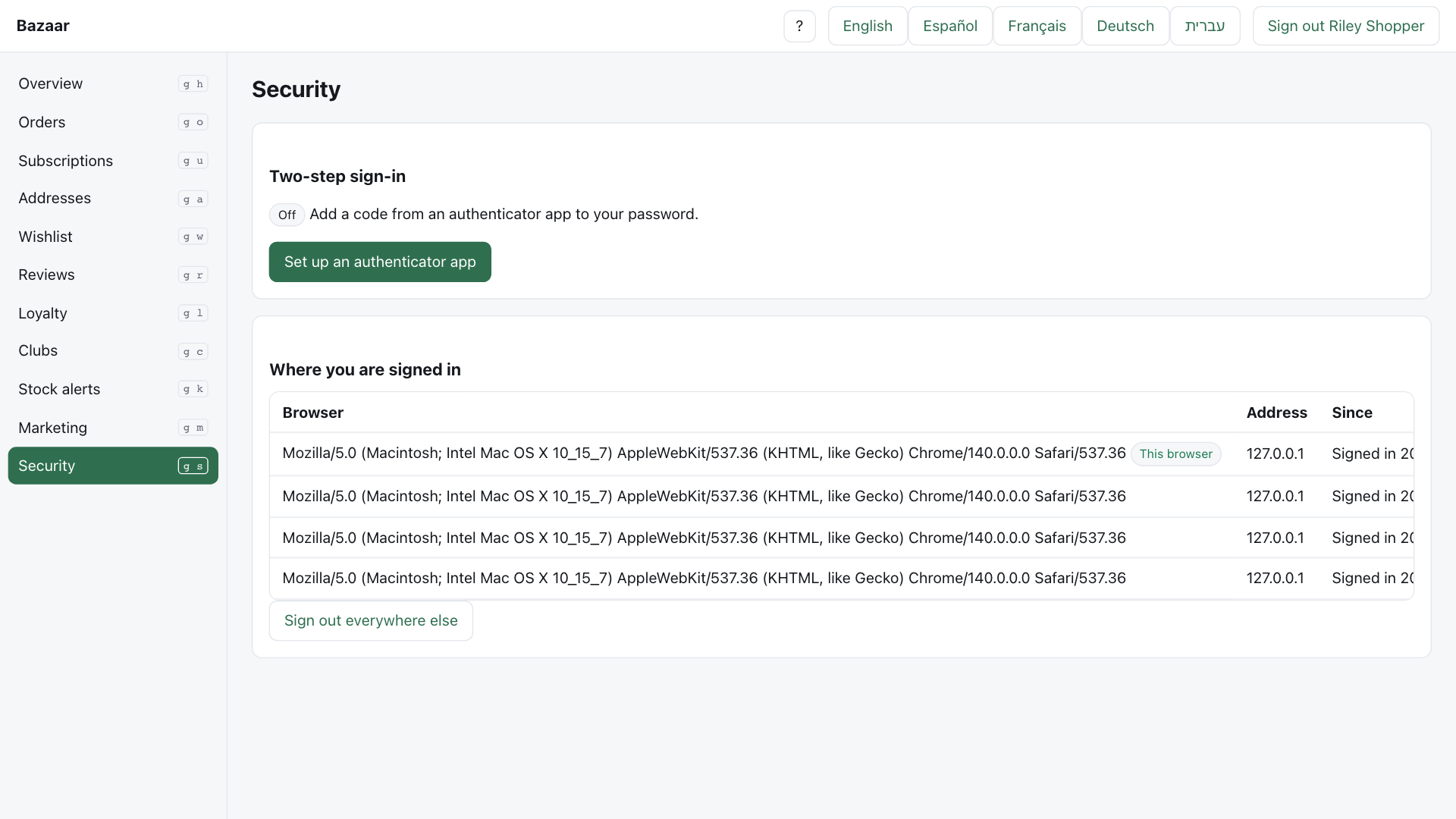
security: an authenticator app for two-step sign-in, recovery codes, and signing out every other session.
Buying for a company
A buyer the merchant has added to a company sees the company’s prices in the store and a company section in the account. From there the buyer orders by SKU on a quick-order form or by uploading a CSV file of SKUs and quantities, asks for a quote, accepts or declines a quote the store sent, and downloads the invoices for orders placed on net terms. Quantities follow the price list’s rules, such as a minimum or cases of six.
The back office in a browser
The back office in a browser is the Bazaar app itself: the server hosts the
app’s JavaScript build at /app/, so a merchant opens that address, signs in
from the Account tab and gets the same back office as on a phone, tablet or
desktop. Staff whose account has two-step sign-in enrolled enter their
authenticator code too. The server renders only the storefront; an old
/admin address redirects to /app/. The dashboard shows the day’s sales and
charts; the sections below are reached from the menu.
Orders and stock. Orders can be searched, refunded or cancelled, and fulfilled from the order page: pack a parcel, buy a label at one of the carrier’s rates, then mark it shipped, with the packing slip and label as PDFs. The fulfilment board moves orders a column at a time. Products, inventory and customers have tables that sort, filter and export to CSV.
Warehouse. The warehouse board of a location shows purchase orders arriving (receiving, put away) and orders leaving (pick, pack, dispatch), with the bins and a pick list that walks them in order. Each transfer and purchase order has a timeline of when it was sent and received. The forecast page shows how long each item’s stock will last at each location at its recent rate of sale, and drafts the purchase orders and transfers that would cover the shortfall.
Selling. Discounts and sales have editors; a sale changes prices when it starts and puts them back when it ends. A flash sale can cap the units it sells, and the storefront counts down to its end. The promotions calendar shows a month of sales, campaigns and launches, and an event can be moved to another day. Subscriptions are set up as selling plans on a product, with renewals and failed payments listed. Companies hold sites, buyers, a price list and payment terms; quotes move across a board from draft to ordered, and unpaid net-terms invoices can be marked paid.
Marketing. A segment is built from rules (spent more than, ordered in the last, lives in) with a live count of who matches. A campaign sends an email or text to a segment, with a test send to yourself first and an optional A/B test of two subjects. Journeys are flowcharts that walk each customer through waits, messages and branches, with the number of customers at each step. The loyalty page sets how points are earned and the tiers; clubs are paid memberships that unlock member prices, members-only products and early access. At the register a cashier scans the member card to earn points, and a reward is redeemed as a single-use code or as store credit. Signup forms collect email addresses, and only people who agreed receive marketing.
Markets and tax. A market groups countries under a currency and language, with an exchange rate the merchant enters, a price adjustment, rounding and, where wanted, fixed prices. The translations page edits product, collection and page text per language, each field beside its original and marked missing, outdated (the original changed since) or done. A product’s sheet covers its title, description, SEO text, option names and values, pictures' alternative text and text metafields; a product’s page links to it, and the app’s product editor has a Translations card. A whole catalog goes out to a translator as one CSV per language and comes back the same way. Shoppers see the translation for the language they chose, else their market’s, else their browser’s, on every page, in the cart and checkout, and in order mail. Products can carry customs codes, and duty rates per destination give the shopper an estimate of import duties at checkout. The tax page reports tax collected by region for a period, as a CSV for filing, and records customers' tax exemption certificates. Tax rules turns on EU VAT from the rate table, which charges each product by its tax category (standard, reduced, super-reduced or exempt), picks the United States sales-tax provider, adds rate overrides for a product or a collection in a country or region, and downloads the OSS VAT report as CSV.
Security and API. The owner can require two-factor sign-in of every staff member, add an OpenID Connect provider for single sign-on (staff at a mapped email domain join with its role), create API keys with scopes for other systems (a key is shown once), and start bulk exports of products or orders as JSONL.
Risk. Each online order is scored for fraud. A high score holds the order: it can’t be fulfilled until a manager approves or cancels it from the risk page. Managers can add fraud filter rules beside the score (order total over an amount, several orders from one customer within an hour, connected from a country other than the delivery one), each holding or cancelling the order. The rules are listed, added and removed in the merchant app under Settings, Fraud filter rules; long-press a rule to remove it. A product can also be offered as try before you buy, for 1 to 6 days: the shopper’s card is only held at checkout, shipping doesn’t charge it, and the money is taken when the trial ends unless the shopper asked to return the goods first, which lets the hold go. Six days is the limit because a card hold expires after about a week. The trial is set in the product editor’s Offers card, which also marks the product as the store’s post-purchase offer: after checkout a signed-in shopper who paid with a saved card sees it on the order placed screen (and the web confirmation page) and can add it in one tap. It becomes a separate small order on the same card, and each order’s note names the other. On a product page a signed-in shopper with a saved address and card can tap Buy now to order that item alone, without going through the cart. The web checkout is a single page whose delivery rates refresh as the address changes. Payment disputes reported by the processor appear with their deadline; the merchant attaches evidence (the order’s own details are one click), submits it, or accepts the dispute.
Online store. The theme page picks colors, font, corner style and logo, shows
the result on a preview link that can be shared for an hour, and publishes it.
The home page’s sections can be reordered or left out, and the blocks section
holds up to ten blocks in order (a heading, text, an image, a product, a
collection or a button), written one a line as kind | text | reference; the
web storefront and the app’s store home both show them once the theme is
published. An owner of more than one store finds Organization overview in the
store switcher: every store they own, with
its orders and sales.
Pages and policies, blog posts, the header and footer menus, and redirects from
old addresses are edited here too. Metafields add typed fields to products,
customers and orders (a care note, a material from a list), and those marked
for the storefront show in the product’s specifications. Each store also has
product feeds for shopping engines, per market, and an Atom and RSS feed of its
blog; the online store page lists their addresses.
Apps. The store owner can place third-party scripts and widgets at named places on the storefront. Each one says which cookie category it needs, and it loads only for shoppers who accepted that category.
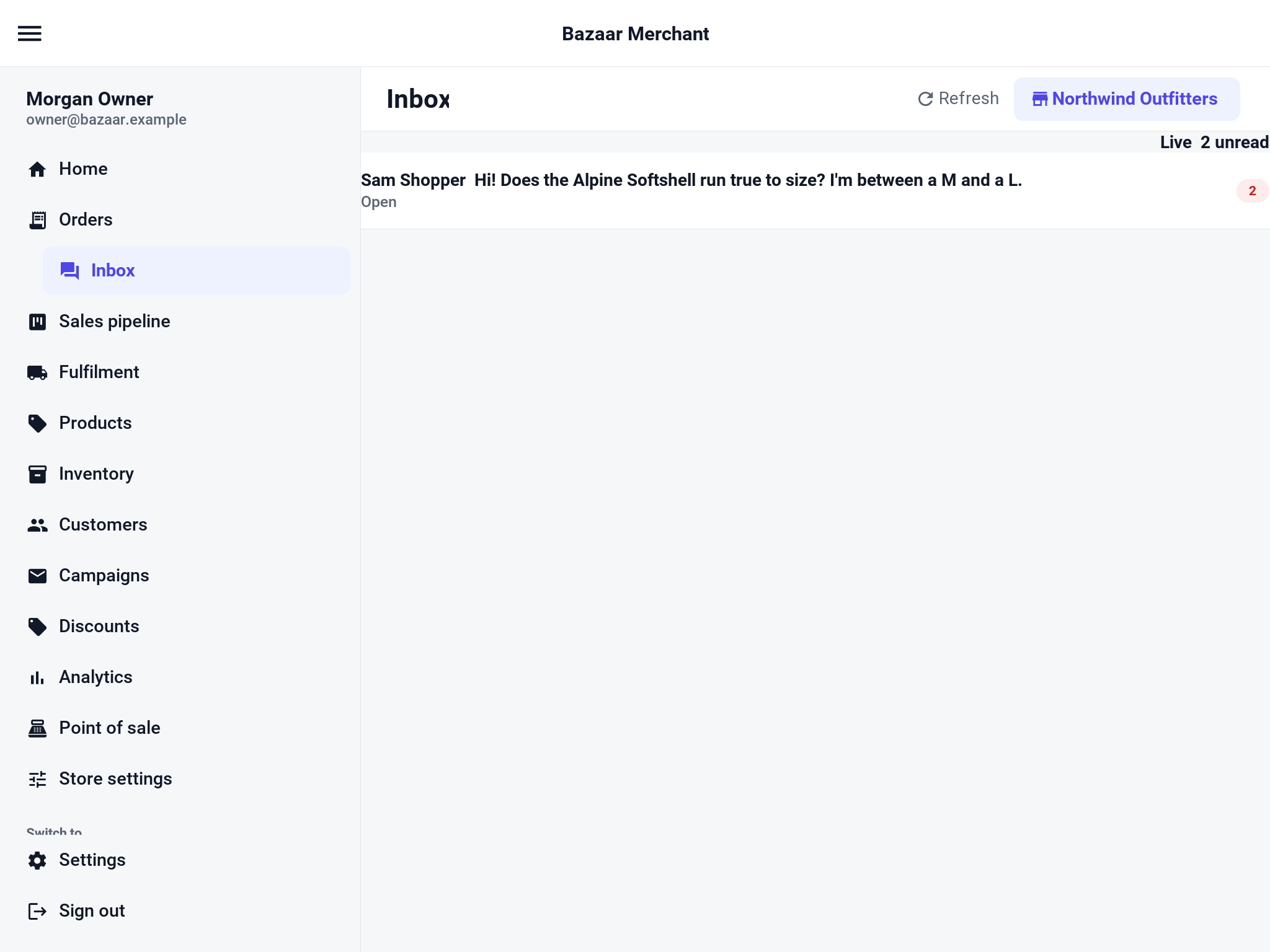
Operations. The report builder groups sales by up to two dimensions (day, product, channel, source) and saves the result. In the app, the Reports section picks one dimension, a measure and a date range from pickers, then runs the report and saves it under a name. The cohort grid shows how many customers of each month came back, and the attribution page shows sales by the campaign or site the customer came from. The profit and loss statement (the Reports section’s Profit and loss button) shows net sales after discounts and refunds, the cost of goods from each variant’s cost, gross margin, and the shipping and tax shoppers paid, and counts the units sold without a cost. In the app it opens with a waterfall chart that steps from gross sales through discounts, refunds and cost to the margin, above the table of lines. A product page, on the web and in the app, recommends the products most often bought in the same order, then others from its collections. Every storefront page starts with a "Skip to content" link. Permission sets give a staff member access to only some areas, at one location or at every location. The inbox answers chat messages live, with assignment and saved replies: a conversation page shows the shopper typing and reading, and a call from the storefront rings anywhere in the inbox and is answered on its conversation. The app’s Inbox section works the same conversations: it shows unread counts and new messages as they arrive, replies from the conversation page, and rings with Accept and Decline when a shopper calls, answering voice and video calls on the phone or tablet. A call that one member of staff answers stops ringing for everyone else. The listings page imports a marketplace CSV as draft products, combining the colors of one item into a single listing.
The register’s extras
At the register, a card payment can offer tip presets. A discount past the store’s threshold, a price override or a refund asks a manager to enter their PIN; the approval travels with the sale, so it also works offline. A cart can be parked and resumed later with its customer, and an item not in the catalog can be rung up by name and price. A layaway puts goods aside on a deposit and hands them over when the last payment is made; cancelling refunds what was paid less the store’s fee. A completed sale can be edited, adding or removing items with the difference charged or refunded, and shelf price labels can be printed for any products.