Most events in Codename One are routed via the high-level events (for example, action listener) but sometimes you need access to low-level events (for example, when drawing via Graphics) that provide more fine grained access. Typically working with the higher level events is far more potable since it might map to different functionality on different devices.
High-level events
High-level events are broadcast using an addListener/setListener - publish/subscribe system. Most of them are channeled via the EventDispatcher class which further simplifies that and makes sending events far easier.
EventDispatcher makes sure of that.Chain of events
Since all events fire on the EDT some complexities occur. E.g.:
You have two listeners monitoring the same event (or related events for example, pointer event and button click event both of which will fire when the button is touched).
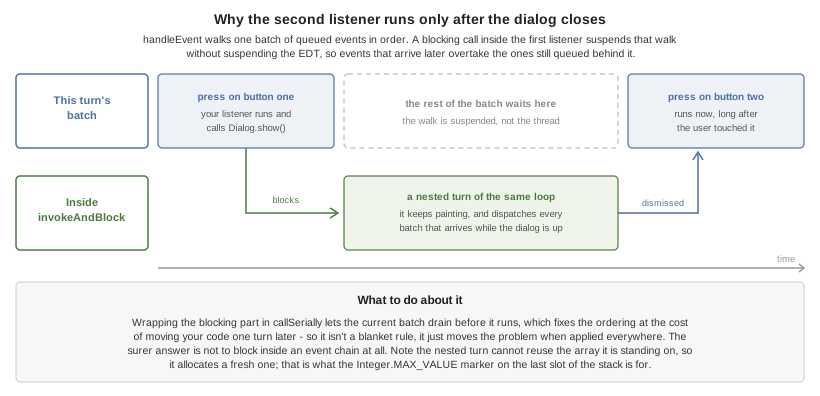
When the event occurs you can run into a scenario like this:
First event fires
It shows a blocking dialog or invokes an "AndWait" API
Second event fires after the dialog was dismissed!
This happens because events are processed in-order per cycle. Since the old EDT cycle is stuck (because of the Dialog) the rest of the events within the cycle can’t complete. New events are in a new EDT cycle so they can finish fine!
A workaround to this issue is to wrap the code in a callSerially, you shouldn’t do this universally as this can create a case of shifting the problem to the next EDT cycle. But, using callSerially will allow the current cycle to flush which should help.
Another workaround for the issue is avoiding blocking calls within an event chain.
Action events
The most common high-level event is the ActionListener which allows binding a generic action event to pretty much anything. This is so ubiquitous in Codename One that it’s even used for networking (as a base class) and for some low-level event options.
For example, you can bind an event callback for a Button by using:
Button b = new Button("Click Me");
b.addActionListener(new ActionListener() {
    public void actionPerformed(ActionEvent ev) {
        // button was clicked, you can do anything you want herenull
    }
});
Or thanks to the Java 8 lambdas you can write it as:
Button b = new Button("Click Me");
b.addActionListener((ev) -> {
    // button was clicked, you can do anything you want here.
});
Notice that the click will work whether the button was touched using a mouse, finger or keypad shortcut seamlessly with an action listener. Many components work with action events for example, buttons, text components, slider etc.
Quite a few high-level event types exist that are more specific to requirements.
Types of action events
When an action event is fired it’s given a type, but this type might change as the event evolves for example, a command triggered by a pointer event won’t include details of the original pointer event.
You can get the event type from getEventType(), this also gives you a rather exhaustive list of the possible event types for the action event.
Modern gesture components also publish custom action types. For example, SwipeableContainer dispatches ActionEvent.Type.Swipe when the top component is fully opened, allowing code to react to swipe gestures without monitoring low-level drags. Listening for these higher level events keeps gesture handling portable across touch and desktop targets.
Source of event
ActionEvent has a source object, what that source is depends on the event type. For most component based events this is the component but there are some nuances.
The getComponent() method might not get the actual component.
In case of a lead component such as MultiButton the underlying Button will be returned and not the MultiButton itself.
To get the component that you would logically think of as the source component use the getActualComponent() method.
Event consumption
An ActionEvent can be consumed, once consumed it will no longer proceed down the chain of event processing. This is useful for some cases where you would like to block behavior from proceeding down the path.
For example, the event dispatch thread allows you to listen to errors on the EDT using:
Display.getInstance().addEdtErrorHandler((e) -> {
    Exception err = (Exception)e.getSource();
    // null
});
This will work great but you will still get the default error message from the EDT over that exception. To prevent the event from proceeding to the default error handling you can do this:
Display.getInstance().addEdtErrorHandler((e) -> {
    e.consume();
    Exception err = (Exception)e.getSource();
    // null
});
Notice that you can check if an event was already consumed using the isConsumed() method but it’s pretty unlikely that you will receive a consumed event as the system will stop sending it.
NetworkEvent
NetworkEvent is a subclass of ActionEvent that’s passed to actionPerformed callbacks made in relation to generic network code. For example:
NetworkManager.getInstance().addErrorListener(new ActionListener<NetworkEvent>() {
    public void actionPerformed(NetworkEvent ev) {
        // now we have access to the methods on NetworkEvent that provide more information about the network specific flags
    }
});
Or with Java 8 lambdas:
NetworkManager.getInstance().addErrorListener((ev) -> {
    // now we have access to the methods on NetworkEvent that provide more information about the network specific flags
});
The NetworkEvent allows the networking code to reuse the EventDispatcher infrastructure and to simplify event firing through the EDT. But you should notice that some code might not be equivalent for example, you could do this to read the input stream:
ConnectionRequest r = new ConnectionRequest() {
    @Override
    protected void readResponse(InputStream input) throws IOException {
        // read the input stream
    }
};
Or you can do something similar using this code:
ConnectionRequest r = new ConnectionRequest();
r.addResponseListener((e) -> {
    byte[] data = (byte[])e.getMetaData();
    // work with the byte data
});
These seem similar but they have one important distinction. The latter code is invoked on the EDT, so if data is big it might slow down processing. The ConnectionRequest is invoked on the network thread and so can process any amount of data without slowing down the UI.
MessageEvent and the Cross-Platform message bus
Bridging to native code often means passing messages between Codename One Java and platform specific code. The cross-platform message bus provides a high-level abstraction for that by letting you post messages to the native layer and subscribe for messages that originate there. Use Display.postMessage() to send an MessageEvent to the platform, and Display.addMessageListener() to receive events that arrive from native code, JavaScript bridges, or background services. Message events include helpers like isPromptForAudioRecorder(), isPromptForAudioPlayer(), and getPromptPromise() that allow you to hook into permission prompts emitted by the JavaScript port so custom UI can respond to platform requests while keeping the event dispatch on the EDT. This API complements NetworkEvent by covering native-to-Java messaging without requiring direct low-level callbacks.
DataChangedListener
The DataChangedListener is used in several places to show that the underlying model data has changed:
TextField - the text field provides an action listener but that "fires" when the data input is complete.
DataChangedListenerfires with every key entered and thus allows functionality such as "auto complete" and is indeed used internally in the Codename One AutoCompleteTextField.TableModel & ListModel - the model for the Table class notifies the view that its content has changed via this event, thus allowing the UI to refresh.
There is an exhaustive example of search that’s implemented using the DataChangedListener in the Toolbar section.
FocusListener
The focus listener allows you to track the "selected" or focused component. It isn’t as useful as it used to be in feature phones.
You can bind a focus listener to the Component itself and receive an event when it gained focus, or you can bind the listener to the Form and receive events for every focus change event within the hierarchy.
ScrollListener
ScrollListener allows tracking scroll events so UI elements can be adapted if necessary.
Scrolling is seamless and this event isn’t necessary, but if developers wish to "shrink" or "fade" an element on scrolling this interface can be used to achieve that. Notice that you should bind the scroll listener to the actual scrollable component and not to an arbitrary component.
For example, in this code from the Flickr demo the Toolbar is faded based on scroll position:
public class CustomToolbar extends Toolbar implements ScrollListener {
    private int alpha;

    public CustomToolbar() {
    }

    public void paintComponentBackground(Graphics g) {
        int a = g.getAlpha();
        g.setAlpha(alpha);
        super.paintComponentBackground(g);
        g.setAlpha(a);
    }

    public void scrollChanged(int scrollX, int scrollY, int oldscrollX, int oldscrollY) {
        alpha = scrollY;
        alpha = Math.max(alpha, 0);
        alpha = Math.min(alpha, 255);
    }
}
SelectionListener
The SelectionListener event is used to broadcast list model selection changes to the list view. Since list supports the ActionListener event callback its the better option since it’s more coarse grained.
SelectionListener gets fired too often for events and that might result in a performance penalty. When running on non-touch devices list selection could be changed with the keypad and a specific fire button click would fire the action event, for those cases SelectionListener made a lot of sense. But, in touch devices this API isn’t as useful.
StyleListener
StyleListener allows components to track changes to the style objects. For example, if the developer does something like:
cmp.getUnselectedStyle().setFgColor(0xffffff);
This will trigger a style event that will eventually lead to the component being repainted. This is quite important for the component class but not an important event for general user code. It’s recommended that developers don’t bind a style listener.
Component state change events
Component instances now publish lifecycle hooks that fire when they become initialized on a form and when they’re removed. You can subscribe with Component.addStateChangeListener() to receive ComponentStateChangeEvent instances that show whether the component is transitioning to the initialized state. This is useful for running setup or teardown logic alongside focus, scroll, and selection listeners.
Event dispatcher
When creating your own components and objects you sometimes want to broadcast your own events, for that purpose Codename One has the EventDispatcher class which saves a lot of coding effort in this regard. For example, if you wish to provide an ActionListener event for components you can add this to your class:
private final EventDispatcher listeners = new EventDispatcher();

public void addActionListener(ActionListener a) {
    listeners.addListener(a);
}
public void removeActionListener(ActionListener a) {
    listeners.removeListener(a);
}
Then when you need to broadcast the event use:
private void fireEvent(ActionEvent ev) {
    listeners.fireActionEvent(ev);
}
Low-level events
Low-level events map to "system" events directly. Touch events are considered low-level since they might expose platform specific nuances to your code.
For example, one platform might send many events during drag while another might send a few. The high-level event handling hides those complexities but some of them trickle down into the low-level event handling.
Low-level events can be bound in one of 3 ways:
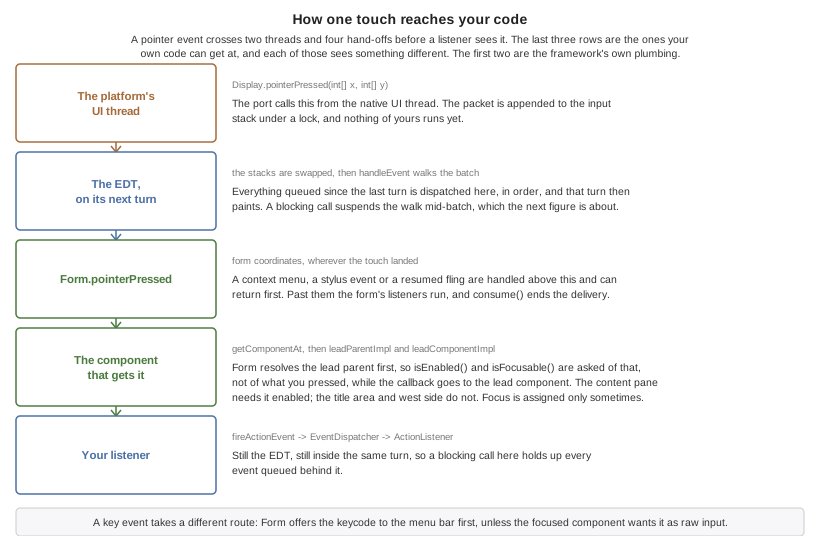
Component only fires while that
component holds focus, because Form routes key events to the focused one - the exception is a key the
menu bar claims, which Form.keyPressed hands to MenuBar first. That exception has its own exception:
focusedHandlesInput gives a printable key back to the focused component when it consumes raw text input,
which is how a focused text editor keeps typing out of the menu bar.A pointer callback has no focus prerequisite at all, and three things about its target are worth knowing.
Form.pointerPressed resolves the lead parent of whatever sits under the touch, so isEnabled() and
isFocusable() are asked of that parent rather than of the component you pressed. The callback itself goes
to the lead component, which is the class to override or attach a listener to. And focus is assigned only
when the lead parent is focusable and enabled and the press isn’t a scroll wheel - in the content pane both
before the callback and again after it, so moving focus from inside a pointer callback there can be undone
the moment it returns.
Each of those has advantages and disadvantages, specifically:
'Form' based events and callbacks deliver pointer events in the 'Form' coordinate space.
'Component' based key events require focus, pointer events don’t
'Form' based events can block existing functionality from proceeding through the event chain for example, you can avoid calling super in a form event and thus block other events from happening (for example, block a listener or component event from triggering).
Listener | Override Form | Override Component | |
Coordinate System | Form | Form | Component |
Block current functionality | Yes, just avoid super | Partially (event consume) | No |
Low-level event types
There are two basic types of low-level events: Key and Pointer.
DataChangedListener as mentioned above.The pointer events (touch events) can be intercepted by overriding one or more of these methods in Component or Form. Notice that unless you want to block functionality you should probably invoke super when overriding:
public void pointerDragged(int[] x, int[] y)
public void pointerDragged(final int x, final int y)
public void pointerPressed(int[] x, int[] y)
public void pointerPressed(int x, int y)
public void pointerReleased(int[] x, int[] y)
public void pointerReleased(int x, int y)
public void pointerHover(int[] x, int[] y)
public void pointerHoverPressed(int[] x, int[] y)
public void pointerHoverReleased(int[] x, int[] y)
public void longPointerPress(int x, int y)
public void keyPressed(int keyCode)
public void keyReleased(int keyCode)
public void keyRepeated(int keyCode)
Notice that most pointer events have a version that accepts an array as an argument, this allows for multi-touch event handling by sending all the touched coordinates. Desktop and pen-enabled devices can also trigger hover events without a press. To respond to those you can override the pointerHover* callbacks on Form or Component, which are invoked before a button receives focus or a drag begins on those platforms.
While you can override longPointerPress, there is no need. The dedicated Component.addLongPressListener() helper wires long press detection into an action listener so you can keep gesture logic in the high-level API.
Drag lifecycles also expose a completion hook. When Component.addDragFinishedListener() is registered it receives ActionEvent.Type.DragFinished once the framework has completed its cleanup, allowing you to reset state or trigger follow-up actions that should occur after the drag image is hidden.
Drag event sanitation
Drag events are quite difficult to handle across devices. Some devices send a ridiculous number of events for even the lightest touch while others send too little. It seems like too many drag events wouldn’t be a problem, but if you drag over a button then it might disable the buttons action event (since this might be the user trying to scroll).
Drag sensitivity is about the component being dragged which is why you have the method getDragRegionStatus that allows you to "hint" to the drag API whether you’re interested in drag events or not and if so in which directional bias.
For example, if your component is a painting app where you’re trying to draw using drag gestures you would use code such as:
public class MyComponent extends Component {
    protected int getDragRegionStatus(int x, int y) {
        return DRAG_REGION_LIKELY_DRAG_XY;
    }
}
This indicates that you want all drag events on both AXIS to be sent as soon as possible. Notice that this doesn’t disable event sanitation.
BrowserNavigationCallback
The BrowserNavigationCallback isn’t quite an "event" but there is no real "proper" classification for it.
The browser navigation callback is invoked directly from the native web component as it navigates to a new page. Because of that it’s invoked on the native OS thread and gives you a unique opportunity to handle the navigation ourselves as you see fit. That’s why it MUST be invoked on the native thread, since the native browser is pending on your response to that method, spanning an invokeAndBlock/callSerially would be to slow and would bog down the browser.