Parley is a sample app with a server behind it. People chat one to one and in groups, send photos, video and voice notes, and call each other with voice or video. Everything they write, and every call, is end-to-end encrypted: the server relays what it can’t read. An administrator looks after the service without ever seeing a message. The app and the server are one Maven project, written in Java on both sides.
This chapter is the user’s guide: what a person sees and can do, and what an administrator sees. Parley: Building on the sample is the other half. It explains how the project is built, how the encryption works and what to change to make the app yours. Parley shares its accounts, sign-in, text messages, push notifications, live channel and operations console with Wayline and Savor, the two sibling samples.
One app serves everyone. The server gives every account a set of roles, and the app opens on the screen that fits them: a person on their chats, an administrator on the admin console.
| Role | What it adds |
|---|---|
User | Every account is a user. Chat one to one, in groups and in channels, send photos, video and voice notes, call, link more devices, and decide what others can see about you. |
Admin | Granted by another administrator. See the service in numbers and charts, read and resolve the reports people make, find and moderate accounts, and link conversations to Telegram and WhatsApp. |
Trying it
Start the server on its development profile and it creates a set of accounts, all
with the password parley-demo, a few conversations between them and a bot that
answers. Running it has the commands.
| Account | Role |
|---|---|
| Users who share a group, Weekend hike, a family group and a channel, Parley news. |
A user an administrator has flagged, with a report about them still open. | |
Runs the service. | |
The Parley bot | Answers whoever writes to it, so that one person trying the app alone has someone to talk to. It’s the server, so its chats are marked as not end-to-end encrypted. |
To see a conversation from both ends, sign in as one account in the simulator and as another in a second simulator, or in a browser.
Getting in
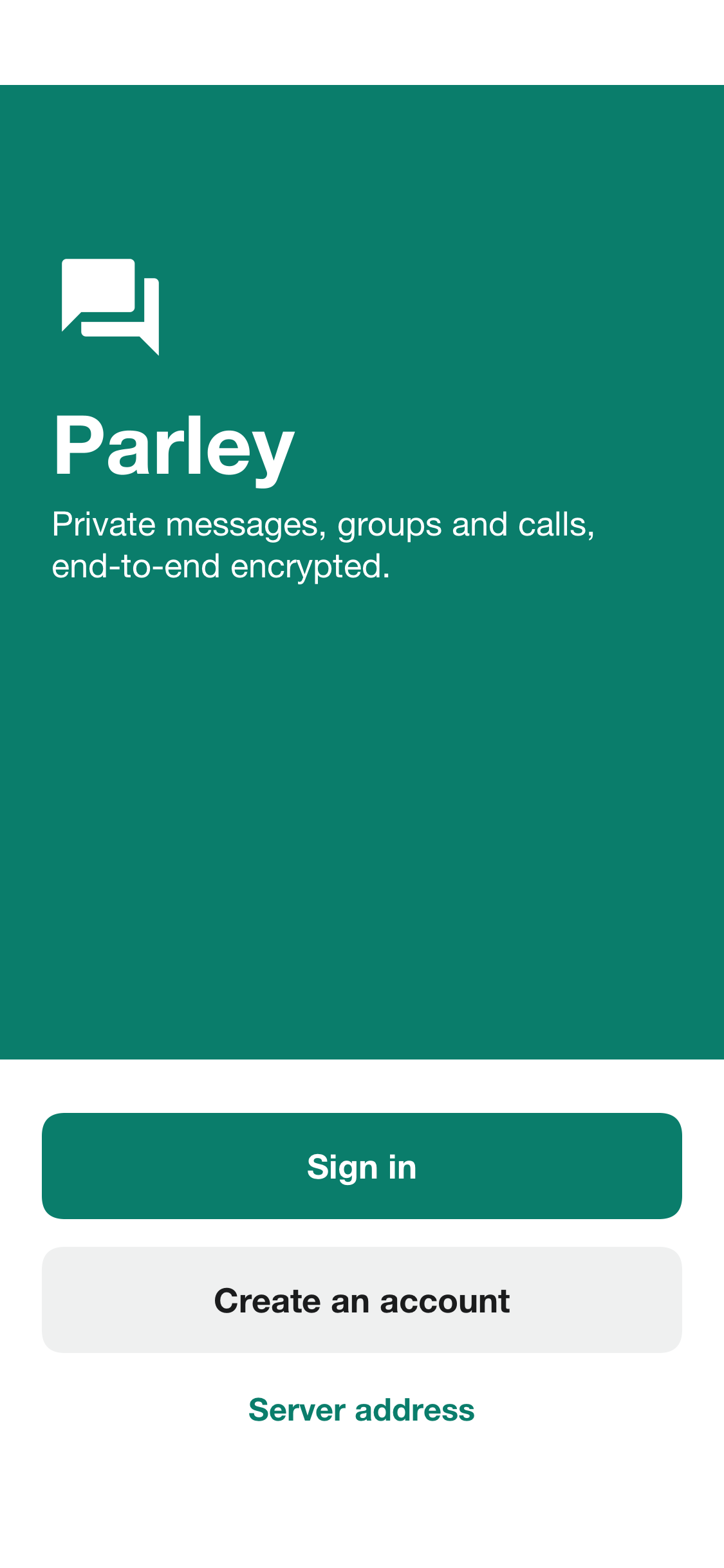
The welcome screen offers to sign in or to create an account. Server address
is there for a phone on the same network as a development server: localhost on a
phone is the phone, so the app has to be told where the server is. The app in a
browser has no such entry: it always talks to the server that hosts it.
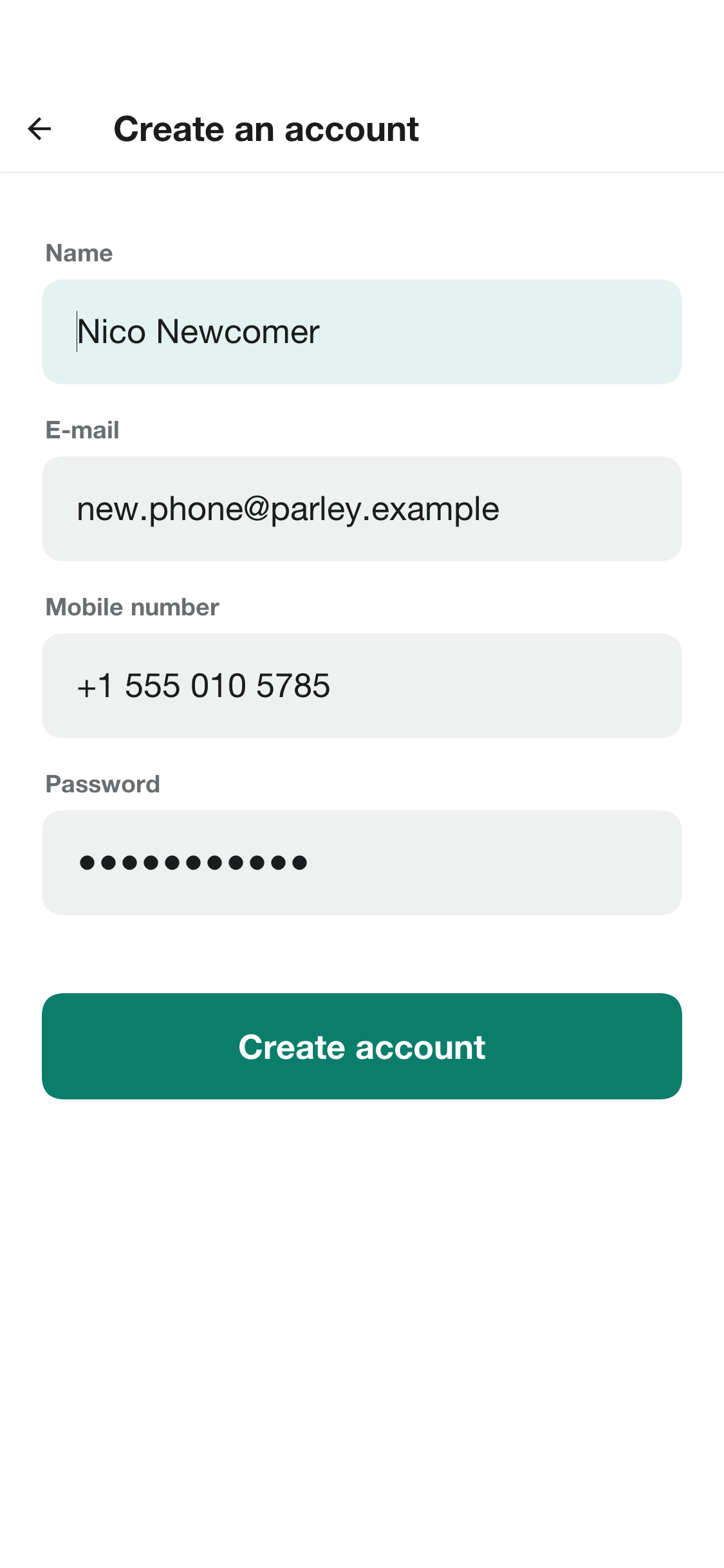
A new account asks for a name, an e-mail address, a mobile number and a password. The mobile number is verified with a code sent as a text message, and a development server prints the code on its console and the app shows it. The number is used to find people you know, and only if you leave that on.
The first sign-in on a device asks whether the app may share usage statistics. The answer can be changed in the settings at any time. What’s shared never includes a name, a contact, a number or anything that was written.
On first sign-in the app also makes this device’s encryption keys. They’re made on the device and never leave it, which is why a message sent before the account existed on this device can’t be read here.
Chats
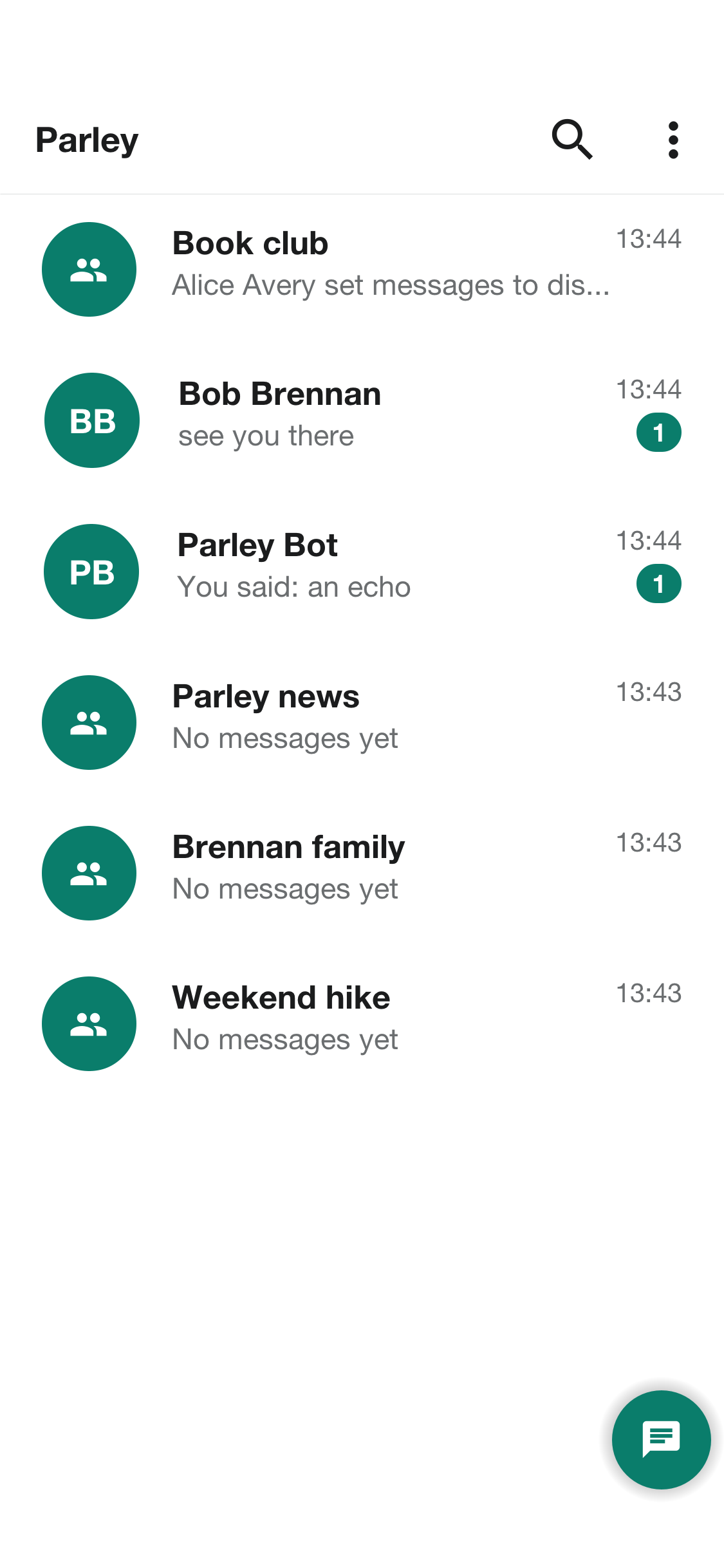
The chat list starts with every conversation, the newest first, with an unread count and the start of the last message. Pressing and holding a conversation pins it to the top, mutes it or archives it. A notification only says that something arrived: what it says is fetched and decrypted on the device.
There are three kinds of conversation:
| Kind | Description |
|---|---|
Chat | Two people. |
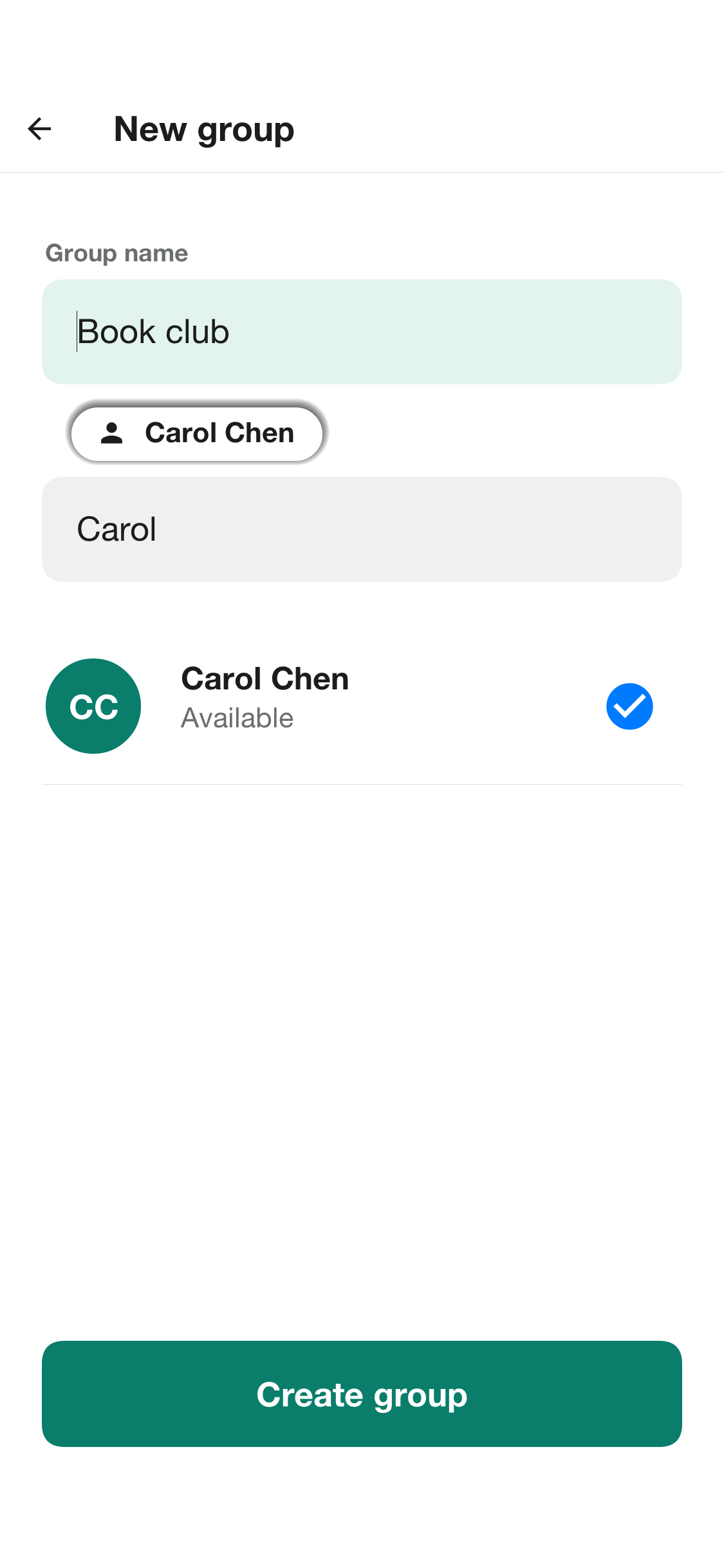
Group | Up to 256 people. The person who made it owns it and can name administrators, who add and remove members and change the name, the description and the photo. A group can be joined with a link or a code. |
Channel | A group in which only the administrators can send. Everyone else reads. |
The button on the chat list starts a conversation: find a person by name, username or phone number, make a group, or join one with an invitation link.
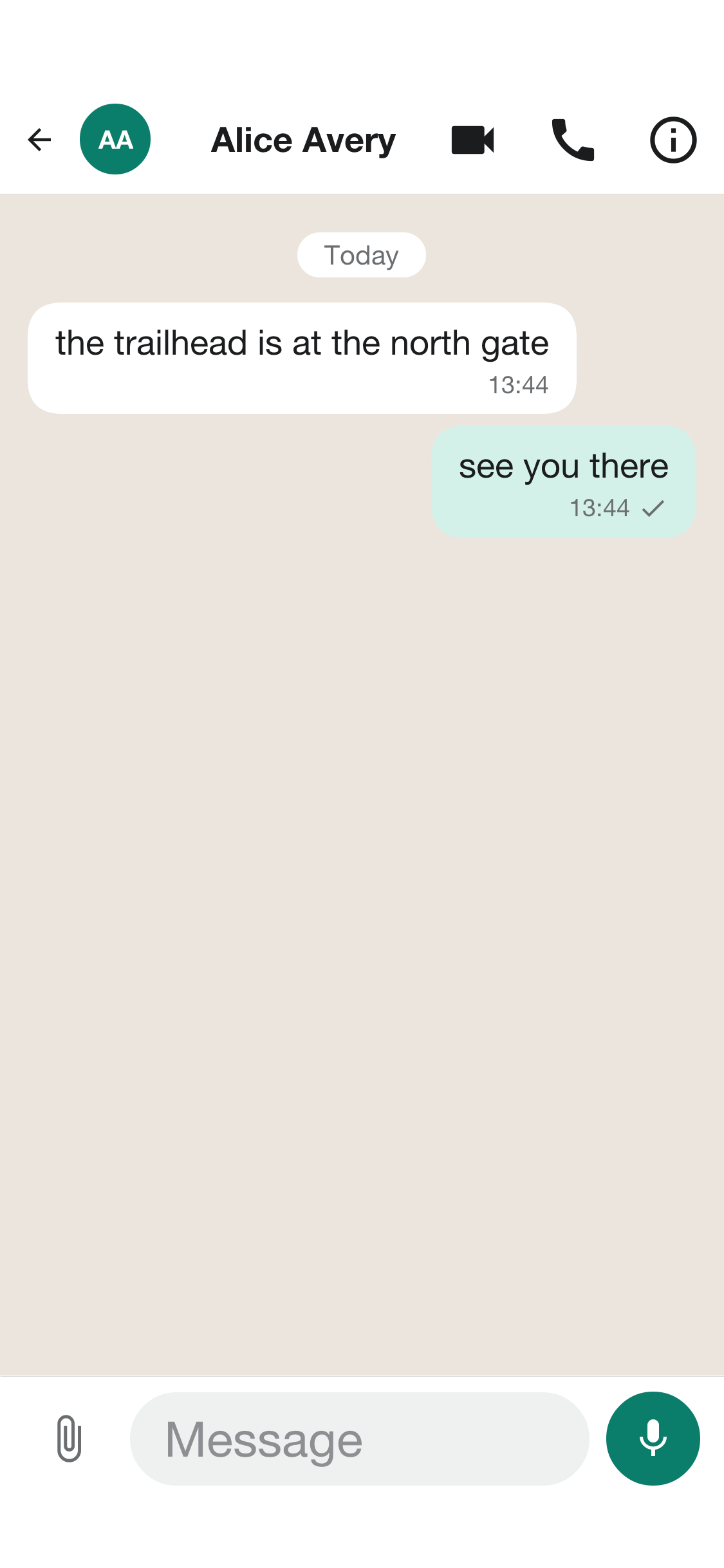
A conversation shows its messages as they arrive, a typing indicator, and the state of each message you sent: sent, delivered, and read. A message can be replied to, copied, forwarded, edited, and deleted. Delete for everyone removes it from every phone in the conversation. Photos, video and voice notes are sent from the attachment button: a photo or a video from the gallery or the camera, and a voice note recorded with the microphone. Each is encrypted on your phone before it leaves, and an attachment is limited to 16 MB.
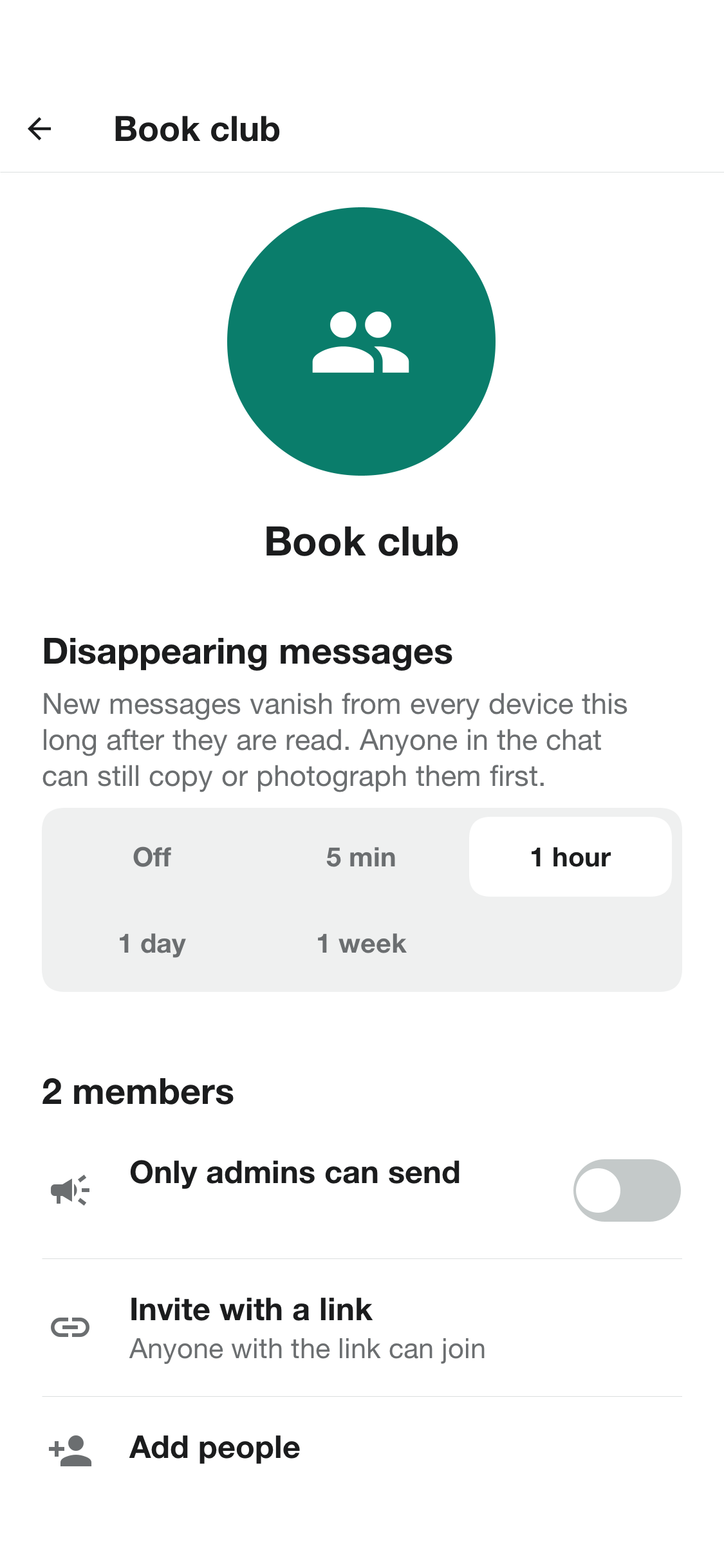
Pressing the name at the top opens the conversation’s info: who is in it, a mute switch, the timer for disappearing messages, the safety numbers, and for a person, the choice to block or to report them.
Is anyone listening
Messages, photos, voice notes and calls are encrypted on your phone with keys that only the phones in the conversation hold. The server stores and relays what it can’t read, which is the point: nobody outside the conversation, the server’s administrators included, can read it.
A message is only as private as the person you think you’re talking to, so the info screen offers Safety numbers: sixty digits that both phones compute from their keys. Compare them with the other person’s screen, in person or over a call. If they match, nobody is in the middle. They change when either person’s keys do — a new phone, a reinstall — so a number that changed for a person who hasn’t changed phones is worth a question.
A chat with the demo bot, and a conversation an administrator has linked to Telegram or WhatsApp, aren’t end-to-end encrypted, because a bot or another network has to read what’s written. The app marks those conversations, and anyone in a bridged conversation is told when it’s linked. Bridges to Telegram and WhatsApp explains the trade-off.
Privacy
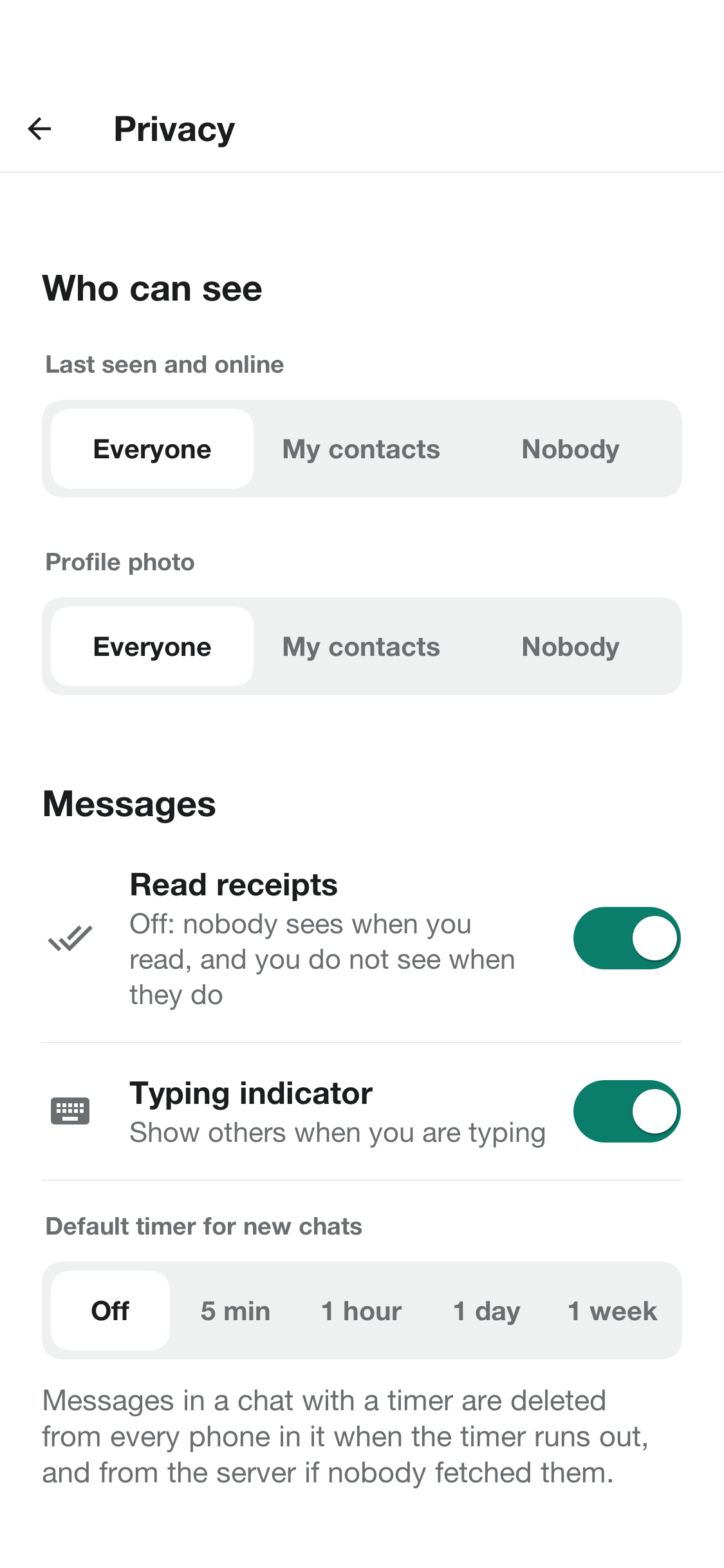
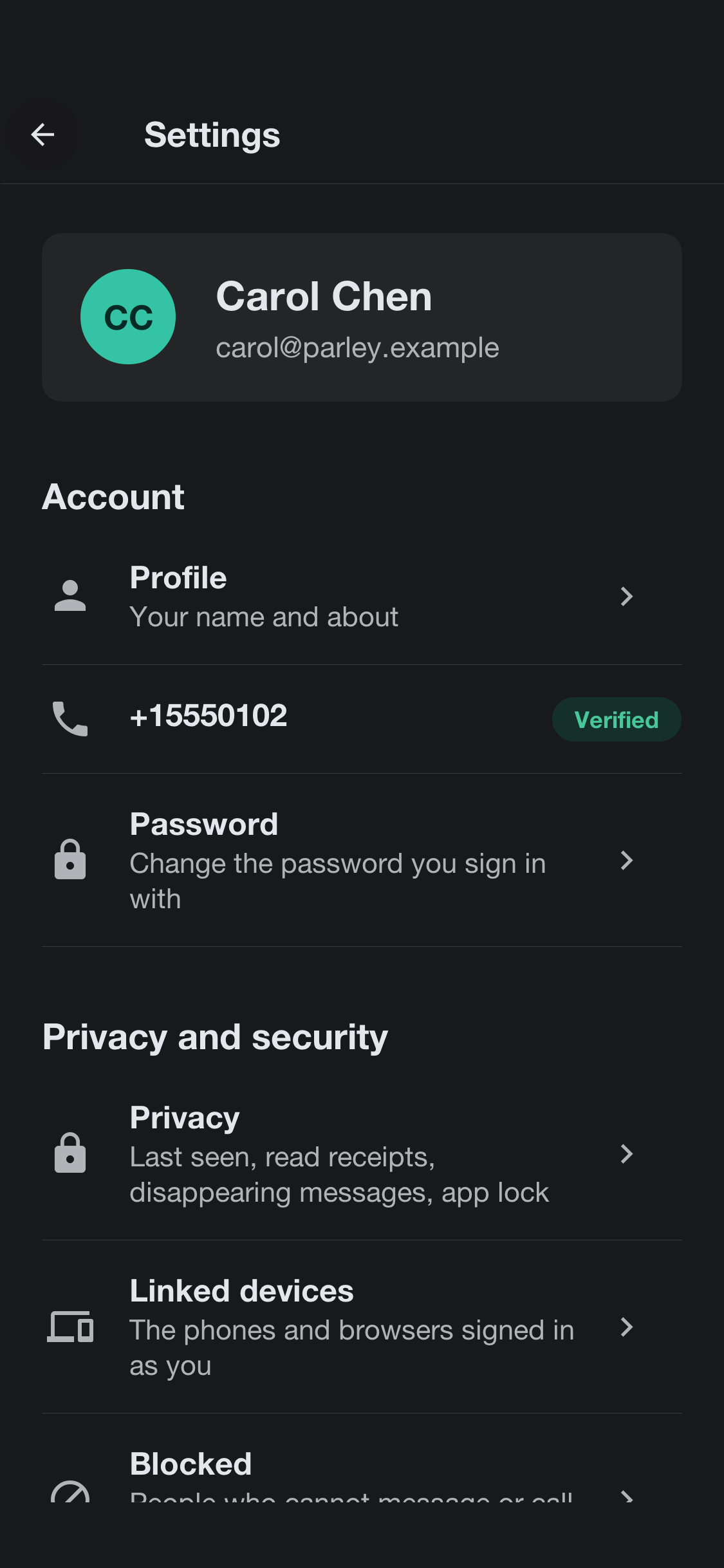
Privacy and security in the settings holds what others can learn about you and what the phone shows:
| Setting | What it does |
|---|---|
Last seen and online | Who sees when you were last online: everyone, your contacts or nobody. The server enforces it, because the server is what hands the information out. |
Profile photo | Who sees your photo, in the same three choices. |
Read receipts | Whether others see when you’ve read their message. Off, you don’t see theirs either, so it isn’t a way to watch without being watched. |
Typing indicator | Whether others see when you’re typing. |
Disappearing messages | A default timer for new chats: off, 5 minutes, 1 hour, 1 day or 1 week. New messages in a chat with a timer vanish from every phone in it that long after they’re read. Anyone in the chat can still copy what was said, so it limits what’s kept, not what was seen. |
Screen security | Keeps chats out of screenshots and the app switcher. |
App lock | Asks for a fingerprint, face or passcode to open Parley, after the app has been away. |
Blocked | People who can’t message or call you. A person is blocked from their chat’s info screen. |
Report on a person or a conversation sends the administrators a reason and the last few messages as the reporter’s phone shows them, and nothing else: they can’t read anything the reporter didn’t choose to send.
Calls
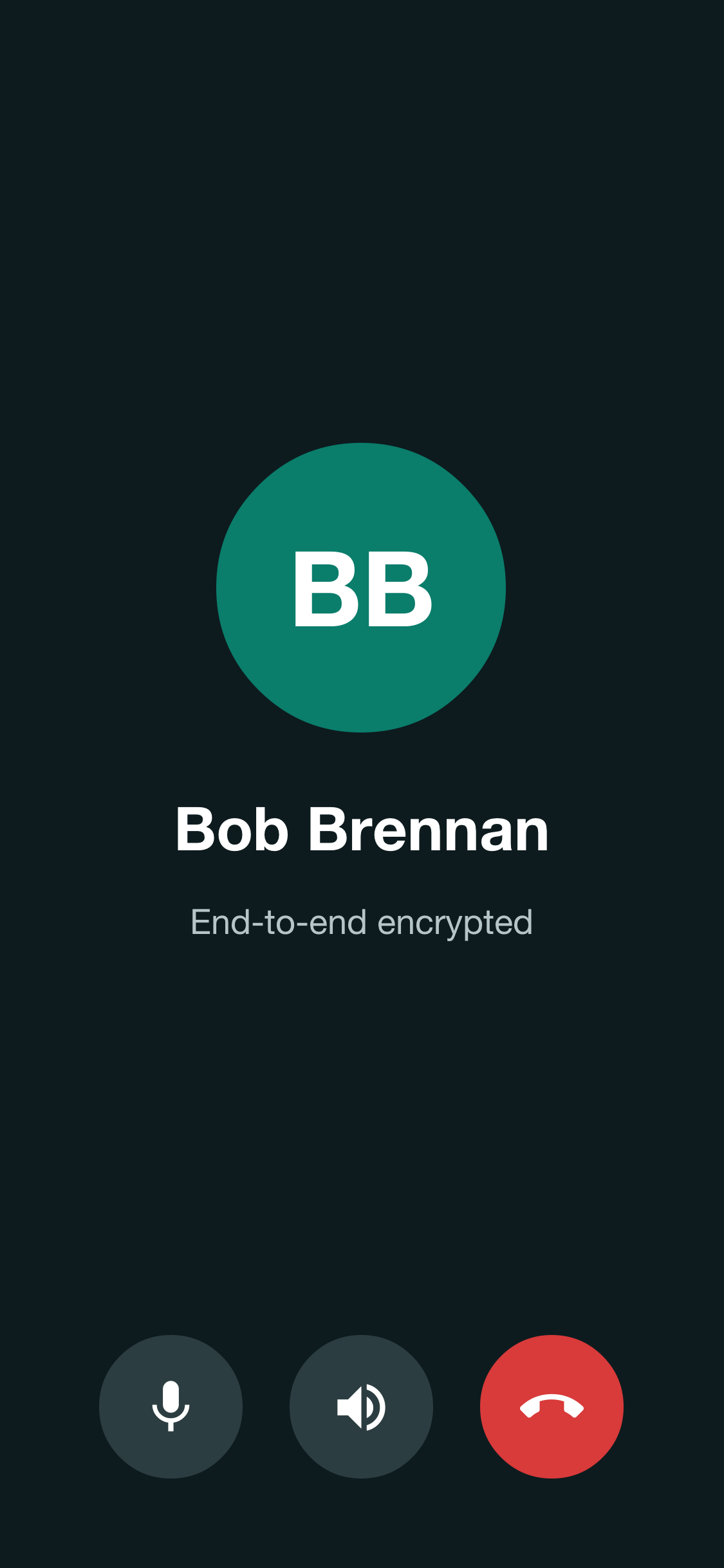
A call is one to one, voice or video, from the buttons at the top of a chat. The other person’s phone rings, with a notification and the phone’s own call screen — the lock screen on iOS, the system call UI on Android — even when Parley isn’t running. Answering opens the call screen, which has a mute switch, a speaker switch, for video a camera switch and a button to turn the camera off, and End. A call you don’t answer shows in Calls as missed, and a call to someone who’s already in one is told they’re busy.
The audio and video go straight between the two phones, or through a relay when a direct path doesn’t exist, which on mobile networks is often. Either way they’re encrypted between the two phones. Calls need the camera and the microphone, which the app asks for the first time.
Linked devices
The same account can be signed in on up to six phones, tablets, and browsers. Linked devices in the settings lists them. Each is its own end of every conversation, with its own keys, and a message to you is encrypted for each. Unlinking one is final: the server stops sending it anything, and what it held opens nothing sent afterward.
The administrator
The admin console starts on a dashboard: how many people are active, how many messages were sent and how many accounts are new, with charts of the last two weeks, of the busiest hours and of the kinds of chat. Message counts are all the server knows: what was said is encrypted on the devices and never reached it.
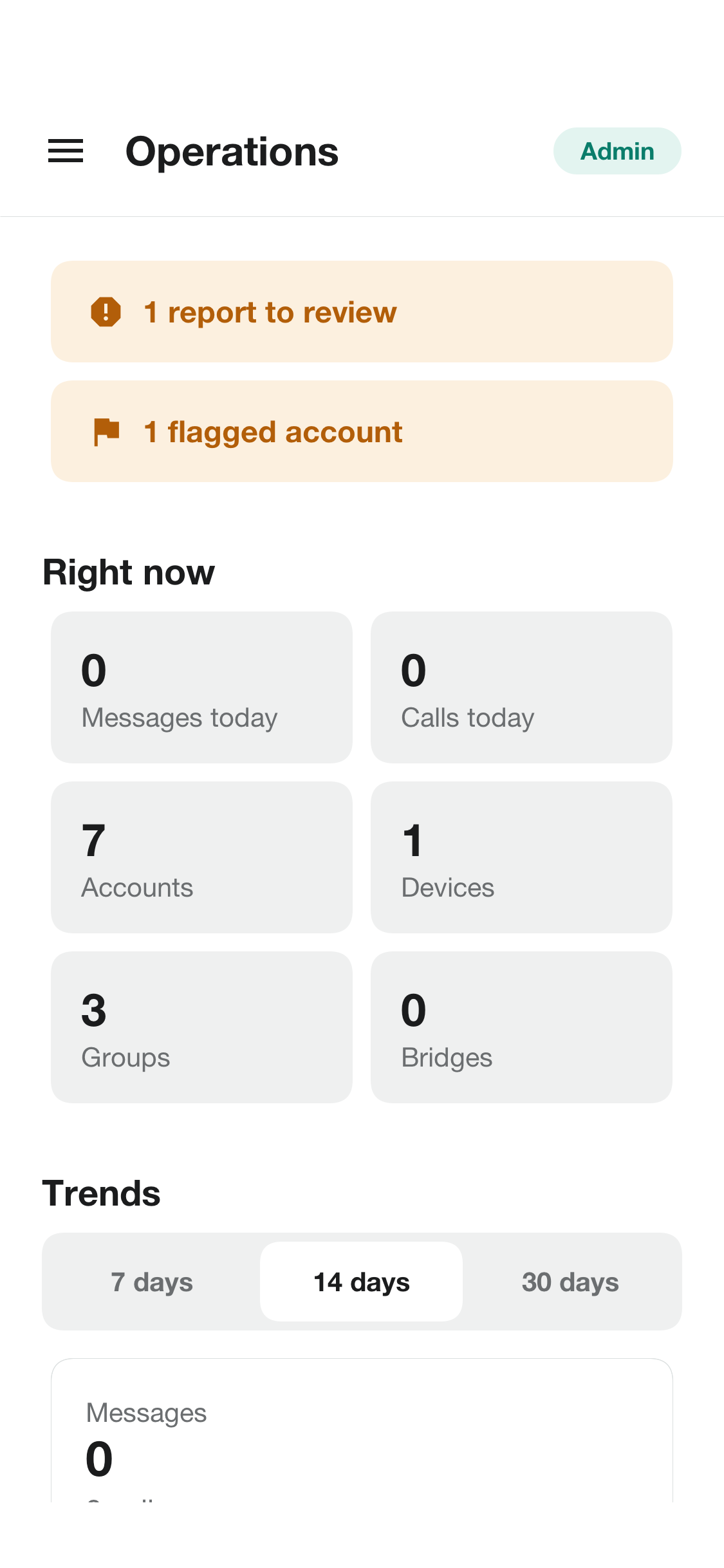
Reports lists what people reported, with the reason, the messages the reporter attached and a button to resolve it with a note of what was done. People finds any account. An account can be flagged, which marks it for the admins and changes nothing for its owner, or blocked with a reason that’s kept in its history: a blocked account is signed out everywhere and can’t sign in. Another administrator can be named from the same screen.
Bridges lists the conversations linked to Telegram or WhatsApp, and says when a network isn’t set up on this server.
On a tablet or a desktop the console lays its sections down the left side and opens what’s picked beside its list.
Settings
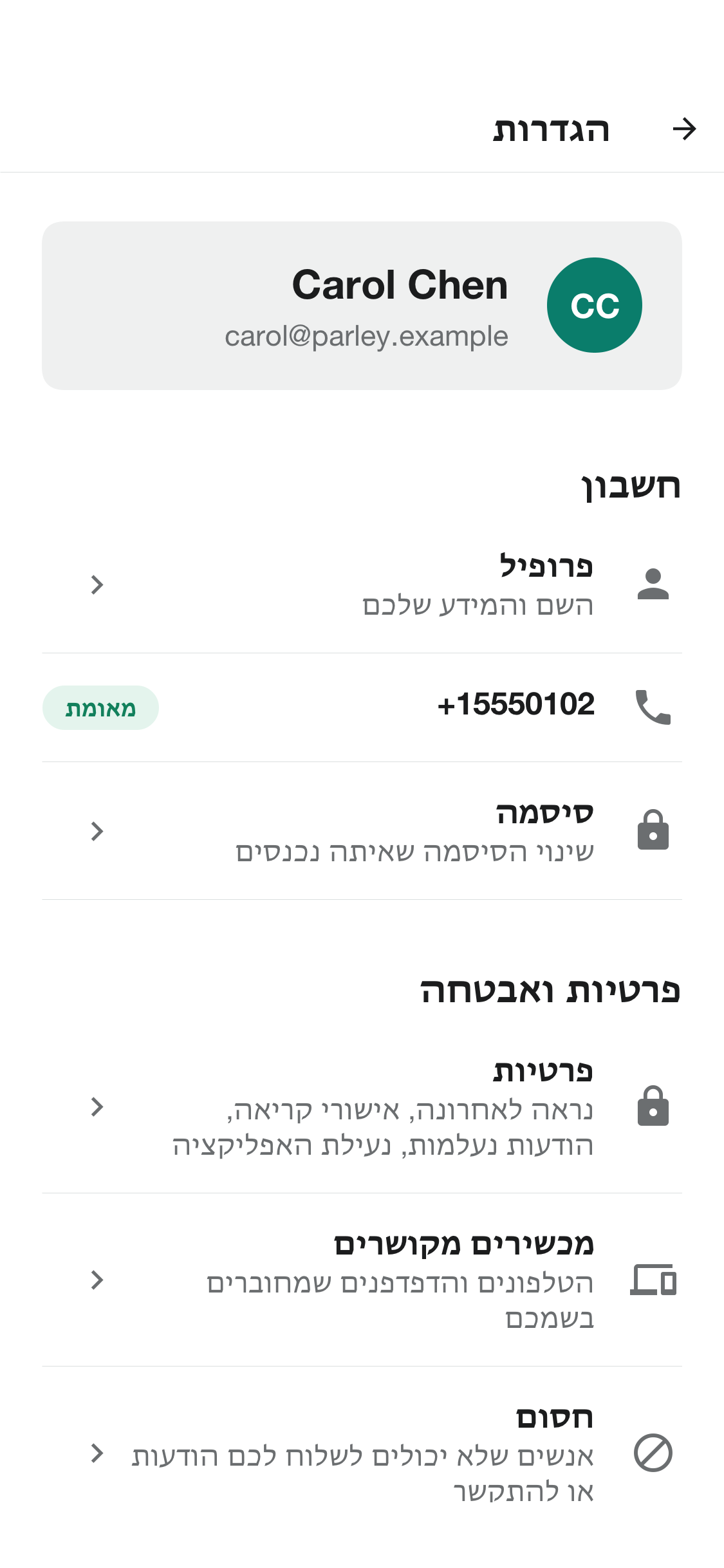
The settings hold the account — its name, about line, photo, phone number and password — the privacy choices, the linked devices, the language, the theme, notifications and the usage statistics. Deleting the account removes the sign-in, the profile and the settings for good. The app is in English, Spanish, French, German and Hebrew, and in Hebrew it’s laid out from right to left.
In a browser
The server can host the app itself: open the server’s address in a browser and the same app loads there, signs in against that server, links itself as a device and opens its live channel. A browser gives a page less than a phone gives an app, and the app says so where it matters: the system call screen and the call push are for phones.