Codename One builds a watch app from the same project as your phone app, on both Apple Watch and Wear OS. This chapter covers the whole picture: how one project produces two apps, how you run the pair while you develop, how the two apps exchange information, and how to put a complication on a watch face.
One Project, Two Apps
Declaring a watch lifecycle class next to your phone main class is the entire opt-in:
codename1.mainName=MyApp
codename1.watchMain=com.mycompany.myapp.MyWatchMain
There are no wearable build hints. The watch bundle identifier, deployment target, signing team and display name are all derived from settings your project already has, and one declaration builds the watch app on both platforms.
Note the asymmetry: codename1.mainName is a simple class name resolved against
codename1.packageName, while codename1.watchMain is fully qualified.
What the two apps share is the code base: your classes, your resources, your
theme and your CSS. What they don’t share is anything at runtime. They’re two
apps, on two devices, in two sandboxes, with separate lifecycles. In particular
Storage, Preferences and the SQLite database are per device: writing on
the phone doesn’t make the value appear on the watch. Moving information
between them is what Sharing Data Between the Phone and the Watch is for.
The two platforms get there by different routes, which is why their supported feature sets differ:
Wear OS is Android. A Wear OS app is an ordinary Android app that declares the watch hardware feature. The existing Codename One Android port renders the UI through exactly the same pipeline it uses on phones and tablets, so almost everything that works on Android works on the watch.
watchOS isn’t iOS. watchOS has no UIKit view hierarchy, no OpenGL ES and no Metal. The Codename One watchOS port therefore ships a dedicated Core Graphics rendering backend and a separate watch application target that hosts the Codename One runtime (the ParparVM-translated app) inside a SwiftUI shell. The graphics-heavy, GPU-bound and UIKit-peer APIs that have no watchOS equivalent are unavailable on the watch (see Supported and Unsupported APIs on watchOS).
Without a watch main class the build is byte-for-byte what it was, so adding one never changes a phone build you already ship.
Companion or Standalone
By default the watch app is a companion: on Apple Watch it ships inside the phone app and the pair installs together. If the watch app is the product and there is no phone app to pair with, declare it standalone:
codename1.watchStandalone=true
Both platforms support both forms. On Apple a companion build embeds the watch
app inside the iOS app so the pair installs together; on Android it produces a
second artifact, <yourapp>-wear.apk, beside the phone one. A standalone build
on either platform ships the watch app on its own.
On Android a standalone build turns the single APK into the Wear OS app, and that is what ships. On Apple the watch target is built standalone — detached from the phone app rather than embedded in it — but the archive step still targets the phone scheme, so submission needs one manual step in Xcode. See What the Watch App Runs Today before you archive.
Running the Pair While You Develop
The simulator can run both halves. Choose a watch skin (Apple Watch 41mm or 45mm, Wear round or Wear square) to develop the watch UI on its own, or pick Watch → Launch Watch App to start the watch app beside the phone app.
The watch app runs in its own process rather than in another window of the same
one, because that’s what it becomes on a device — a second app with its own sandbox.
The two processes find each other, so sendMessage and putData genuinely
round-trip on your desktop and you can develop the conversation between the two
apps without deploying anything.
Detecting the Watch Form Factor
Use CN.isWatch() (or Display.getInstance().isWatch()) to branch your UI for
the watch at runtime. This is the wearable analog of the existing isTablet()
and isDesktop() checks:
Form f = new Form(BoxLayout.y());
if (CN.isWatch()) {
    // Compact, single-column layout suited to a small round/square screen
    f.add(new Label("Hi Watch"));
    f.getToolbar().setVisible(false);
} else {
    // Full phone/tablet layout
    f.add(new SpanLabel("Welcome to the full size application"));
}
f.show();
On Android isWatch() is derived from PackageManager.FEATURE_WATCH
(android.hardware.type.watch); on iOS it’s reported natively by the watchOS
runtime. On every other platform it returns false.
isWatch() describes the device form factor, not the screen shape. A Wear
OS device can be round or square; query the display safe-area insets (see
Designing for the Watch) rather than assuming a rectangle.Designing for the Watch
A watch screen is small and is frequently round. A few practical guidelines:
Prefer a single vertical column (
BoxLayout.y()inside aFormthat scrolls on the Y axis). The Digital Crown on Apple Watch and the rotary input on Wear OS scroll the focused scrollable container.Keep interactive targets large and few. There is little room for a
Toolbar, side menu or tabs — hide the title area when you don’t need it.On round screens, keep content away from the corners. Use the form’s safe-area insets so important content isn’t clipped by the rounded bezel.
Use the
"watch"theme/constant overrides if you want a distinct watch look without forking your code (the override layer activates on watch devices the same way platform overrides do elsewhere).
Sharing Data Between the Phone and the Watch
The two apps share no storage. Storage, Preferences and the SQLite database
are per device, and there’s no container that spans the pair, so a value written
on the phone is simply not on the watch. com.codename1.wearable is the channel
between them, and it’s the same API on Apple Watch and Wear OS.
The platforms offer three transports because they answer three different questions. Choosing the wrong one is the usual reason a watch app "never gets the update":
| You need | Use | Delivered |
|---|---|---|
An answer, now, while both apps are awake |
| Immediately, or it fails |
The peer to end up with the latest value, whenever it next looks |
| Eventually, survives sleep and relaunch |
To move a file or a large blob |
| In the background, possibly much later |
Data the watch needs with no phone involved at all | Ordinary | As usual |
Something rendered while your app isn’t running |
| By the system, from a published timeline |
A message is a phone call: it only connects if someone picks up. Replicated data is a noticeboard: you pin the current value at a path, and the peer reads it whenever it wakes. Reach for data by default and for messages only when you genuinely need an answer now.
Replicating State
Publish on one side:
// On the phone: publish the value the watch should show whenever it next wakes.
WearableConnection.putData(new WearableMessage("/steps")
        .put("count", stepCount)
        .put("goalReached", stepCount >= 10000));
React on the other:
// On the watch: react to it. Register from init(), not from a form -- a value that
// arrived while the app was starting is replayed only to listeners that exist by then.
WearableConnection.addDataListener(new WearableDataListener() {
    public void dataChanged(WearableMessage data) {
        stepsLabel.setText("" + data.getInt("count", 0));
    }

    public void dataRemoved(String path) {
        stepsLabel.setText("--");
    }
});
Each path holds one value, so this replicates state rather than queueing events: two rapid updates to the same path may reach the peer as one. That’s what makes it the right default — the peer always converges on the latest value, however long it was away.
init(). The platform starts an
app purely to hand it a payload, so what arrives may well be the thing that
launched you. Codename One queues those deliveries and replays them on the EDT,
but only to listeners that exist by the time it does.Asking a Question
When you need an answer rather than a value, send a message and handle the reply:
// Ask the phone something and use the answer. Only works while both apps are awake,
// so check first and fall back to what you already replicated.
if (WearableConnection.isReachable()) {
    WearableConnection.sendMessage(new WearableMessage("/workout/start"),
            new WearableReplyHandler() {
                public void replyReceived(WearableMessage reply) {
                    showWorkout(reply.getString("id", null));
                }

                public void replyFailed(String message) {
                    Log.p("Could not start the workout: " + message);
                }
            });
}
Then answer it on the other side:
// Answer the watch. Reply quickly and do slow work afterwards -- the sender is waiting.
WearableConnection.addMessageListener(new WearableMessageListener() {
    public WearableMessage messageReceived(WearableMessage message, boolean expectsReply) {
        if ("/workout/start".equals(message.getPath())) {
            return new WearableMessage("/workout/start").put("id", beginWorkout());
        }
        return null;
    }
});
A reply is never guaranteed: the peer may be asleep, out of range, or running a
version of your app that doesn’t know the path. replyFailed is the normal
case, not the exceptional one.
Knowing What’s There
isSupported() asks whether the platform provides the link, not whether a watch
is there. It’s false on a desktop build and on any platform with no wearable
API, and every call is then a harmless no-op, so this API needs no platform
conditionals around it — but an iPhone with no paired watch still answers true,
because Apple’s API is present either way.
Ask the other three about the counterpart. isPaired(),
isCompanionAppInstalled() and isReachable() distinguish the cases worth
telling a user about: no watch, a watch without your watch app installed, and a
sleeping watch.
Don’t decide your UI from one call at startup. These answers come from state
queried asynchronously, so the first calls in a cold process can report false for
a device that’s paired — nothing is known until the first query lands. Register
a WearableStateListener and react when the answer changes.
One Android limit is worth knowing. The Data Layer exposes pairing only through
the nodes it knows about, so a paired watch that has never run your watch app
appears in no list and isPaired() reports false until it runs once. Treat
false as "no counterpart known" rather than proof there is none, and prefer
showing setup guidance to hiding it. Apple’s API answers pairing directly and
has no such gap. Gate a wearable feature on those rather than on isSupported(),
or you will offer it to someone holding a phone and nothing else. Add a
WearableStateListener rather than polling.
Complications and Tiles
A complication — the small live readout on a watch face — is the same idea as a
home-screen widget: content-driven, rendered while your app isn’t running, fed
by a timeline. Codename One models it as such, so a complication is a watch
family of com.codename1.surfaces rather than an API of its own:
// A complication is a widget in a watch family, published from the same timeline.
WidgetKind steps = new WidgetKind("steps")
        .setDisplayName("Steps")
        .addSupportedSize(WidgetSize.WATCH_CIRCULAR)
        .addSupportedSize(WidgetSize.WATCH_RECTANGULAR);
Everything you already know about surfaces applies: the same node catalog, the
same ${key} state interpolation, the same timeline that lets the OS advance
content on its own clock with no app wake-ups. SurfaceVector is especially at
home here, because most complications are a gauge, a dial or a ring.
| Family | Apple Watch | Wear OS |
|---|---|---|
|
| Ranged-value or monochromatic-image complication |
|
| Long-text complication, or a Tile for a richer layout |
|
| Short-text complication. Text only — anything else is dropped |
|
| Renders as circular; Wear OS has no corner slot |
Design for a glance. A complication is a few dozen pixels someone reads in under a second, so one number or one gauge beats any layout that has to be read.
What a Watch Face Actually Shows
This is the part that surprises people, so it’s worth stating plainly: a complication isn’t a small widget. A watch face asks your data source for one typed value — a short string, a long string, a ranged value, a monochrome glyph — and composes it into its own design. There is no layout to honour.
The node tree you publish is therefore flattened and mined for content rather
than rendered. On Wear OS your kind supplies at most two text nodes and one image;
containers, padding, background, corner radius, alignment, weight, per-node
colour, and every action except the root, all belong to the face. Everything
dropped is reported once per render, so adb logcat -s CN1Surfaces tells you
what a face is showing and what it leaves out.
Apple is less lossy, because a WidgetKit accessory family renders your SwiftUI tree — but the slot is still tiny and monochrome, and the same design advice applies.
A Tile is the exception. It renders the node tree in full, and two things come out better there than on a phone widget:
Circular progress renders natively. The Android home-screen widget has to degrade a circular bar to a linear one; a Tile doesn’t.
Per-node tap actions work. A small iOS widget honors only the root action.
The Tile’s own limitation is time: a SurfaceDynamicText countdown ticks
natively on both phone platforms, but freezes on a Tile and refreshes when your
timeline says the value changes. ProtoLayout can animate one, but only on some
Wear releases — a frozen value that’s always right beats a ticking one that
works on some watches.
WATCH_RECTANGULAR and LOCKSCREEN share a family on Apple. If you
publish both, each surface gets the layout you designed for it; if you publish
only one, it’s used for both.Declaring a watch family is all it takes. On Apple the build adds a second
WidgetKit extension, CN1WatchWidgets, embedded in the watch app; on Wear OS it
generates a complication data source per kind, plus a Tile for the rectangular
family. Both are additive: an app that declares no watch family carries neither.
The one thing to know before you design: what a watch face shows isn’t what you laid out. See What a Watch Face Actually Shows.
Apple Watch (watchOS)
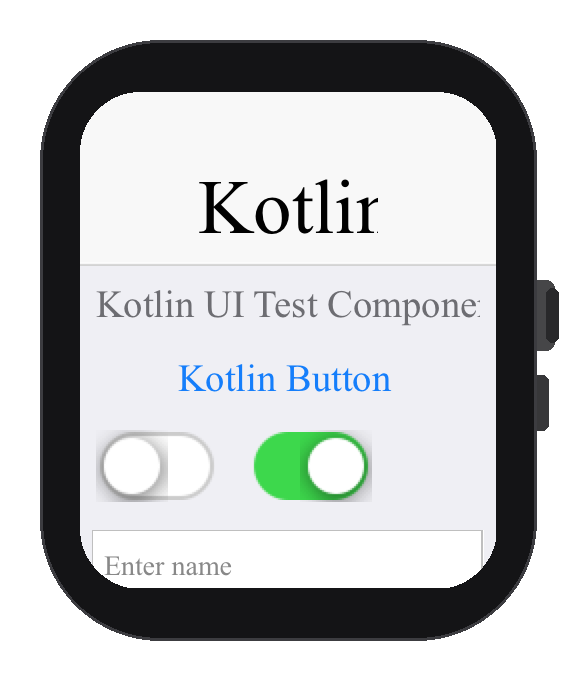
The watchOS build adds a second Xcode target to the generated project. It
compiles the shared, translated application sources for the watch architecture
(arm64_32 on device), renders through the Core Graphics backend, and — in the
default companion distribution — embeds the watch app inside your iOS app so
the pair installs together. The watch app is rooted in a generated SwiftUI
@main shell that hosts the Codename One frames and forwards Digital Crown and
tap input into the runtime.
What the Watch App Runs Today
codename1.watchMain is the watch app’s entry point on both platforms. The
watchOS build writes a stub of its own for that class and runs a second
translation rooted there, so the watch binary starts your watch lifecycle class
and carries what that class reaches rather than everything the phone reaches. On
Wear OS the declared class is the watch launcher. Put the watch UI in the class
you declared.
One case differs by design: naming the phone’s own main class as
codename1.watchMain keeps a single translation, because both entry points
reach the same code and translating twice would produce the same binary twice.
There the watch starts the phone lifecycle, and CN.isWatch() is how you decide
what the watch shows. That check is still worth keeping in shared code, but it’s
no longer what selects the watch UI when the two entry points differ.
One rough edge is left at archive time. Under manual signing the embedded watch
target has no provisioning profile of its own, since the host app’s profile is
the one installed, so give the watch bundle id — <your.package>.watchkitapp — its own profile before you submit. That applies to codename1.watchStandalone
too, where the watch bundle is the only one being signed.
The watch app’s icon is generated for you, scaled from the project icon into the watch target’s own asset catalog, so there’s nothing to add by hand. Replace that set in the generated project if you want the watch to carry different artwork from the phone.
None of this affects building, running or testing on the simulator or a device.
Native Code and the Watch Slice
Your Objective-C is compiled for the watch as well as the phone. The translator
copies native sources through to every slice it produces, so a .m that imports
UIKit, or an iOS-only SDK, is a build error on watchOS even when no watch code
calls it.
Guard it the way the framework guards its own — there are several hundred such guards across the iOS port:
#if !TARGET_OS_WATCH
#import <UIKit/UIKit.h>
// ... the iOS-only implementation
#endif
The same applies in reverse to a native interface only the watch uses. There is no build hint for this and no attempt to infer it: which of your native sources can compile for watchOS is a question about that source, and the preprocessor is where it’s answered.
Supported and Unsupported APIs on watchOS
Because watchOS lacks UIKit views, GPU rendering and several iOS frameworks, the APIs that depend on them aren’t available on the watch slice. They’re guarded so that the shared sources still link, and they degrade rather than crash:
Unavailable:
BrowserComponent/ web view, camera capture,MediaPlayervideo, inline native text editors (text input routes through the watch text input controller),MapComponentnative maps, and StoreKit in-app purchase.Available: the full Codename One UI and layout system, drawing and
Graphics(rendered via Core Graphics, including gradients, transforms, clipping and Gaussian blur via Accelerate/vImage),FontImage/material icons, images and mutable images, networking and storage, JSON/XML, and the property and binding frameworks.
Building and Debugging
A companion build produces an iOS .ipa that carries the embedded watch app. A
standalone build generates the watch target, but the archive step still targets
the phone scheme, so the artifact handed back is the iOS app: open the generated
project and archive the watch scheme yourself to produce the watch application.
The build logs this. The generated project is a standard Xcode project, so you
can open it and debug or profile the watch target with the native Xcode tools as
usual. Cloud builds generate the watch target through the same iOS build — declare the watch main class and build for iOS — and the same applies there,
so a standalone cloud build returns the iOS archive.
Android (Wear OS)
A Wear OS app is a regular Android app. The Codename One Android port renders the
UI with the same pipeline it uses on phones, so no special rendering backend is
required. The same codename1.watchMain declaration drives both platforms.
What it produces differs from Apple, though, and that difference is worth stating
precisely. Set codename1.watchStandalone and the Android build is the watch
app: one APK that installs and runs on the watch. Leave it unset and you get two
artifacts — <yourapp>.apk for the phone and <yourapp>-wear.apk for the
watch — because a Wear companion is a separate product published to the same
Play listing, where an Apple one is embedded inside the phone app.
The Wear artifact carries a higher version code than the phone’s. On a watch Play
picks among the APKs the device supports by version code, so the wear one has to
outrank it; on a phone the required watch feature filters the wear APK out
entirely. The default is the phone’s code plus 100,000,000, which sounds
extravagant and isn’t: the gap has to be wide enough that the phone’s own
next release never catches up to a watch code it already published, and
plus one is consumed by the next phone build.
android.watchVersionCodeOffset changes the gap and
android.watchVersionCode sets the watch code outright.
Set android.watchModule=false if you want the wearable link but no watch app of
your own — your phone build is then exactly what it was.
A standalone Wear app declares the watch hardware feature in the manifest:
<uses-feature android:name="android.hardware.type.watch" android:required="true" />
It also marks itself standalone, so it installs and runs directly on the watch without a paired phone app:
<meta-data android:name="com.google.android.wearable.standalone" android:value="true" />
A standalone Wear build also raises the minimum SDK to API 23, the Wear OS 2.0 standalone baseline, if your project requests a lower level.
Wear OS Input and Screen Shape
Two things behave differently on a watch and are handled for you:
Rotary input. The rotating side button or bezel scrolls the focused scrollable container, exactly as the Digital Crown does on Apple Watch. It arrives on its own input source rather than the mouse-wheel axes, and is scaled by the device’s own scroll factor.
Round screens. A circular face reports no display cutout, so a layout drawn to the full rectangle would have its corners eaten by the bezel. The safe area is inset to the largest rectangle that fits inside the circle — about 15% a side — so honoring the form’s safe-area insets is enough.
android.uses_feature.<name> and android.uses_permission.<name> hints.com.codename1.wearable adds the play-services-wearable
dependency and the listener service automatically. The
android.playService.wearable hint remains for apps that want to call the Data
Layer APIs directly.Feeding a Complication from the Phone
A watch app has its own storage. Nothing the phone writes is visible there, on
either platform — on Apple the App Group identifier is the same string but
resolves to a watch-local container, and on Wear OS the two apps are separate
installs. That’s the single most counter-intuitive fact here, and it’s got
one consequence: a complication is fed by the watch’s own
Surfaces.publish().
Which is often inconvenient, because the data usually lives on the phone. A
phone-side publish of a watch-bearing kind is therefore mirrored to the watch for
you, over the same link com.codename1.wearable uses. You write the same
Surfaces.publish(…) you always did.
The mirror is best-effort by design, and always runs after the local publish has succeeded — nothing it does can leave your phone widget wrong:
Apple uses the one WatchConnectivity API that wakes the watch app in the background to refresh a complication. It’s budgeted at about fifty transfers a day. When the user has placed no complication, or the budget is spent, the update is queued instead and applied when the watch app next runs.
Wear OS replicates the descriptor over the Data Layer, which starts the watch app’s process to deliver it. Imagery travels as a file transfer.
Size is capped — 48KB on Apple, and on Wear OS 64KB for the descriptor with its own cap on imagery. Over the cap the imagery is dropped first, on the grounds that a complication rendering its numbers with a missing glyph beats one that never updates; over the cap even then, the watch keeps its previous timeline.
Every refusal is logged once. Nothing throws.
The reserved path /cn1surface/<kindId> belongs to the framework on Wear OS — don’t publish your own data there.
play-services-wearable to
your phone APK, because that’s what carries the mirror. An app that wants
complications fed only by the watch itself can avoid that by not declaring watch
families on kinds the phone publishes.Summary
| Apple Watch (watchOS) | Wear OS (Android) | |
|---|---|---|
Enable |
|
|
Rendering | Dedicated Core Graphics backend + separate watch target | Standard Android rendering pipeline |
Distribution | Companion (embedded in the phone app) or standalone | Companion (a second |
Runtime detection |
|
|
Talking to the phone app |
|
|
Complications | A WidgetKit extension embedded in the watch app | A complication data source per kind, plus a Tile for the rectangular family |
Declare a WATCH_* family on a surface kind and the build generates whatever
that platform needs. What a watch face then shows is narrower than what you laid
out, on Wear OS especially — see What a Watch Face Actually Shows before you
design one.
The wearable build is additive on both platforms: without a watch main class, your phone builds are unchanged.