This section covers the Codename One JavaScript port, which allows you to compile your app as native JavaScript and run it inside a browser. This is different from the BrowserComponent and other methods of displaying HTML/JavaScript inside a Codename One app.
Choosing the JavaScript compiler
JavaScript builds use the ParparVM-based JavaScript port by default. The same builder is available to all Codename One accounts and is also used by the local local-javascript Maven target.
Cloud builds retain the original TeaVM port as a public fallback. Select the compiler with the javascript.port build hint:
| Value | Behavior |
|---|---|
| Use the current ParparVM/JavaScriptPort builder. This is the default. |
| Use the legacy TeaVM builder. |
For example, add javascript.port=teavm to codenameone_settings.properties to diagnose a ParparVM-specific regression. An unknown value fails the build instead of selecting a different compiler.
Troubleshooting build errors
If your JavaScript build fails, download the error log and inspect the first compiler error. The following error applies specifically to the fallback TeaVM builder:
"Method XXX wasn’t found"
TeaVM uses its own Java runtime library. It’s complete, but you may occasionally run into methods that haven’t been implemented. If you run into errors saying that certain classes or methods weren’t found, please post them to the Codename One issue tracker. You can also work around these by changing your own code to not use such functions. If this missing method doesn’t fall on a critical path on your app, you can also force the app to still build despite this error by adding the javascript.stopOnErrors=false build hint.
ZIP, WAR, or preview: What’s the difference
The default ParparVM builder produces a static browser ZIP and, unless proxy packaging is disabled or an external proxy is configured, a deployable proxy bundle. The deployable bundle is a Jakarta Servlet WAR by default. Use javascript.proxy.target to select another deployment platform as described in Setting up a proxy for network requests.
The legacy TeaVM builder can result in up to three different bundles:
YourApp-1.0.war
YourApp-1.0.zip
YourApp-1.0-Preview.html
YourApp-1.0.war is the legacy TeaVM self-contained application bundle. It can be installed in a Java EE servlet container and includes the old javax.servlet proxy implementation. New ParparVM builds use the current proxy profiles below and default to Jakarta Servlet.
As an example, the PropertyCross.war file contains the following files:
$ jar tvf PropertyCross-1.0.war
     0 Thu Apr 30 15:57:38 PDT 2015 META-INF/
   132 Thu Apr 30 15:57:36 PDT 2015 META-INF/MANIFEST.MF
     0 Thu Apr 30 15:57:36 PDT 2015 assets/
     0 Thu Apr 30 15:57:36 PDT 2015 assets/META-INF/
     0 Thu Apr 30 15:57:36 PDT 2015 js/
     0 Thu Apr 30 15:57:36 PDT 2015 teavm/
     0 Thu Apr 30 15:57:36 PDT 2015 WEB-INF/
     0 Thu Apr 30 15:57:36 PDT 2015 WEB-INF/classes/
     0 Thu Apr 30 15:57:36 PDT 2015 WEB-INF/classes/com/
     0 Thu Apr 30 15:57:36 PDT 2015 WEB-INF/classes/com/codename1/
     0 Thu Apr 30 15:57:36 PDT 2015 WEB-INF/classes/com/codename1/corsproxy/
     0 Thu Apr 30 15:57:36 PDT 2015 WEB-INF/lib/
 27568 Thu Apr 30 15:57:12 PDT 2015 assets/CN1Resource.res
306312 Thu Apr 30 15:57:12 PDT 2015 assets/iOS7Theme.res
427737 Thu Apr 30 15:57:12 PDT 2015 assets/iPhoneTheme.res
   350 Thu Apr 30 15:57:12 PDT 2015 assets/META-INF/MANIFEST.MF
 92671 Thu Apr 30 15:57:12 PDT 2015 assets/theme.res
 23549 Thu Apr 30 15:57:14 PDT 2015 icon.png
  2976 Thu Apr 30 15:57:14 PDT 2015 index.html
 30695 Thu Apr 30 15:57:12 PDT 2015 js/fontmetrics.js
 84319 Thu Apr 30 15:57:12 PDT 2015 js/jquery.min.js
 13261 Thu Apr 30 15:57:12 PDT 2015 progress.gif
  2816 Thu Apr 30 15:57:12 PDT 2015 style.css
1886163 Thu Apr 30 15:57:36 PDT 2015 teavm/classes.js
359150 Thu Apr 30 15:57:36 PDT 2015 teavm/classes.js.map
1147502 Thu Apr 30 15:57:36 PDT 2015 teavm/classes.js.teavmdbg
 30325 Thu Apr 30 15:57:36 PDT 2015 teavm/runtime.js
  1011 Thu Apr 30 15:57:18 PDT 2015 WEB-INF/classes/com/codename1/corsproxy/CORSProxy.class
232771 Wed Nov 05 17:35:12 PST 2014 WEB-INF/lib/commons-codec-1.6.jar
 62050 Wed Apr 15 14:35:56 PDT 2015 WEB-INF/lib/commons-logging-1.1.3.jar
590004 Wed Apr 15 14:35:58 PDT 2015 WEB-INF/lib/httpclient-4.3.4.jar
282269 Wed Apr 15 14:35:56 PDT 2015 WEB-INF/lib/httpcore-4.3.2.jar
 14527 Wed Apr 15 14:35:56 PDT 2015 WEB-INF/lib/smiley-http-proxy-servlet-1.6.jar
   903 Thu Apr 30 15:57:12 PDT 2015 WEB-INF/web.xml
  9458 Thu Apr 30 15:57:14 PDT 2015 META-INF/maven/com.propertycross/PropertyCross/pom.xml
   113 Thu Apr 30 15:57:36 PDT 2015 META-INF/maven/com.propertycross/PropertyCross/pom.properties
Some things to note in this file listing:
The index.html file is the entry point to the application.
CORSProxy.classis the proxy servlet for making network requests to other domains.The assets directory contains all your application’s jar resources. All resource files in your app will end up in this directory.
The
teavmdirectory contains all the generated JavaScript for your application. Notice that there are some debugging files generated (classes.js.map and classes.js.teavmdbg). These aren’t loaded by the browser when your app is run, but they can be used by Chrome when you’re doing debugging.The jar files in the WEB-INF/lib directory are dependencies of the proxy servlet. They aren’t required for your app to run - unless you’re using the proxy.
YourApp-1.0.zip is appropriate for deploying the application on any web server. It contains all the same files as the .war file, excluding the WEB-INF directory (that is, it doesn’t include any servlets, class files, or Java libraries - it contains purely client-side JavaScript files and HTML).
As an example, this is a listing of the files in the zip distribution of the PropertyCross demo:
$ unzip -vl PropertyCross-1.0.zip
Archive:  /path/to/PropertyCross-1.0.zip
 Length   Method    Size  Ratio   Date   Time   CRC-32    Name
--------  ------  ------- -----   ----   ----   ------    ----
   27568  Defl:N    26583   4%  04-30-15 15:57  9dc91739  assets/CN1Resource.res
  306312  Defl:N   125797  59%  04-30-15 15:57  0b5c1c3a  assets/iOS7Theme.res
  427737  Defl:N   218975  49%  04-30-15 15:57  3de499c8  assets/iPhoneTheme.res
     350  Defl:N      241  31%  04-30-15 15:57  7e7e3714  assets/META-INF/MANIFEST.MF
   92671  Defl:N    91829   1%  04-30-15 15:57  004ad9d7  assets/theme.res
   23549  Defl:N    23452   0%  04-30-15 15:57  acd79066  icon.png
    2903  Defl:N     1149  60%  04-30-15 15:57  e5341de1  index.html
   30695  Defl:N     7937  74%  04-30-15 15:57  2e008f6c  js/fontmetrics.js
   84319  Defl:N    29541  65%  04-30-15 15:57  15b91689  js/jquery.min.js
   13261  Defl:N    11944  10%  04-30-15 15:57  51b895c7  progress.gif
    2816  Defl:N      653  77%  04-30-15 15:57  a12159c7  style.css
 1886163  Defl:N   315437  83%  04-30-15 15:57  2b34c50f  teavm/classes.js
  359150  Defl:N    92874  74%  04-30-15 15:57  30abdf13  teavm/classes.js.map
 1147502  Defl:N   470472  59%  04-30-15 15:57  e5c456f7  teavm/classes.js.teavmdbg
   30325  Defl:N     5859  81%  04-30-15 15:57  46651f06  teavm/runtime.js
--------          -------  ---                            -------
 4435321          1422743  68%                            15 files
You’ll notice that it has many of the same files as the .war distribution. It’s missing the proxy servlet and dependencies.
YourApp-1.0-Preview.html is a single-page HTML file with all the application’s resources embedded into a single page. This is generated for convenience so that you can preview your application on the build server directly. While you could use this file in production, you’re probably better to use the ZIP or WAR distribution instead as some mobile devices have file size limitations that may cause problems for the "one large single file" approach. If you do decide to use this file for your production app (that is, copy the file to your own web server), you will need to change the proxy settings, as it’s configured to use the proxy on the Codename One build server - which won’t be available when the app is hosted on a different server.
Setting up a proxy for network requests
The Codename One API includes a network layer (the NetworkManager and ConnectionRequest classes) that allows you to make HTTP requests to arbitrary destinations. When an application is running inside a browser as a JavaScript app, it’s constrained by the same origin policy. You can make network requests to the same host that served the app originally.
For example, If your application is hosted at http://example.com/myapp/index.html, then your app will be able to perform network requests to retrieve other resources under the example.com domain, but it won’t be able to retrieve resources from example2.com, foo.net, etc.
Access-Control-Allow-Origin HTTP header. Some web services supply this header when serving resources, but not all. The way to be make network requests to arbitrary resources is to do it through a proxy.XMLHttpRequest, which reports no progress until it ends. The connection and read timeouts of a ConnectionRequest therefore bound the whole request: their sum is a deadline, not an idle limit, so a long download needs a timeout that covers the whole transfer.A ParparVM JavaScript build generates a same-origin proxy wrapper by default and configures the application to use /cn1-cors-proxy?_target=. Select its platform with the javascript.proxy.target build hint:
| Value | Generated deployment bundle |
|---|---|
| A Jakarta Servlet WAR for current containers such as Tomcat 10.1 or newer. This is the default. |
| A Servlet 4 WAR for older containers such as Tomcat 9. |
| A Node.js 20 application ZIP that serves both the static app and the proxy. |
| A PHP 8 application ZIP containing the static app, proxy endpoint, and Apache rewrite configuration. |
| An AWS SAM/Node.js 20 proxy ZIP. Static assets are included under |
| A Google Cloud Functions/Node.js 20 proxy ZIP. Static assets are included under |
| A Cloudflare Worker ZIP with a static-assets binding. |
| Don’t generate a proxy deployment bundle. |
Restrict a generated proxy before deploying it publicly. Set javascript.proxy.allowedTargets to a comma-separated list of allowed origins, host names, or wildcard subdomains. For example:
javascript.proxy.allowedTargets=https://api.example.com,*.services.example.org
If this hint is omitted, the generated proxy accepts any HTTP or HTTPS target and the build emits a warning.
Proxy hint precedence is explicit:
javascript.inject_proxy=falsedisables proxy generation and URL injection.javascript.proxy.urlconfigures an existing external proxy and suppresses generated proxy packaging unlessjavascript.proxy.targetis also set.javascript.proxy.target=nonedisables generated proxy packaging.Otherwise,
javascript.proxy.targetselects the bundle, defaulting tojakarta-servlet.
Step 1: Setting up a proxy
For a ParparVM build, select the matching generated wrapper with javascript.proxy.target. The old cors-proxy project remains relevant only to legacy TeaVM WARs and older Java EE deployments.
If you don’t want to install the .war file, but would rather copy the proxy servlet into an existing web project, you can do that also. See the cors-proxy wiki for more information about this.
Step 2: Configuring your application to use the proxy
There are three ways to configure your application to use your proxy.
Using the javascript.proxy.url build hint.
E.g.:
javascript.proxy.url=http://example.com/myapp/cn1-cors-proxy?_target=
By modifying your app’s index.html file after the build.
E.g.:
<script type="text/javascript">
    window.cn1CORSProxyURL='http://example.com/myapp/cn1-cors-proxy?_target=';
</script>
By setting the
javascript.proxy.urlproperty in your Java source. You would do this inside yourinit()method, but it has to be executed before you make a network request that requires the proxy.Display.getInstance().setProperty( "javascript.proxy.url", "http://example.com/myapp/cn1-cors-proxy?_target=" );
The method you choose will depend on the workflow that you prefer. Options #1 and #3 will almost always result in fewer changes than #2 because you’ve to set them up once, and the builds will retain the settings each time you build your project.
Using the CORS proxy for same origin requests
By default, the CORS proxy is used for HTTP requests to URLS at a different domain than the one that the app is running in. Some circumstances where you may want to even use the proxy for same domain requests. You can do this by setting the javascript.useProxyForSameDomain display property to true. For example:
Display.getInstance().setProperty("javascript.useProxyForSameDomain", "true");
Why would you want to do this?
The browser shields some HTTP headers (for example, "Set-Cookie") from JavaScript so that your app can’t access them. Going through the proxy works around this limitation by copying and encoding such headers in a format that the browser will allow, and then decoding them client-side to make them available to your app seamlessly.
Using apache as a proxy
If you’re hosting your application on an Apache 2 web server with mod_proxy installed, and you need to make CORS requests to a single domain (or a limited set of domains), you can use Apache to serve as your proxy. One sample configuration (which you would place either in your VirtualHost definition or your .htaccess file is as follows:
SSLProxyEngine on
ProxyPass /app https://www.myexternaldomain.com
ProxyPassReverse /app https://www.myexternaldomain.com
This tells Apache to proxy all requests for '/app' to the domain https://www.myexternaldomain.com. You would then need to set your CORS proxy URL in your CN1 app to /app/.
The syntax is the same if you’ve multiple domains, but keep attention to the order of the lines to make the proxy working. For example:
SSLProxyEngine on
ProxyPass /app https://www.myexternaldomain1.com
ProxyPassReverse /app https://www.myexternaldomain1.com
ProxyPass /storage https://www.myexternaldomain2.com
ProxyPassReverse /storage https://www.myexternaldomain2.com
This tells Apache to proxy all requests for '/app' to the domain https://www.myexternaldomain1.com and all requests for '/storage' to the domain https://www.myexternaldomain2.com
Customizing the splash screen
While the application downloads and starts, the page shows a loading screen: the app icon, an animated progress bar and a "Loading" label. It stays up until the first form is shown.
Build hints set its look, so the settings survive every build instead of being edited into each generated bundle:
| Build hint | Default | Meaning |
|---|---|---|
|
|
|
|
| The page background, the label and the progress bar in the light appearance. |
|
| The same three in the dark appearance. |
| The app icon | A different image, as a path relative to the bundle’s |
Colors are hex values (#rgb, #rrggbb, with optional alpha) or CSS color names. The page applies them before it paints anything, and keeps the background until the first form is shown, so a dark app no longer opens on a white page.
An app that lets the user choose its own appearance can have the next launch’s loading screen match that choice, even when it differs from the browser’s preference:
CN.setProperty("platformHint.javascript.splashAppearance", "dark"); // or "light"
CN.setProperty("platformHint.javascript.splashAppearance", null);   // follow the browser again
The choice is kept in the browser’s local storage and applies only in auto mode.
For anything the hints don’t cover, the markup is the cn1-splash div in the generated index.html; edit it there if you host the bundle yourself.
Debugging
If you run into problems with your app that occur in the JavaScript version, you may need to do a little bit of debugging. Many debugging tools for JavaScript, but the preferred tool for debugging Codename One apps is Chrome’s debugger.
If your application crashes and you don’t have a clue where to begin, follow these steps:
Load your application in Chrome.
Open the Chrome debugger.
Enable the "Pause on Exceptions" feature, then click the "Refresh" button to reload your app.
Step through each exception until you reach the one you’re interested in. Chrome will then show you a stack trace that includes the name of the Java source file and line numbers.
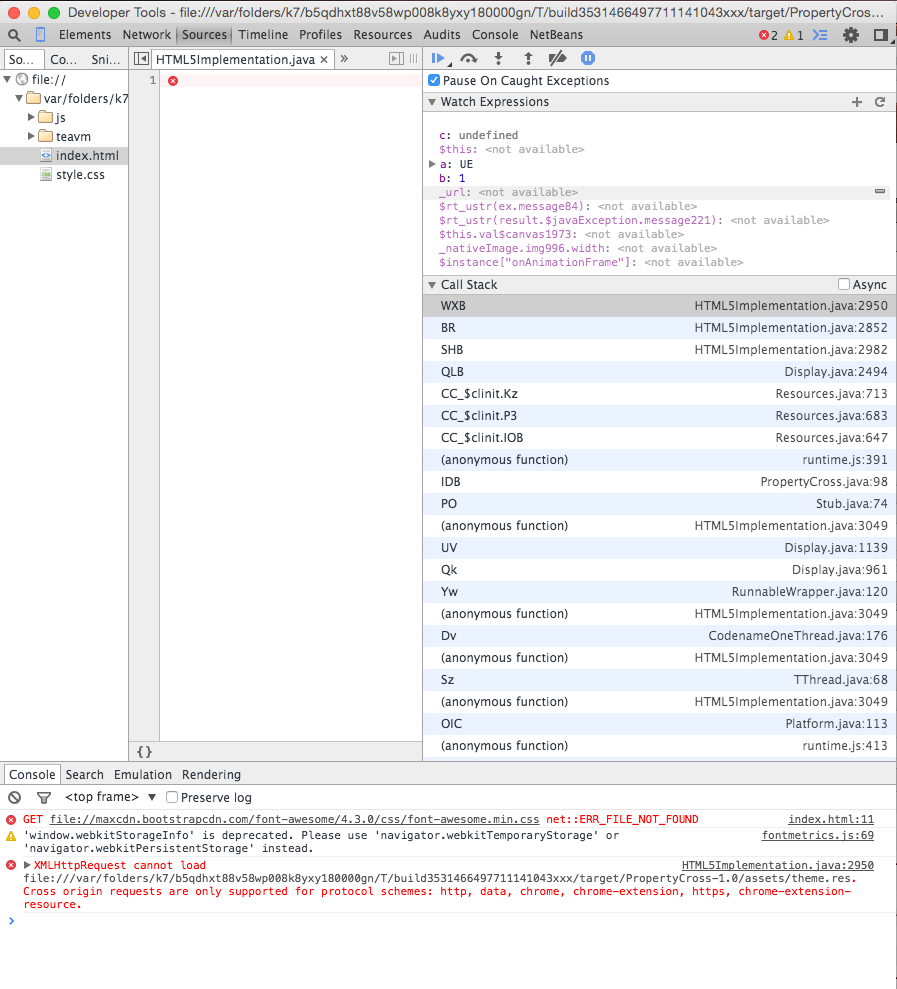 Figure 366. Debugging using Chrome tools
Including Third-Party JavaScript libraries
Codename One allows you to interact directly with JavaScript using native interfaces. Native interfaces are placed inside your project’s native/JavaScript directory using a prescribed naming convention. If you want to, include third-party JavaScript libraries in your application you should also place these libraries inside the native/JavaScript directory but you must specify which files should be treated as "libraries" and which files are treated as "resources." You can do this by adding a file with extension .cn1mf.json file either the root of your native/JavaScript directory or the root level of the project’s src directory.
Libraries vs resources
A resource is a file whose contents can be loaded by your application at runtime using Display.getInstance().getResourceAsStream(). In a typical Java environment, resources would be stored on the application’s classpath (usually inside a Jar file). On iOS, resources are packaged inside the application bundle. In the JavaScript port, resources are stored inside the APP_ROOT/assets directory. Historically, JavaScript files have always been treated as resources in Codename One, and many apps include HTML and JavaScript files for use inside the BrowserComponent.
With the JavaScript port, it isn’t quite so clear whether a JavaScript file is meant to be a resource or a library that the application itself uses. Most of the time you probably want JavaScript files to be used as libraries, but you might also have JavaScript files in your app that are meant to be loaded at runtime and displayed inside a Web View - these would be considered resources.
The JavaScript manifest file
To differentiate libraries from resources, you should provide a cn1mf.json file inside your native/JavaScript directory that specifies any files or directories that should be treated as libraries. This file can be named anything you like, as long as its name ends with cn1mf.json. Any files or directories that you list in this manifest file will be packaged inside your app’s includes directory instead of the assets directory. It adds appropriate <script> tags to include your libraries as part of the index.html page of your app.
cn1mf.json file in your project’s src directory it could be used to add configuration parameters to platform’s other than JavaScript (although no other platforms use this feature). If you place it inside your native/JavaScript directory, then the JavaScript port will use the configuration contained therein.A simple manifest file might contain the following JSON:
{
    "javascript" : {
        "libs" : [
            "mylib1.js"
        ]
    }
}
That is, It contains an object with key libs whose value is a list of files that should be treated as libraries. In the above example, you’re declaring that the file native/JavaScript/mylib1.js should be treated as a library. This will result in the following <script> tag being added to the index.html file:
<script src="includes/mylib1.js"></script>
mylib1.js file to be packaged inside the includes directory instead of the assets directory.How to NOT generate the script tag
Sometimes you may want a JavaScript file to be treated as a library (that is, packaged in the includes directory) but not automatically included in the index.html page. Rather than specifying the name of the file in the libs list, you can provide a structure with multiple options about the file. For example,
{
    "JavaScript" : {
        "libs" : [
            "mylib1.js",
            {
                "file" : "mylib2.js",
                "include" : false
            }
        ]
    }
}
In the above example, the mylib2.js file will be packaged inside the includes directory, but the build server won’t insert its <script> tag in the index.html page.
Library directories
You can also specify directories in the manifest file. In this case, the entire directory will be packaged inside the includes directory of your app.
<script> tags. Specifying the file directly inside the "libs" list will result in the file being packed directly in the your app’s includes directory. This may or may not be what you want.For example,
{
    "javascript" : {
        "libs" : [
            "mylib1.js",
            {
                "file" : "mylib2.js",
                "include" : false
            },
            {
                "file" : "mydir1",
                "includes" : ["subfile1.js", "subfile2.js"]
            }
        ]
    }
}
In this example the entire mydir1 directory would be packed inside the app’s includes directory, and the following script tags would be inserted into the index.html file:
<script src="includes/mydir1/subfile1.js"></script>
<script src="includes/mydir1/subfile2.js"></script>
index.html file, but the rest of the directory contents will be omitted. If your the library depends on the directory hierarchy and supporting files and you require the single-file preview to work, then you may consider hosting the library on a separate server, and including the library directly from there, rather than embedding it inside your project’s "native/JavaScript" directory.Including remote libraries
The examples so far have demonstrated the inclusion of libraries that are part of the app bundle. But, you can also include libraries over the network by specifying the URL to the library directly. This is handy for including common libraries that are hosted by a CDN.
For example, The Google Maps library requires the Google Maps API to be included. This is accomplished with the following manifest file contents:
{
    "javascript" : {
        "libs" : [
            "//maps.googleapis.com/maps/api/js?v=3.exp"
        ]
    }
}+
{
    "javascript" : {
        "libs" : [
            "https://maps.googleapis.com/maps/api/js?v=3.exp"
        ]
    }
}
Including CSS files
CSS files can be included using the same mechanism as is used for JavaScript files. If the file name ends with .css, then it will be treated as a CSS file (and included with a <link> tag instead of a <script> tag. For example,
{
    "JavaScript" : {
        "libs" : [
            "mystyles.css"
        ]
    }
}
or
{
    "JavaScript" : {
        "libs" : [
            "https://example.com/mystyles.css"
        ]
    }
}
Embedding variables in URLs
Sometimes the URL of a library may depend on the values of some build hints in the project. For example, in the Google Maps cn1lib, the API key must be appended to the URL of the API as a GET parameter. For example, https://maps.googleapis.com/maps/api/js?v=3.exp&key=SOME_API_KEY, but the developer of the library doesn’t want to put his own API key in the manifest file for the library. It would be better for the API key to be supplied by the developer of the actual app that uses the library and not the library itself.
The solution for this is to add a variable into the URL as follows:
{
    "JavaScript" : {
        "libs" : [
            "//maps.googleapis.com/maps/api/js?v=3.exp&key={{javascript.googlemaps.key}}"
        ]
    }
}
The {{javascript.googlemaps.key}} variable will be replaced with the value of the javascript.googlemaps.key build hint by the build server, so the resulting include you see in the index.html page will be something like:
<script src="//maps.googleapis.com/maps/api/js?v=3.exp&key=XYZ"></script>
Browser environment variables
Native interfaces allow you to interact with the JavaScript environment in unlimited ways, but Codename One provides a simpler method of obtaining some common environment information from the browser via the Display.getInstance().getProperty() method. The following environment variables are currently available:
| Name | Description |
|---|---|
| A String, representing the entire URL of the page, including the protocol (like http://) |
| A String, representing the querystring part of a URL, including the question mark (?) |
| A String, representing the domain name and port number, or the IP address of a URL |
| A String, representing the anchor part of the URL, including the hash sign (#) |
| A String, representing the protocol (including ://), the domain name (or IP address) and port number (including the colon sign (:) of the URL. For URLs using the "file:" protocol, the return value differs between browsers |
| A String, representing the pathname |
| A String, representing the protocol of the current URL, including the colon (:) |
| A String, representing the port number of a URL. + Note: If the port number isn’t specified or if it’s the scheme’s default port (like 80 or 443), an empty string is returned |
| A String, representing the domain name, or the IP address of a URL |
| The User-agent string identifying the browser, version etc. |
| The language code that the browser is currently set to. (for example, en-US) |
| the name of the browser as a string. |
| a string that must be an empty string or a string representing the platform on which the browser is executing.
+
For example: |
| the internal name of the browser |
| the version number of the browser |
| Specifies the deployment type of the app. This will be "file" for the single-file preview, "directory" for the zip distribution, and "war" for the war distribution. |
Changing the native theme
The JavaScript port picks a native theme from the build hints and the browser it runs in. The shared nativeTheme hint, and the per-platform ios.themeMode and and.themeMode hints, apply here as they do on a device:
Unset, an Android browser gets the Holo Light theme and every other browser the iOS 7 theme.
nativeTheme=moderngives iOS and Mac browsers the Liquid Glass theme and every other browser Material 3.nativeTheme=nativedoes the same on phones and tablets, and gives a desktop browser the desktop theme of its operating system: Windows 11 Fluent, macOS Aqua, or GNOME Adwaita for Linux and everything else. An iPad counts as a tablet even though it reports a Mac browser.
Two JavaScript hints refine that:
| Hint | Values | Description |
|---|---|---|
|
|
|
| a resource path, such as | Loads this theme in every browser, instead of the one the hints and the browser would pick. Place JavaScript-only themes in |
The build ships only the themes the application can reach. Pinning a desktop theme, or leaving the desktop themes out, keeps the others out of the bundle. A theme your own code opens by name, such as Resources.open("/GnomeAdwaitaTheme.res"), is always kept. If your code builds the name at runtime, for example from its configuration, set javascript.pruneThemes=false to ship every theme.
Title bar and menu bar on the desktop
A desktop native theme expects the operating system to own the window title and the menu bar. The native desktop ports hide the Toolbar and hand the form title to the window and the commands to the system menu bar. A web page has neither, so the javascript.titleBar build hint decides what stands in for them:
toolbar(default) keeps the Toolbar inside the app, styled by the desktop theme, with its hamburger side menu and overflow menu.htmldraws a title bar and a menu bar in the page, above the app. The title bar shows the current form’s title, and the menu bar lists every Toolbar command, grouped into menus byCommand.setDesktopMenu()exactly as the native Windows menu bar groups them. A command with no menu hint goes into a Commands menu. The bars follow the operating system’s look and the browser’s light or dark preference. There are no minimize, maximize or close buttons, because a page can’t do any of those to the browser window.
The browser tab title is the application’s display name in both modes.
Page settings
The generated index.html sets up the page for the application:
The page title is the application’s display name,
codename1.displayName.A
viewportmeta tag gives mobile browsers the device’s width, so the app starts at the phone’s own scale rather than as a shrunken desktop page. The tag doesn’t forbid scaling, so browser and accessibility zoom still work, but touch gestures over the app go to the app, including two-finger ones, so the page itself doesn’t pinch-zoom.Browser translation is off: the page carries
<meta name="google" content="notranslate">andtranslate="no". The app draws its own text, and a browser translating the page under it, or loading it through a translation site, breaks it. Setjavascript.allowBrowserTranslation=trueto let the browser offer translation.The page carries
<meta name="darkreader-lock">, which asks the Dark Reader extension to leave the app’s own colors alone. Dark Reader honors it in its default Dynamic mode only; its Filter, Filter+ and Static modes ignore it. Setjavascript.darkreaderLock=falseto omit it.
Selecting and copying text
The app’s text is present in the page, so find-in-page matches it and assistive technology reads it. Selecting it with the mouse isn’t available by default, because the app itself receives every press and drag.
Set the javascript.textSelection=true build hint to enable browser-native selection for labels, span labels and text areas. Eligible text areas use a persistent native input or textarea, including before focus, so the first drag or right click works. Use the browser’s word/paragraph selection gestures, context menu and copy shortcut; on touch screens, long-press to select or swipe to scroll. Buttons, custom Label subclasses (including sliders), draggable components, password fields, text inside a lead component such as a MultiButton, and components with application pointer or action listeners retain their existing interaction.
The hint also calls TextSelection.setDefaultSelectable(true) and enables Form.getTextSelection() for canvas text that can’t use the DOM layer. An individual read-only component still decides for itself with setTextSelectionEnabled(). Editable native controls retain their normal browser editing selection.
Customize the highlight in the generated application’s CSS with the stable .cn1-native-selection::selection selector, or override its color variables:
<style>
:root {
    --cn1-selection-color: #ffffff;
    --cn1-selection-background: #1967d2;
}
</style>
Choose contrasting foreground and background colors. The browser owns selection handles and native context-menu appearance.
Disabling the 'OnBeforeUnload' handler
By default, apps will display warning/confirm dialog when the user attempts to leave the page.
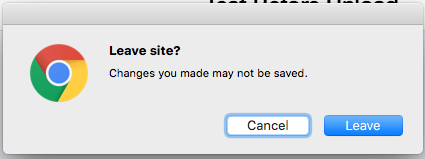
You can explicitly enable or disable this behaviour by setting the "platformHint.javascript.beforeUnloadMessage" display property. Setting the property to null will disable this behaviour, so that users won’t be harassed by this dialog when they navigate away from the app. Setting it to a string value, like "leaving so soon?," will re-enable this behaviour.
Example: Toggling the BeforeUnload prompt On/Off
Form f = new Form("Test Before Unload", BoxLayout.y());
CheckBox enableBeforeUnload = new CheckBox("Enable Before Unload");
enableBeforeUnload.setSelected(true);
enableBeforeUnload.addActionListener(e->{
    if (enableBeforeUnload.isSelected()) {
        CN.setProperty("platformHint.javascript.beforeUnloadMessage", "Are you sure you want to leave this page?  It might be bad");
    } else {
        CN.setProperty("platformHint.javascript.beforeUnloadMessage", null);
    }
});
f.add(enableBeforeUnload);
f.show();
Deploying as a progressive web app
JavaScript application builds include the files needed for progressive web app (PWA) installation. Users can open the app in a browser and install it on browsers that support installation. The default manifest requests a standalone window without browser navigation controls. Offline launch becomes available after the service worker finishes caching the application files; network-dependent features still require a connection.
Below is a screenshot from Chrome for Android where the browser is prompting the user to add the app to their home screen.
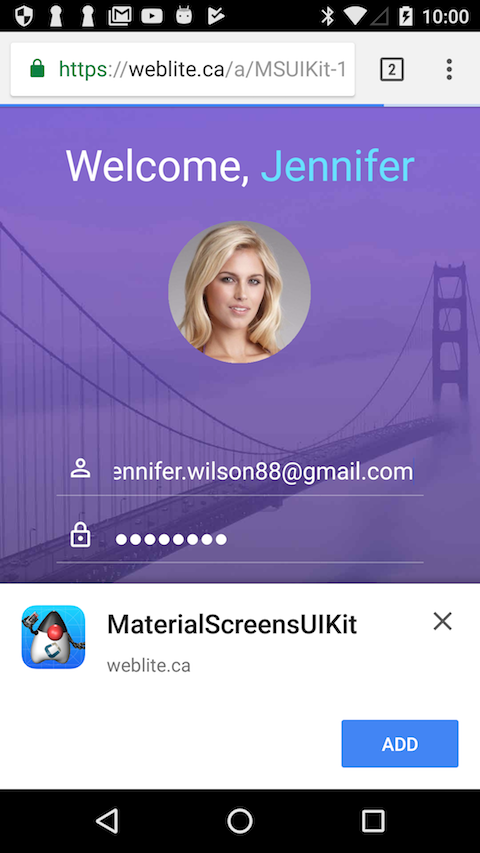
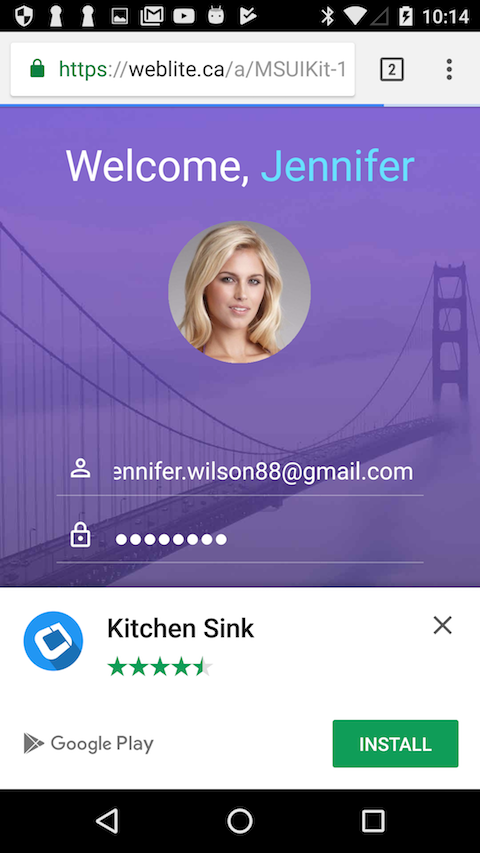
If the app is available as a native app, in the Play store, you can indicate this using the javascript.manifest.related_applications and javascript.manifest.prefer_related_applications build hints. Then, instead of prompting the user to add the web app to their home screen, they’ll be prompted to install the native app from the Play store, as shown below.
localhost. In Chrome DevTools, use the Application panel to inspect the manifest, icons, service-worker status and cache contents, then test an offline reload.For more information about Progressive Web Apps see Google’s introduction to the subject.
Customizing the app manifest file
At the heart of a progressive web app is the web app manifest. It specifies things like the app’s name, icons, description, preferred orientation, display mode (for example, whether to display browser navigation or to open with the full screen like a native app), associated native apps, etc. The Codename One build server will automatically generate a manifest file for your app but you can (and should) customize this file via build hints.
Build hints of the form javascript.manifest.XXX will be injected into the app manifest. For example, To set the app’s description, you could add the build hint:
javascript.manifest.description=An app for doing cool stuff
You can find a full list of available manifest keys here. The build server will automatically generate all the icons so you don’t need to worry about those. The "name" and "short_name" properties will default to the app’s display name, but they can be overridden via the javascript.manifest.name and javascript.manifest.short_name build hints respectively.
javascript.manifest.related_applications build hint expects a JSON formatted list, like in the raw manifest file.Offline use and updates
ParparVM JavaScript application builds generate manifest.json, home-screen icons, and sw.js automatically. No PWA enablement hint is required. Deploy the complete bundle over HTTPS (or localhost for testing), including its subdirectories. Relative manifest and asset URLs allow deployment under a path such as /cn1test/.
The service worker caches the generated application files, including the runtime, translated JavaScript chunks, themes and bundled resources. Wait for its first installation to finish while online before testing offline launch. API responses, proxy requests and external resources aren’t included; application features that need those services still require a connection.
A content change creates a new cache even when the application version is unchanged. An update waits until the previous app’s tabs/windows close before activating, so a running app doesn’t mix runtime and resource versions. Each deployment path has its own cache. Allow browsers to revalidate sw.js and deploy the files together.
Related applications
One nice feature (discussed above) of progressive web apps, is the ability to specify related applications in the app manifest. Browsers that support the PWA standard use some heuristics to "offer" the user to install the associated native app when it’s clear that the user is using the app on a regular basis. Use the javascript.manifest.related_applications build hint to specify the location of the native version of your app. For example, javascript.manifest.related_applications=[{"platform":"play", "id":"my.app.id"}]
You can declare that the native app is the preferred way to use the app by setting the javascript.manifest.prefer_related_applications build hint to "true."
Device/Browser support for PWAs
Installation controls vary by browser. Chrome on Android and Chromium browsers on desktop can install a web app from its manifest. On iOS and iPadOS, use Safari’s Share menu and choose Add to Home Screen. Home Screen web apps support offline service workers; Web Push is available starting with iOS and iPadOS 16.4. Browser support doesn’t by itself configure an application’s push provider or permissions.
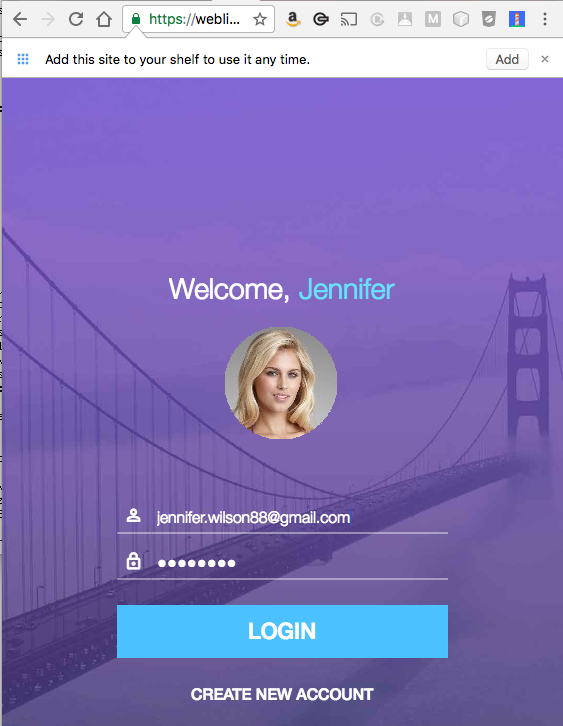
On the desktop, Chrome provides an analogous feature to "add to your homescreen": Add to shelf. If it looks like the user is using the app on a regular basis, and it isn’t yet installed, it will show a banner at the top of the page asking the user if they want to add to their shelf.
Clicking the "Add button" prompts the user for the name they wish the app to appear as:
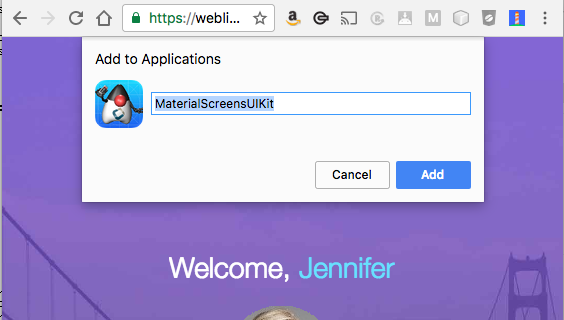
Upon submission, Chrome will generate a real application (on Mac, it will be a .app, on Windows, an "exe," etc.) which the user can double-click to open the app directly in the Chrome. And, importantly, the app will still work when the user is offline.
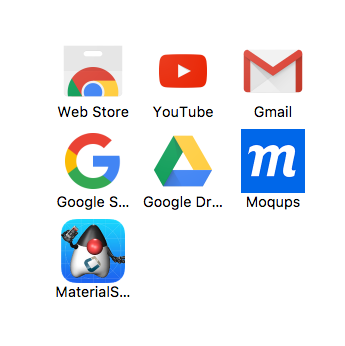
The app will also appear in their "Shelf" which you can always access at chrome://apps, or by opening the "Chrome App Launcher" app (on OS X this is located in "~/Applications/Chrome Apps/Application Launcher").
Playing media and opening links
People don’t like it when the browser automatically starts playing sounds, or opening links without their permission. For this reason, modern browsers restrict your ability to programmatically do these things, unless they’re in response to a user action, like a mouse click.
If your app needs to play media (for example, Media.play()) without the user actually interacting physically (for example, key press or pointer press), then it will display a popup dialog confirming that the user actually wants to perform this action. Opening a link (for example, Display.execute("…")) used to do the same, but now defaults to navigating the current page instead of prompting — see Opening links below.
Sometimes this dialog may affect the utility of the app. For example, suppose you want to play a video in response to a voice command. Having to press an "OK" button after the command, may be annoying. For such cases, you can use the platformHint.javascript.backsideHooksInterval property to poll for media play requests on an authorized event.
For example:
CN.setProperty("platformHint.javascript.backsideHooksInterval", "1000");

// Now your app will process media.play() and Display.execute(null) calls
// once per second (1000ms). If play() or execute() has been called anytime
// in that second (since the last poll), it will seamlessly process the
// request.


// To disable polling, just set it to an interval 0 or lower.
// for example, CN.setProperty("platformHint.javascript.backsideHooksInterval", "0");
Choosing where a link opens
Opening a link deserves its own note, because the restriction above bites almost every app that calls Display.execute(). Codename One dispatches events on its own EDT, so by the time your action listener runs, the browser no longer sees the tap as an ongoing user gesture and refuses to open a new window. Navigating the page the app already runs in has no such restriction: it always works, at the cost of unloading the app.
The port picks between those two with the javascript.execute.target property:
| Value | Behavior |
|---|---|
| The default. Opens a new tab while the page still has user activation, and navigates the current page when it doesn’t. No confirmation sheet is ever shown. |
| Only ever opens a new tab. When the browser blocks that, the port shows a confirmation sheet whose OK button supplies the gesture the browser wanted. This was the behavior before the property existed. |
| Always navigates the page the app runs in. |
// The default. Opens a new tab while the browser still considers a
// user gesture to be in progress, and navigates the page the app runs
// in when it doesn't. Never shows a confirmation sheet.
CN.setProperty("javascript.execute.target", "auto");

// Always navigate the page the app runs in. Never blocked and never
// prompts, but it unloads the app.
CN.setProperty("javascript.execute.target", "_self");

// Only ever open a new tab. When the browser blocks that, the port
// shows a confirmation sheet whose OK button supplies the gesture the
// browser wanted. This was the behavior before the property existed.
CN.setProperty("javascript.execute.target", "_blank");

CN.execute("https://www.codenameone.com/");
auto and _self the app is unloaded whenever the current page navigates away, so persist anything you need before you call execute(). Pick _blank when keeping the app alive matters more than avoiding the sheet.The property applies to any URL the browser can hand off, which means anything carrying a URI scheme. Custom deep links such as imdb:///find?q=godfather count, and so do protocol-relative //host/path URLs. The exceptions keep their existing meaning: a javascript: URL still evaluates on the page, and a data: URL, a file: URL or a path into local storage still becomes a download.
BrowserComponent lifecycle
On the JavaScript port, BrowserComponent uses an iframe that’s added to the DOM when the component is initialized. Understanding the lifecycle is important when showing Dialog`s over forms that contain `BrowserComponent instances.
Dialogs and BrowserComponent
When a Dialog is shown, the parent Form is deinitialized. This causes any BrowserComponent instances on that form to also be deinitialized, which removes their iframes from the DOM. When the Dialog is dismissed and the parent form is re-shown, the BrowserComponent is reinitialized with a new iframe, losing all JavaScript state.
This affects:
Stateful embedded editors - content and cursor position lost
WebRTC connections - broken when removed from DOM
Interactive visualizations - charts, maps, diagrams with JavaScript state
Any JavaScript state - event listeners, variables, etc.
Preserving BrowserComponent state
To preserve the iframe and its JavaScript state across deinitialization cycles, set the HTML5Peer.removeOnDeinitialize client property to Boolean.FALSE:
BrowserComponent browser = new BrowserComponent();
browser.putClientProperty("HTML5Peer.removeOnDeinitialize", Boolean.FALSE);
This keeps the iframe in the DOM even when the component is deinitialized, preserving all JavaScript state.
Lifecycle example
Without the property set:
Dialog.show()is calledParent
Form’s `deinitialize()is calledBrowserComponentis deinitialized, iframe removed from DOMDialog is dismissed
Parent
Form’s `initComponent()is calledBrowserComponentcreates a new iframe - JavaScript state is lost
With removeOnDeinitialize=false:
Dialog.show()is calledParent
Form’s `deinitialize()is calledBrowserComponentis deinitialized, but iframe stays in DOMDialog is dismissed
Parent
Form’s `initComponent()is calledBrowserComponentreconnects to the existing iframe - JavaScript state preserved