The native Windows port compiles a Codename One app to a real, standalone Win32
executable — a single .exe with no JVM and no runtime dependencies. It’s the
Windows analog of the iOS port: the same ParparVM pipeline that turns your Java/
Kotlin bytecode into C and then into a native binary, here targeting Windows with
the LLVM toolchain and rendering through Direct2D / DirectWrite.
This is distinct from the long-standing Windows desktop build, which packages the app to run on a Java Virtual Machine (see Native Windows vs. the desktop (JVM) app vs. the jar for a practical comparison). The native port needs no JVM on the target machine.
.exe (ParparVM + Direct2D/DirectWrite, no JVM)status.md for the current gap list.How it works (the technology stack)
The port reuses Codename One’s portable architecture and swaps in a Win32 / Direct2D implementation layer:
ParparVM "clean" C target. The same VM that powers iOS translates your app
the Codename One core + the minimal Java runtime to C. A CMake project is generated and compiled with clang-cl (LLVM on the MSVC ABI) + Ninja into a native.exe. There is no bytecode interpreter and no JNI — your code is the native binary.Concurrent garbage collector. ParparVM’s non-blocking GC runs natively, the same collector used on iOS.
Direct2D + DirectWrite + WIC. All 2D graphics (primitives, gradients, clipping, affine and perspective transforms, images) go through Direct2D; glyph layout, measurement and rasterization use DirectWrite; image decode/encode uses Windows Imaging Component (WIC). Rendering is GPU-accelerated.
Media Foundation backs
Mediaplayback, and WebView2 backsBrowserComponent(when the WebView2 SDK is present at build time).WinHTTP backs networking; raw sockets and WebSockets use Winsock.
Single self-contained executable. There is no
.app-style bundle directory on Windows, so the app’s classpath resources — the theme.res, images, localization, the material icon font — are embedded directly into the executable’s PE resource section and read back at runtime throughgetResourceAsStream. The result is one file you can copy and run.
Building a native Windows app
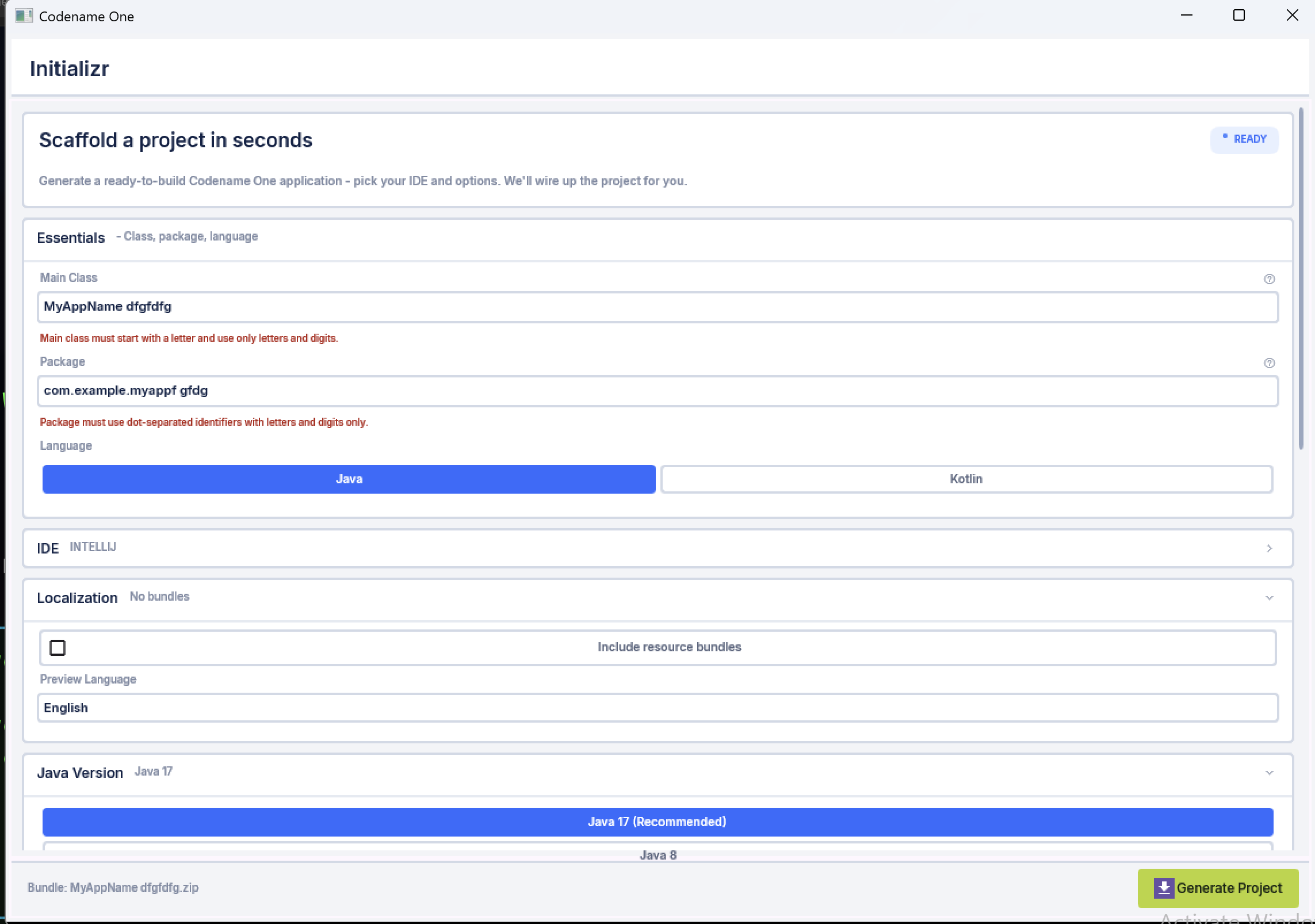
A native Windows build runs through the codenameone-maven-plugin like every
other target; the project produced by the Codename One Initializr already knows
how to build it. The heavy lifting — translate to C, generate the CMake project,
configure and build with clang-cl/Ninja, collect the .exe — is handled by the
builder, so the configuration on your side is trivial.
The build can run two ways, and the builder picks automatically based on the host:
On a Windows host it uses clang-cl + CMake + Ninja inside a Visual Studio developer environment (the CRT and Windows SDK reach the compiler through
vcvarsall).On any other host — for example a Linux build server it cross-compiles with clang-cl + lld-link + llvm-rc against a Windows SDK laid out by
xwin. clang is a cross-compiler, so the PE it emits is identical to a Windows-host build. Point thewindows.sdkRootbuild hint (or theCN1_XWIN_SYSROOTenvironment variable) at thexwin splatdirectory. This is how the build cloud produces Windows binaries without a Windows machine.
Both x64 and arm64 are produced this way — clang-cl cross-compiles to either
architecture from either host; pick the target with the windows.arch build hint.
What you can’t do off Windows is run the result: Direct2D/DirectWrite need a real Windows GPU/display stack (emulation such as Wine is too incomplete to trust), so rendering can only be verified on Windows. A Windows 11 VM (Parallels, Hyper-V, …) or a real machine is therefore the place to test the app, even when the binary itself was built on Linux.
Cloud builds (the win32 target)
On the Codename One build cloud the native Windows build is the win32 target, and it builds on Linux (the Android/JavaScript build group) using the cross-compile above. Trigger it like any other cloud target:
mvn package -Dcodename1.platform=win -Dcodename1.buildTarget=windows-device
The convenience goal mvn cn1:buildWin32, run from the project root, does the same thing. A regular
(release) build returns two binaries — x64 and arm64, both stripped release exes. Setting the
windows.debug build hint instead returns a single x64 exe with symbols, for
diagnosis. (To build locally on a Windows box, use
-Dcodename1.buildTarget=local-windows-device.)
Build hints
The native Windows port adds the build hints below. They use the windows.
prefix; don’t confuse them with the older win. hints, which configure the
JVM-based Windows desktop installer (win.installDirName, win.shortcutName,
…) and have no effect on the native port.
| Name | Description |
|---|---|
windows.arch | Target CPU architecture for the |
windows.debug |
|
The full cross-platform build-hints reference is in the Build hints reference chapter.
Optimized, with debug info in a separate file
The shipping build is optimized (/O2): the linker removes unused functions and
folds identical ones (/OPT:REF and /OPT:ICF), and the debug information isn’t
embedded in the executable — it’s written to a separate .pdb companion. The
.exe therefore stays as small as the translated code allows, while a faulting
address can still be turned back into a function name and source line with
llvm-symbolizer against the .pdb. As a concrete data point, the Codename One
Initializr sample builds to an ~8 MB .exe; the matching .pdb is several times
larger but ships beside the binary rather than inside it, and is only needed to
symbolize a crash. Setting windows.debug=true switches to an unoptimized debug
build with full symbols.
Code signing
Unlike iOS and Android, Windows does not require a signature to run a desktop exe — an unsigned win32 build launches fine. But an unsigned binary that a user downloads shows "Unknown publisher" in the UAC prompt and trips SmartScreen ("Windows protected your PC"), so anything you actually distribute should be Authenticode-signed. Signing is therefore optional in the port (the default is unsigned) but strongly recommended for release.
The port signs with osslsigncode, which
signs Windows PE files on any OS — so signing happens right in the Linux build
cloud, no Windows machine needed. Provide a code-signing certificate and the build
hints below, and each produced exe (x64 and arm64) is signed and timestamped.
Signing with a PKCS#12 certificate
Put your code-signing certificate and key in a PKCS#12 (.pfx/.p12) file and
point your project settings at it:
# codenameone_settings.properties
codename1.windows.signing.certificate=/secure/path/codesign.p12
codename1.windows.signing.password=your-pkcs12-password
# optional signature metadata + timestamping (shown with their defaults):
codename1.arg.windows.signing.name=Acme Corp
codename1.arg.windows.signing.url=https://acme.example
codename1.arg.windows.signing.timestampUrl=http://timestamp.digicert.com
codename1.arg.windows.signing.digest=sha256
You configure the certificate once and it’s used for both local and cloud
builds — a cloud build automatically sends it with the build request (the same
way the iOS and Android signing certificates are uploaded), so there is nothing
extra to do for the build cloud. The signature is timestamped (RFC 3161) by
default, so it keeps verifying after the certificate expires; set
windows.signing.timestampUrl empty to turn that off. Set windows.signing=false
to force an unsigned build even when a certificate is configured.
Hardware-backed and cloud keys
Since June 2023 the CA/Browser Forum requires code-signing private keys to live in
a hardware module, so a brand-new OV/EV certificate is no longer a plain .pfx.
The usual answer is a managed signing service — Azure Trusted Signing, DigiCert
KeyLocker, eSigner from SSL.com — which exposes the key through PKCS#11. osslsigncode
speaks PKCS#11, so the build host points at the service’s provider per its docs; the
rest of the flow (digest, timestamp, the resulting signed exe) is identical. Plain
.pfx signing remains fine for internal/test certificates and for certs issued
before the cutoff.
osslsigncode must be on the build host’s PATH (or set CN1_OSSLSIGNCODE
to its location). If signing is requested but the certificate or tool is missing,
the build fails with a clear message rather than shipping an unsigned exe by surprise.Native Windows vs. the desktop (JVM) app vs. the jar
Codename One can produce three different Windows artifacts from the same project. They trade off self-containment, size, startup and maturity differently:
Native Windows .exe | Desktop app (JVM) | Executable jar | |
|---|---|---|---|
Summary | A real Win32 binary (ParparVM → C → native), Direct2D/DirectWrite rendering. | Your app running on a JVM with the Java SE port (Swing-hosted rendering), packaged as a Windows installer. | A runnable |
JVM required on the target? | No — fully self-contained. | No if the installer bundles a JRE; otherwise it relies on one. | Yes — a compatible JDK (11–25) must be installed on the machine. |
Artifact size | One | Largest: app + a bundled JRE (the JRE alone is ~40–70 MB). | Smallest: a few MB (just bytecode); the JVM lives outside it. |
Startup | Native process start — no VM warm-up. | JVM start-up cost. | JVM start-up cost. |
CPU architecture | Native x64 and arm64 binaries ( | Intel x64 only — it ships with a bundled Intel Java 8 JRE (no arm64 build; on an arm64 machine it runs through Windows' x64 emulation). | Whatever the installed JVM supports. |
Look & rendering | Direct2D/DirectWrite, GPU-accelerated; the material native theme. | Swing-hosted Codename One rendering (the simulator’s pipeline). | Same as the desktop app. |
Portability of the artifact | Windows-only, and per-architecture. | Windows-only installer. | Cross-platform — the same jar runs anywhere a supported JVM exists. |
Maturity | Young — a foundation, with gaps (see | Mature, battle-tested. | Mature, battle-tested. |
In practical terms: reach for the native .exe when you want to ship a single
self-contained, JVM-free, architecture-native Windows app that starts instantly;
reach for the desktop (JVM) app when you want the mature, fully featured desktop
experience and don’t mind shipping (or depending on) a JVM; and reach for the
jar when you want the smallest, most portable artifact for machines that already
have a JDK.